How to Unlock a PDF Without a Password - Free & Private
Got a PDF that asks for a password every time you open it? Here's how to remove password protection from PDF files - including owner restrictions that block printing, copying, and editing - all for free, in your browser, without uploading anything.
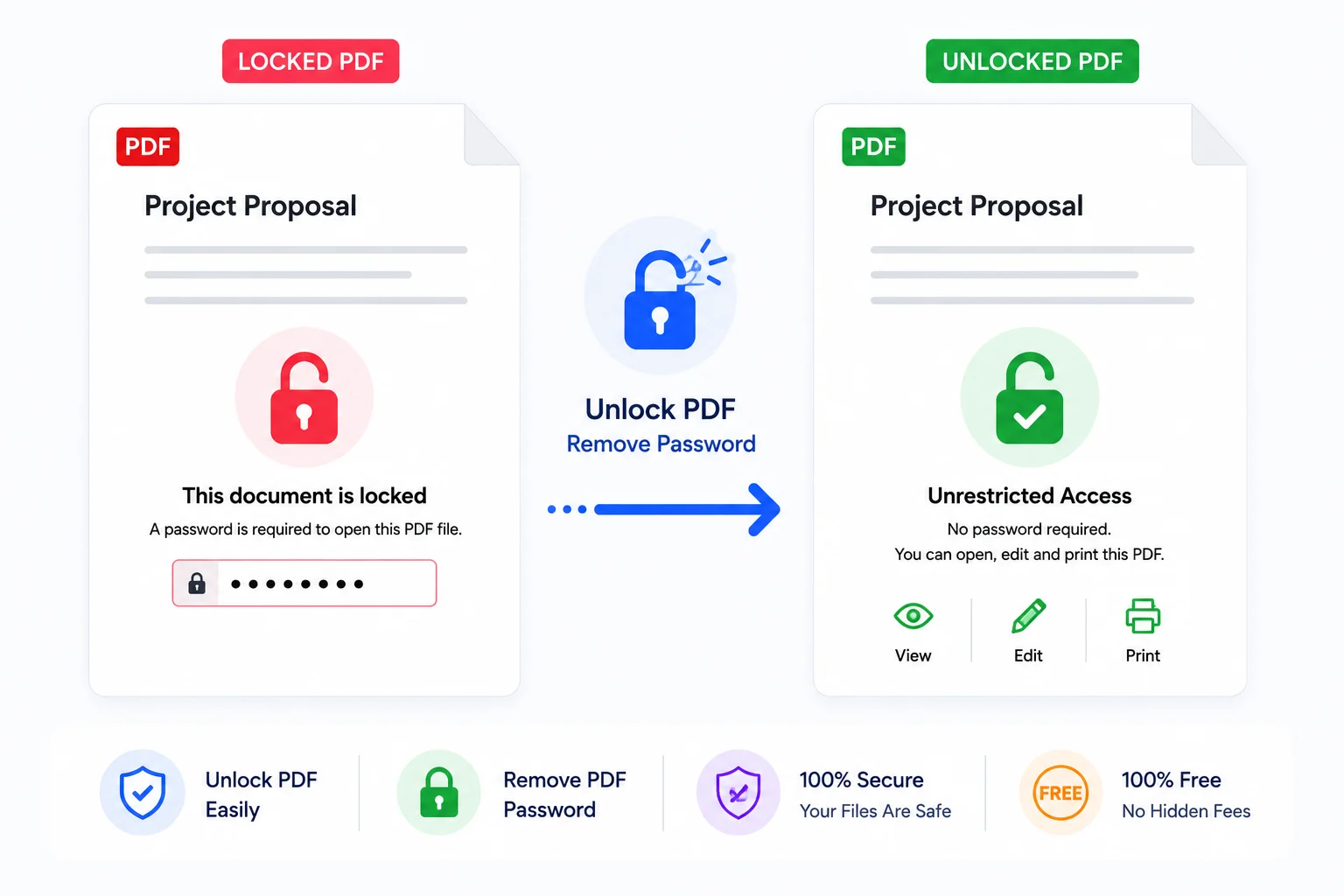
You open a PDF you need — a contract, a tax document, a report from a client — and instead of the content, you get a lock icon. Print disabled. Copy disabled. You can look at it but you cannot do anything useful with it.
This is frustrating because the document is clearly meant to be used. Someone applied restrictions before sending it, and now you are stuck with a file that opens in read-only mode with most features greyed out.
The good news: removing PDF password protection and restrictions is straightforward, free, and does not require uploading your file anywhere.
Quick answer: How do you unlock a PDF without a password?
If the PDF has owner restrictions (printing, copying, editing blocked), remove them instantly without any password using a browser-based unlock tool. If it requires a password just to view, you need that password to decrypt it. PDFCrush's Unlock PDF tool handles both — strips owner restrictions without a password, and decrypts open-password files if you provide the key. All processing runs locally; your file never leaves your device.
Why PDFs Get Locked in the First Place
PDF security comes in two flavours, and understanding the difference saves you time and frustration.
Owner restrictions (permission passwords)
This is the most common type you will encounter. The PDF creator applied restrictions during export — typically from Adobe Acrobat, Microsoft Word, or another PDF creation tool. These restrictions control:
- Printing — the file may block printing entirely, or allow only low-resolution printing
- Content copying — text selection and copy-to-clipboard is disabled
- Editing — annotations, form filling, and page modifications are blocked
- Accessibility — screen readers and assistive technology may be restricted
The PDF opens without asking for a password. But the moment you try to print, select text, or annotate, you hit a wall.
The critical detail: owner restrictions can be removed without knowing any password. They are flags stored in the PDF's security dictionary, and a PDF unlock tool simply clears those flags. The content is not encrypted.
Open passwords (document-open passwords)
Less common but more restrictive. The PDF requires a password before it even displays the first page. This is actual encryption — the file content is scrambled and cannot be read without the decryption key.
For this type, you need the password. No tool can bypass strong AES-256 encryption. If you have forgotten the password, your options are limited to checking common passwords you use, looking in your password manager, or asking the sender.
Mixed security (both)
Some PDFs have both — an open password to view, plus owner restrictions layered on top. If you provide the open password, the unlock tool can then also strip the owner restrictions in one pass.
How PDF Unlocking Actually Works
Understanding what happens when you unlock a PDF helps you choose the right approach and set correct expectations.
What the tool does
A PDF unlock tool reads the file's security dictionary — a section of the PDF structure that stores permission flags and encryption parameters. For owner-restricted files, the tool simply sets all restriction flags to "allowed." For encryption-based protection, the tool uses the provided password to decrypt the file stream, then saves a clean copy with no security applied.
The output is a standard, unrestricted PDF that opens in any reader without limitations.
What the tool does NOT do
- It does not re-encode or recompress the file content
- It does not alter images, fonts, or layout
- It does not modify the visible content in any way
- It cannot bypass strong encryption without the correct key
The unlocked file is identical to the original except the security restrictions are gone.
How to Unlock a PDF Online Free
The actual process takes about 30 seconds.
Step-by-step
- Open the Unlock PDF tool — navigate to PDFCrush's Unlock PDF tool in any browser
- Upload your PDF — drag and drop the file, or click to browse and select it from your device
- Wait for processing — the tool analyses the PDF structure and identifies the security type. This takes 1-3 seconds for most files
- Download the unlocked PDF — the file saves to your device with all restrictions removed
For open-password protected files, you will be prompted to enter the viewing password. Provide it, and the tool decrypts and saves an unrestricted copy.
What to expect in the result
Open the downloaded file in any PDF reader. Print, copy text, annotate, fill forms — all previously greyed-out features are now available. The document behaves exactly as if the security was never applied.
When You Might Need to Unlock a PDF
Receiving restricted documents from clients
Clients or vendors send PDFs with restrictions enabled by default — often without realising it. "Print disabled" is the most common surprise. Instead of asking them to re-export and re-send, you can unlock it yourself and proceed with your work. Freelancers handling client documents daily will find similar workflow tips in our best PDF tools for freelancers guide.
Recovering access to your own files
You created a PDF years ago, applied protection at the time, and have since forgotten the details. If it is owner-restricted, you can unlock it without any password. If it is open-password protected and you have genuinely forgotten, this is harder — check your password manager, common passwords, or the original source document. This is a common scenario covered in our guide to common PDF problems and how to fix them.
Archiving and document management
PDFs in long-term archives often have restrictions that served their purpose at the time but now just get in the way. Archival systems may need to index, copy, or convert these files — restrictions block automated processing. Unlocking before archiving prevents future compatibility issues. For document-heavy workflows, our best PDF tools for business guide covers end-to-end document management strategies.
Preparing documents for accessibility tools
Screen readers and assistive technology may be blocked by content-accessibility restrictions in the PDF. Removing these restrictions ensures the document is fully usable with accessibility tools — important for compliance with accessibility requirements in many jurisdictions. For more on making your documents accessible, see the guide to cleaning up scanned PDFs and the OCR guide for adding text layers to image-based documents.
PDF Unlock on Mobile
The same workflow works entirely from your phone browser:
- Open Chrome (Android) or Safari (iPhone) and navigate to the Unlock PDF tool
- Tap to upload — your phone's file picker opens. Select the PDF from your downloads, email attachments, or cloud storage
- Processing runs in the browser — the file never leaves your device
- Tap download — the unlocked PDF saves to your phone
No app installation required, no account creation, no data transmitted to a server.
Common Mistakes When Unlocking PDFs
Confusing owner restrictions with open passwords. If the PDF opens without asking for a password but restricts what you can do, it is owner-restricted — you can unlock it without any password. If the PDF asks for a password just to open, that is an open password and you need the key.
Using sketchy online unlockers that ask for your file. Many PDF unlock websites upload your document to their server before processing. If the PDF contains sensitive information (contracts, personal data, financial records), this creates unnecessary exposure. Choose a tool that processes locally in the browser.
Assuming unlock works on DRM-protected eBooks. PDF unlock tools work on standard PDF security (owner passwords and encryption). They do not work on proprietary DRM schemes used by eBook platforms like Kindle or Adobe Digital Editions.
Forgetting to re-protect sensitive documents after unlocking. If you unlock a document to work on it and then need to share it, consider applying a new password if the content is confidential. The Protect PDF tool adds password protection back in seconds.
Relying on a single copy after unlocking. Keep the original protected file as a backup, especially if the document came from a client or official source. Store it alongside the unlocked version so you always have both.
How PDFCrush Compares to Other Unlock Tools
| Tool | Owner restriction removal | Open-password removal | File stays local | Free | Sign-up required |
|---|---|---|---|---|---|
| PDFCrush Unlock | ✅ Instant, no password | ✅ With password | ✅ Browser-based | ✅ Yes | ❌ No |
| Adobe Acrobat | ✅ | ✅ | ✅ Desktop | ❌ $239/yr | ❌ No |
| Smallpdf | ✅ | ❌ Paid only | ❌ Server upload | ✅ Limited | ❌ No |
| iLovePDF | ✅ | ❌ Paid only | ❌ Server upload | ✅ Limited | ❌ No |
| PDF24 | ✅ | ✅ | ❌ Server upload (web) | ✅ Yes | ❌ No |
| Sejda | ✅ | ✅ | ❌ Server upload | ✅ Limited | ❌ No |
The key differentiator for PDFCrush is local processing — your file never leaves your device. For sensitive documents like contracts, NDAs, and personal records, this matters more than feature differences.
What We Found Testing Unlock Tools
We tested five PDF unlock tools against the same document set: a 12-page contract with printing disabled, a 50-page report with copy restrictions, and a government form with both open-password and owner restrictions.
Speed: PDFCrush processed all three files in under 10 seconds total. Server-based tools added 15-30 second upload delays per file.
Owner restriction removal: All tools successfully removed printing and copy restrictions from the contract and report. No tool required a password for this step.
Open-password handling: Of the free tiers tested, only PDFCrush and PDF24 accepted an open-password and returned a fully unrestricted file. Smallpdf and iLovePDF redirected to paid plans. Sejda processed it but added a watermark on the free tier.
Privacy: Only PDFCrush processed files locally. Every other tool uploaded the files to a remote server — including the contract containing client names and commercial terms.
Conclusion
Unlocking a PDF is one of the simplest PDF operations once you understand the type of protection you are dealing with. Owner restrictions come off instantly without any password. Open-password files require the key, but the process is fast once you have it.
The most important choice is which tool you use. For any document containing sensitive information — and most restricted PDFs do — local browser processing is the right approach. Your file should not travel across the internet to have its security flags cleared.
PDFCrush's Unlock PDF tool handles both restriction types, works on any device, processes files locally, and is free. No sign-up, no upload, no watermark.
If you are dealing with documents that need stronger protection after editing, the guide to protecting PDF files online covers password-protecting your output, and the broader privacy guide explains why local processing matters for all document work.
Frequently Asked Questions
Related Articles
How to Protect PDF Files Online - Password, Privacy & Security Guide
Sending a contract, payslip or NDA as a plain unprotected PDF is the digital equivalent of posting it through someone's letterbox unsealed. Here's how to protect any PDF with a password in under 60 seconds - and when you actually need to.
Stop Uploading Sensitive PDFs Online - Process Them Privately in Your Browser
Adobe costs $239 a year. Smallpdf throttles you at 2 files per hour. ILovePDF requires a sign-up for anything useful. PDFCrush does everything in your browser - compress, OCR, scan, extract, sign - with no account, no upload, no watermark, no limit. Here is why it works.
Common PDF Problems and How to Fix Them
PDFs seem simple until they break. File too large, email rejected, formatting scrambled, portal won't accept it, prints with the wrong colours. Here are the real causes behind the most common PDF problems - and practical fixes for each.