Best PDF Tools for Freelancers in 2026
From sending a polished proposal to compressing a 40 MB Figma export before emailing it - here are the PDF tools and workflows every freelancer actually uses, with step-by-step guides for each.
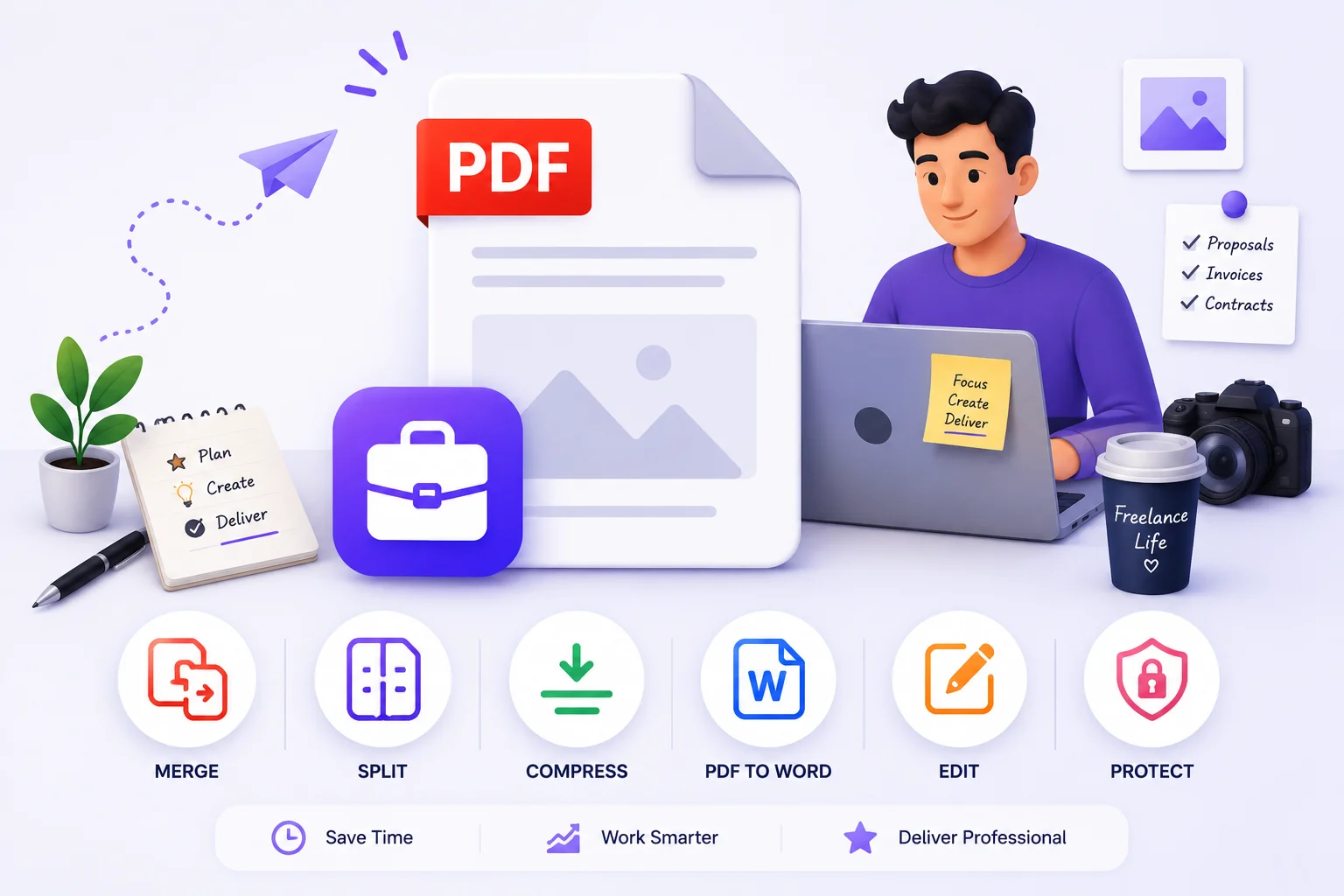
Every stage of freelancing involves a PDF. A proposal to win the project. A contract to protect both parties. Invoices to get paid. Deliverables to close the project. A portfolio to attract the next one.
The friction points are consistent too: a Figma export at 45 MB that won't attach to email, a contract that needs filling and signing without printing, a deliverable that needs protecting before payment clears, a portfolio that needs reordering for a specific pitch. None of these require Adobe Acrobat or any subscription, and none of them require uploading a client's contract or pricing to a third-party server first - the case for keeping sensitive PDFs off other people's infrastructure applies just as much to your business documents as theirs. All of them take under two minutes in a browser.
Quick answer: What PDF tools does a freelancer actually need?
Five cover almost everything: Compress PDF for oversized design exports and proposals, Sign PDF and Protect PDF for contracts and deliverables, Merge PDF for portfolios and submission packages, and Edit PDF for filling in flat contracts without Adobe. All run free in the browser, with no account and no upload to a server - the files never leave your device.
The Core Freelancer PDF Toolkit
These five tools handle every common freelance PDF task:
- Compress PDF - for design exports, portfolios, and proposals over 5 MB. A 45 MB Figma export compresses to 4-8 MB with no visible quality change at screen resolution.
- Sign PDF - for signing contracts without printing. Draw, type, or upload your signature, place it on the page, download. Under 60 seconds.
- Edit PDF / Fill PDF Form - for filling flat contracts and interactive forms without Adobe. Add text boxes over any field, sign in place.
- Protect PDF - for securing proposals with sensitive pricing and deliverables before final payment. AES-128 encryption, 60-second workflow.
- Merge PDF - for building portfolio packages, combining multi-piece deliverables, and creating tailored pitch documents.
Everything else in this guide builds on these five.
Sending Client Proposals as PDFs
A proposal is often the first polished document a potential client receives from you. It sets the tone for the entire engagement. A well-structured PDF proposal signals professionalism that a Google Docs link or a Word attachment doesn't - formatting is locked, fonts render correctly, and the client can't accidentally edit the content.
What a complete proposal contains
- Cover page with client name, project title, and your branding
- Project overview - what you understand about the brief
- Scope of work - deliverables, phases, what's explicitly included and excluded
- Timeline and milestones
- Pricing - per milestone, per phase, or fixed total
- Terms - payment schedule, revision policy, IP transfer on payment
- About you - relevant experience, past clients, testimonials
- Next steps - how the client should proceed
The pricing and terms sections make a proposal commercially sensitive. A competitor seeing your rates changes your negotiating position. A prospect forwarding your proposal to another vendor before a decision creates leverage problems.
Structure for scanning, not reading
Clients skim proposals - plan for it:
- Clear H2/H3 headings for each section
- Key figures (pricing, dates, deliverables) in bold or a table
- Scope of work bullet points instead of prose - vague scope in prose creates scope creep
- Price placed early, not buried at the end - clients scroll to it anyway
Export from any tool
Proposals built in common tools export cleanly to PDF:
- Google Docs: File → Download → PDF
- Canva: Share → Download → PDF Standard
- Notion: Export → PDF
- Microsoft Word: File → Export → Create PDF/XPS
- Figma: File → Export → PDF
After exporting, open the PDF and check it before sending. Page breaks, table formatting, and font rendering sometimes shift during export.
Compress before sending
Design-heavy proposals from Canva or Figma export at print quality. A 15-page branded proposal can be 25-60 MB. Email clients reject attachments above 20-25 MB, and large attachments download slowly on a client's phone.
Use Balanced compression - it preserves the visual quality that makes your proposal look professional while reducing the file to a fraction of the original size. A 40 MB Canva proposal typically comes out at 3-6 MB.
Protect if it contains sensitive pricing
Not every proposal needs a password. But if:
- Pricing is detailed enough that a competitor seeing it would harm your position
- The proposal contains proprietary methodology or strategy
- The pitch involves a competitive process
...add a password. Use the client's company name as the password - easy to communicate and they'll remember it for any follow-up documents. Send the PDF and the password in separate messages.
Editing and Signing Contracts Without Adobe
Freelance contracts arrive as PDFs from clients, from templates you've downloaded, or from legal platforms. Filling them in and signing doesn't require Acrobat - the guide to editing a PDF without Adobe Acrobat covers the underlying workflow in more depth than this section needs to.
Two types of PDF contracts
Interactive PDFs (fillable forms): These have actual form fields you can click into and type. Use the Fill PDF Form tool - it recognises and activates all interactive fields automatically.
Flat PDFs (static documents): These are effectively printed documents saved as PDF. No interactive fields. Use the Edit PDF tool to add text boxes positioned over any part of the page.
Most freelance contract templates downloaded from the web or created in Google Docs are flat PDFs.
How to fill a flat contract
- Open Edit PDF in your browser
- Upload the contract
- Select the Text tool
- Click over the field you need to fill - a text box appears at that position
- Type your content - name, rate, dates, scope details
- Reposition the text box to align with the form lines if needed
- Repeat for every field
- Download the filled contract
Signing once filled
Use Sign PDF to add your signature:
- Draw: Sign with your mouse, trackpad, or finger on a touchscreen
- Type: Type your name in a signature-style font
- Upload: Upload a photo of your handwritten signature
Place the signature on the designated line, adjust size, download.
Handling contract revisions
Contracts often go through rounds of edits - a client wants to adjust payment terms or add a revision cap. For minor changes:
- Open the previous version in Edit PDF
- Use Redact PDF to permanently remove the old term - a black box drawn in Edit PDF can still be lifted off in some viewers, but redaction deletes the underlying content
- Add a text box with the updated term in its place
- Both parties sign the updated version
For substantial revisions, update the source document and re-export a fresh PDF. Keep a versioned folder: Contract_AcmeCo_v1_202604.pdf, Contract_AcmeCo_v2_202605.pdf.
Before signing: check every detail
- Your name and trading name spelled correctly throughout
- Rate and payment schedule match what you agreed verbally
- Scope of work matches the proposal - vague scope here causes disputes
- Revision policy is explicit - number of rounds, what counts as a revision
- IP transfer clause - work belongs to client on full payment
- Termination clause - what happens if either party ends the project early
Protecting Client Documents and Deliverables
Client documents fall into two categories with different protection needs: documents you're sending to the client, and documents the client sends to you. The first category is where your decisions directly affect your business. The full guide to protecting PDFs with a password covers the encryption and permission options in more detail than a freelancer typically needs day to day - here's the part that matters for client work specifically.
Before payment: watermark or password protect
Work delivered before full payment carries risk. A client can use the work, ghost you, and dispute the invoice. Watermarking and password protection don't eliminate this risk legally - but they add friction and make the work clearly pre-payment.
For draft deliverables and mid-project check-ins:
Use Watermark PDF to add a visible overlay:
DRAFT - [YourName/Studio] - [Date]FOR REVIEW ONLY - NOT FOR DISTRIBUTIONCONFIDENTIAL - [ClientName] - [Date]
The watermark is embedded on every page. The client can review and provide feedback, but can't present or distribute the work with the watermark visible.
For final deliverables sent before final payment:
Password protect the PDF. The client can open it to verify the work meets the brief, but can't use it fully until you provide the unrestricted version after payment clears.
Workflow:
- Finalise the deliverable
- Open Protect PDF
- Set a password - something simple the client enters to verify the work
- Email with a note: "Here's the final. Password is [X]. The unlocked version follows once payment is confirmed."
- After payment clears: send the clean unprotected PDF
After payment: clean final version
The clean final version should be:
- Unwatermarked
- Unprotected (unless the client specifically wants it protected for their own records)
- Named consistently:
ProjectName_Final_YYYYMM.pdf - Compressed if large, for the client's ease of storage and sharing
Proposals and strategy documents
Proposals are your commercial property. A client who receives your proposal and shares your pricing or methodology with a competing freelancer has taken something of value. Password-protect proposals that contain:
- Detailed pricing breakdowns
- Proprietary process or methodology
- Strategic recommendations backed by research time
Password convention: The client's company name as the password - easy to communicate verbally, they'll remember it across multiple documents.
Your own records
Always keep signed contracts password protected in your own files. If your email or cloud storage is ever compromised, unprotected contracts expose client pricing, personal details, and commercial terms.
Archive pattern: Protect → Compress → save to /Clients/[Name]/Contracts/.
Invoices and bookkeeping
A year of client invoices as scattered PDFs in a Downloads folder is the kind of thing that turns tax season into a weekend lost to retyping numbers. Invoice Extractor reads vendor name, invoice number, dates, and line-item totals straight out of a PDF and exports them to a spreadsheet - the guide to converting invoice PDFs to Excel walks through the workflow for a batch of them at once. Run it quarterly rather than annually and the year-end reconciliation stops being a project of its own.
Building and Sending Portfolio PDFs
A single clean, paginated portfolio PDF is significantly more professional than a Dropbox folder of individual samples. It's easier for clients to save, review, and forward to decision-makers - and it looks intentional in a way that a collection of files doesn't. The guide to merging PDFs online covers the reordering and batching mechanics in more depth; here's how that applies specifically to building a portfolio.
What to include by discipline
Designers and art directors:
- Cover page with name, discipline, and contact details
- 3-6 selected case studies (brief, process, outcome)
- Notable clients or recognition
- Contact page
Writers and content strategists:
- Cover page
- Selected samples by type (articles, whitepapers, email, social)
- Brief context for each piece - the brief, your approach, the result
- Client list or testimonials if available
Developers and technical freelancers:
- Cover page with tech stack and specialisations
- Selected project descriptions (problem, solution, measurable impact)
- Screenshots or interface examples where relevant
Consultants:
- Executive summary of expertise and focus areas
- Case studies: situation, approach, measurable outcome
- Relevant credentials or publications
Build from individual PDFs
Keep each portfolio piece as its own PDF. This lets you mix and match for different pitches without rebuilding the whole document.
- Export each case study or sample as PDF from your design tool
- Prepare a cover page as a separate PDF
- Open Merge PDF
- Upload cover first, then pieces in order
- Drag to reorder - lead with your strongest work
- Click Merge PDF
The merged document inherits each piece's original layout, orientation, and quality - no re-encoding, no quality loss.
Tailor for specific pitches
Maintain a master portfolio PDF. When pitching specific projects:
- Use Extract Pages PDF to pull the most relevant case studies from the master
- Merge with a custom cover page for that client or pitch
- Compress before sending
A focused 5-piece portfolio tailored to the brief outperforms a generic 20-piece document in almost every case.
Before sending
Add page numbers using Add Page Numbers - they make it easier for a client to reference specific pieces in feedback. Then compress the final merged file.
Keep your portfolio as a layered source file in Figma or Canva. Export individual pieces from there, merge in PDFCrush. When a piece evolves, re-export that section and rebuild the portfolio. The update takes 5 minutes instead of an hour.
Compressing Design Portfolios for Email
A portfolio that looks professional at 55 MB is equally professional at 5 MB - but only one of them emails cleanly, opens instantly on a client's phone, and uploads to every portfolio site without error.
Why design exports are always oversized
Design tools default to print quality - 300 DPI, full-resolution assets, embedded fonts. The settings that make something print-ready are entirely unnecessary for screen viewing.
Canva: A 10-page branded portfolio is typically 20-60 MB.
Figma: Complex UI case studies with screenshots can be 5-15 MB per page.
PowerPoint / Google Slides exported to PDF: Each slide renders as a high-resolution image. A 20-slide deck can be 30-80 MB.
Adobe Illustrator / InDesign: Print-quality by default, with linked high-res images and complex vector paths.
Which compression level to use
| Scenario | Level | Typical result |
|---|---|---|
| Portfolio for email to client | Balanced | Sharp design, 70-80% smaller |
| Upload to Behance or Dribbble | Balanced | Visually identical, portal-friendly |
| Proposal to win new business | Balanced | Design quality preserved |
| Draft for quick internal review | Maximum | Fast delivery, fully readable |
| Archive copy after project close | Maximum | Storage-optimised |
Balanced compression is the right default for anything a client will see. It re-encodes images at screen resolution (72-96 DPI) while keeping vector elements and text at full quality. The difference between the original and the Balanced-compressed version is invisible to anyone reviewing a portfolio on a screen.
The compression workflow
- Export the portfolio from your design tool as PDF
- Open Compress PDF
- Select Balanced compression
- Download and open at 100% zoom
- Spot-check: text is crisp, key images are clean, colours are accurate
- If satisfied: send. Under 30 seconds to verify.
Target sizes by send method
| Send method | Maximum practical | Target after compression |
|---|---|---|
| Direct email attachment | 20-25 MB | Under 5 MB |
| LinkedIn message attachment | 5 MB | Under 3 MB |
| Slack or Teams | 100 MB | Under 10 MB |
| Behance / portfolio site | Varies | Under 5 MB |
| Client portal upload | 5-10 MB | Under 5 MB |
When in doubt, compress to under 5 MB. It fits every email client, opens instantly on any device, and uploads without issue anywhere.
Keep both versions
Portfolio_2026_Full.pdf- master, full quality, for editingPortfolio_2026_Send.pdf- compressed, screen-optimised, for distributing
Update the master when you add new work. Recompress to generate the new send version.
Common Mistakes Freelancers Make With Client PDFs
Sending the proposal before checking the export. Canva, Notion, and Google Docs exports occasionally shift table formatting, break page boundaries, or render a font differently than the editor preview. Open the exported PDF and scroll through it before it goes to the client - a misaligned pricing table undercuts the "polished" impression the document is supposed to create.
Emailing a deliverable with no protection at all, before payment clears. It's easy to finish a project, feel the relief of being done, and just attach the final file. That's the exact moment a client has the least incentive to pay quickly. A password or watermark costs you sixty seconds and removes the temptation entirely.
Forgetting which version of a contract is signed. Revisions without version numbers in the filename - Contract_final.pdf, Contract_final_v2.pdf, Contract_FINAL_FINAL.pdf - create disputes about which terms both parties actually agreed to. Number every revision and keep the signed copy of each clearly separated from drafts.
Merging a portfolio without compressing it first. Ten case-study exports at 8 MB each merge into an 80 MB file that bounces off most inboxes. Compress the source pieces, or compress the merged output, before it goes anywhere near a client's email client.
Reusing the same password for every client. A convenient pattern - the client's company name - becomes a liability if it's the same password reused everywhere and one client's inbox is ever compromised. Vary it enough that one leak doesn't expose every other client's documents too.
Quick Reference: Freelancer PDF Toolkit
| Situation | Tool |
|---|---|
| Proposal too large to email | Compress PDF |
| Proposal needs password before sending | Protect PDF |
| Contract has interactive fillable fields | Fill PDF Form |
| Contract is flat (no fields) | Edit PDF |
| Signing a contract | Sign PDF |
| Draft deliverable needs DRAFT watermark | Watermark PDF |
| Final deliverable locked before payment | Protect PDF |
| Multiple portfolio pieces to combine | Merge PDF |
| Portfolio tailored for a specific pitch | Extract Pages PDF |
| Design export too large for email | Compress PDF |
| Adding page numbers to a merged portfolio | Add Page Numbers |
| Archiving signed contracts | Compress PDF + Protect PDF |
| Invoice data needed in a spreadsheet | Invoice Extractor |
| Sensitive section to remove before sharing | Redact PDF |
These tools are free, require no account, and work in any browser on any device. Nothing is uploaded to a server - your client files stay on your machine throughout.
What We Found Running an Actual Freelance Workflow Through It
We ran a simulated freelance cycle end to end: a 14-page Canva proposal (38 MB export), a flat contract template filled and signed, a five-piece design portfolio, and a draft deliverable that needed watermarking before review.
The Canva proposal compressed from 38 MB to 4.2 MB on Balanced compression with the pricing table and branded layout intact at 100% zoom - confirming the "invisible difference on screen" claim isn't just marketing copy. It attached to a standard Gmail message with room to spare.
Filling the flat contract in Edit PDF took under four minutes, including repositioning two text boxes that landed slightly off the form's printed lines. Sign PDF added a typed signature in the same session - no separate tool, no print-sign-scan loop.
Watermarking the draft deliverable was the fastest step in the whole cycle - under thirty seconds to add a DRAFT - REVIEW ONLY overlay across all twelve pages, and it remained clearly visible without obscuring the actual content underneath.
The five-piece portfolio merge surfaced one real snag worth flagging: two of the source PDFs were in landscape and the rest portrait. The merge preserved every page's original orientation exactly as documented - which is correct behavior, but it meant the final document needed a quick rotation pass on those two pieces before it looked intentional rather than accidental. Building portfolio pieces in a consistent orientation from the start avoids this entirely.
Total time across proposal, contract, watermarking, and portfolio assembly: just under twenty minutes - against what would typically be an afternoon split across Adobe Acrobat, a separate e-signature tool, and manual file-size troubleshooting.
Conclusion: The Toolkit Fits in a Browser Tab
None of this requires a Creative Cloud subscription, a DocuSign account, or a separate compression utility. Compress PDF, Sign PDF, Edit PDF, Protect PDF, and Merge PDF cover the proposal-to-payment cycle that every freelancer repeats project after project - and they run entirely in the browser, which means a client's contract or pricing never has to leave your machine to get handled.
Bookmark the five core tools, build the habits in this guide - compress before sending, protect before payment, watermark before final delivery - and the PDF side of freelancing stops being friction. It becomes the thirty seconds between finishing the work and sending it.
Frequently Asked Questions
Related Articles
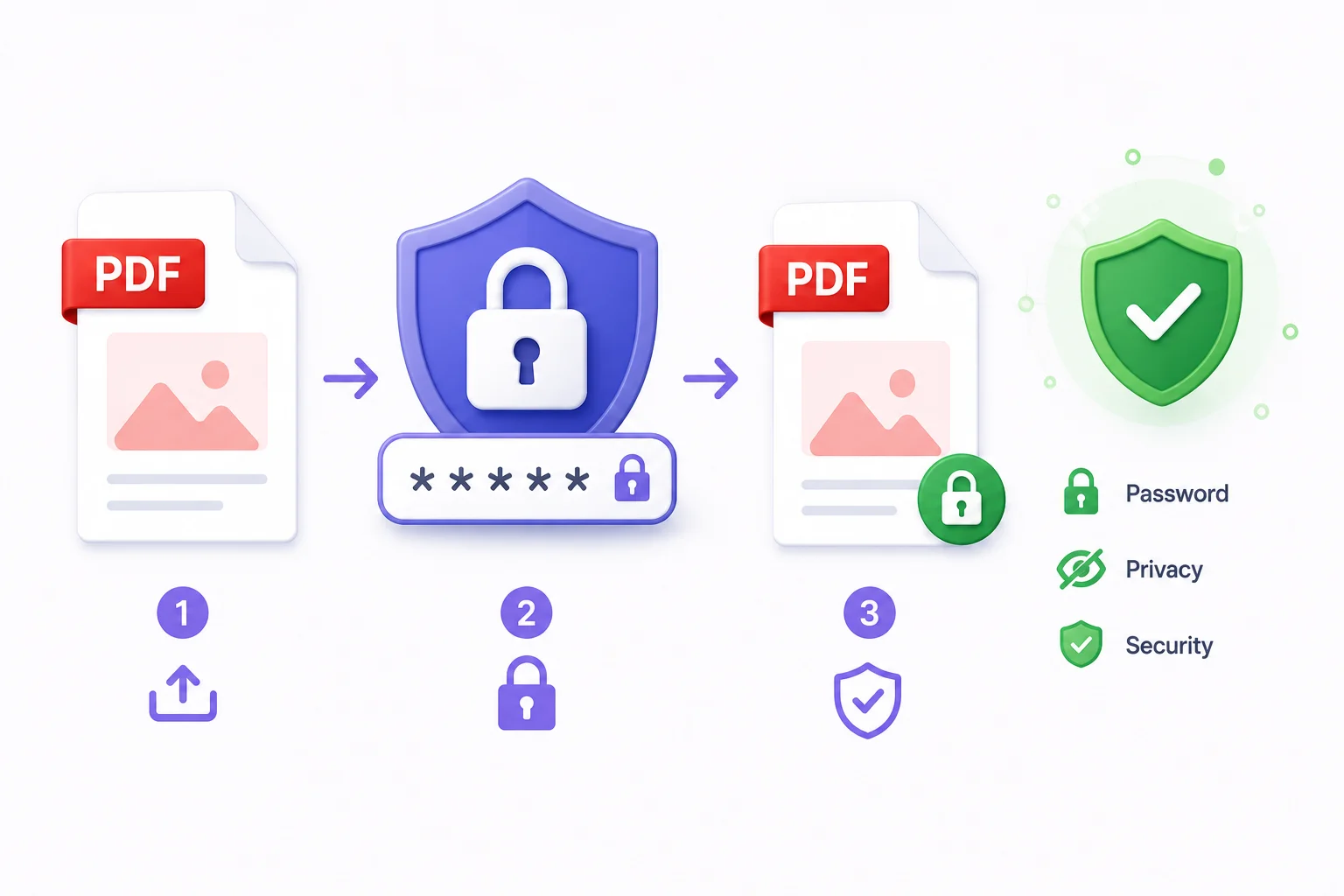
How to Protect PDF Files Online - Password, Privacy & Security Guide
Sending a contract, payslip or NDA as a plain unprotected PDF is the digital equivalent of posting it through someone's letterbox unsealed. Here's how to protect any PDF with a password in under 60 seconds - and when you actually need to.
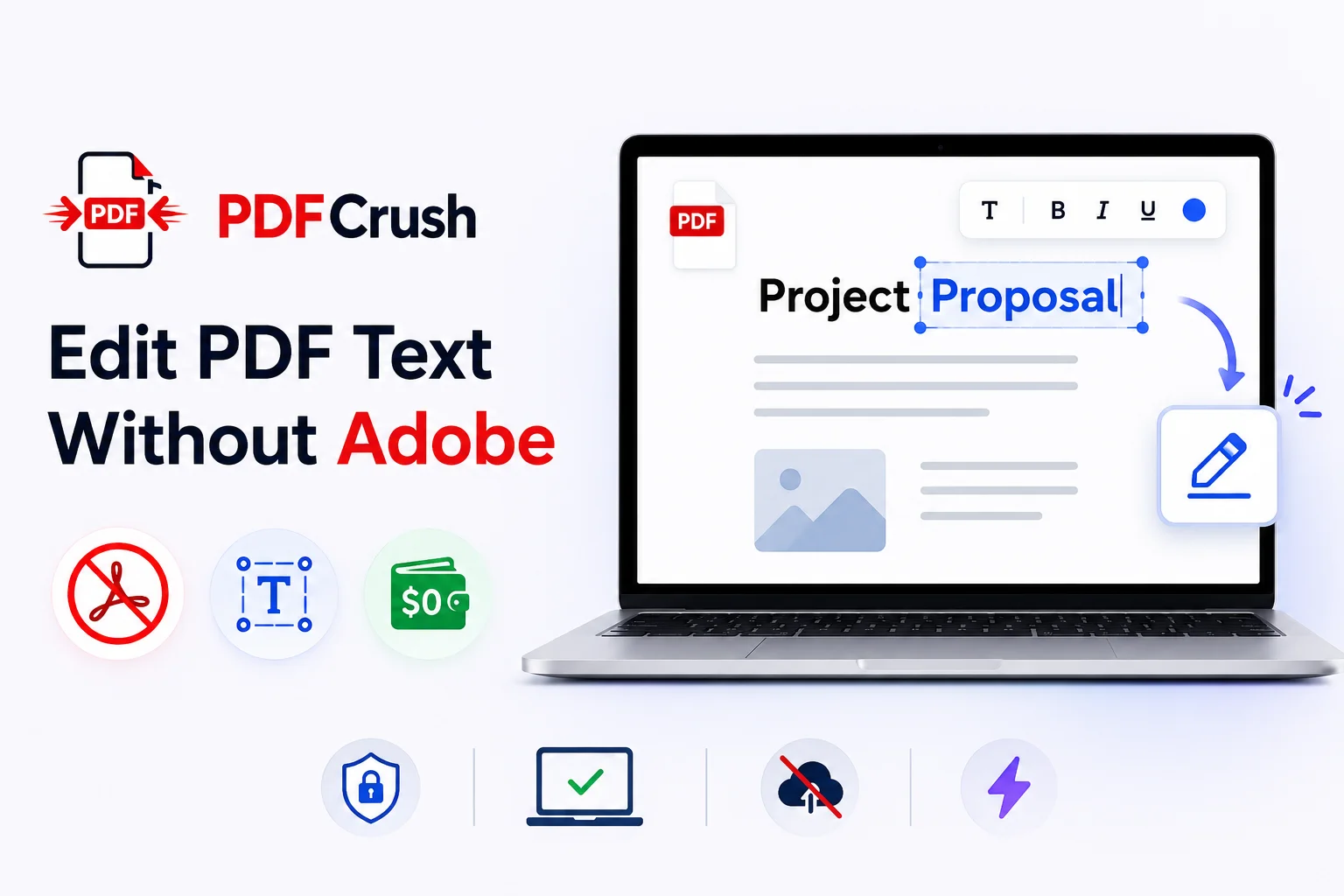
How to Edit PDF Without Adobe Acrobat - Free Online Tools That Actually Work
Adobe Acrobat Pro costs $239 a year. For most people - freelancers, students, remote workers - that's a subscription for a tool they need once a week. Here's how to do everything Acrobat does, for free, in a browser.
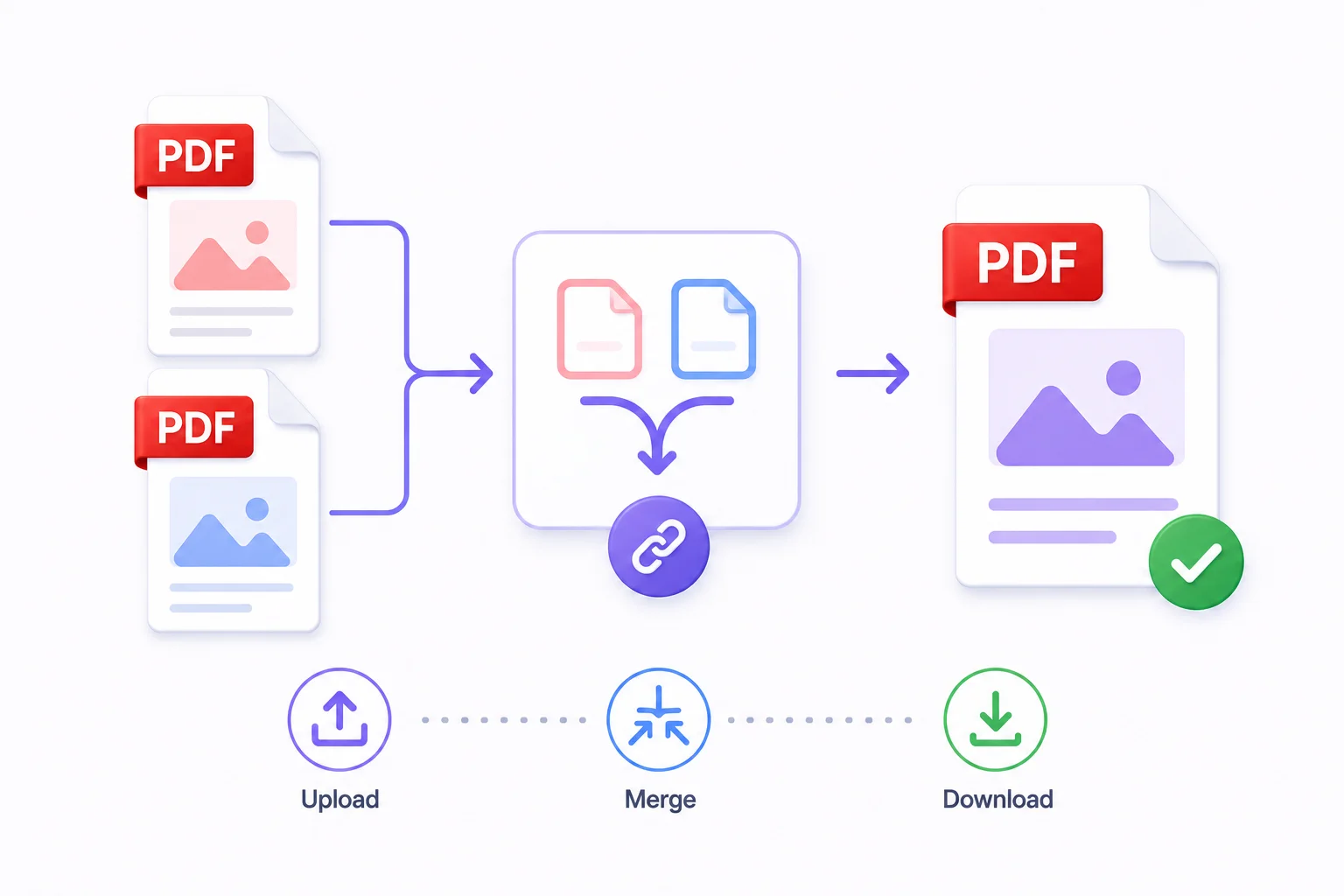
How to Merge PDF Files Online - Free & Fast
Whether you're combining a contract with its appendix, joining scanned pages into one document, or assembling a portfolio from individual pieces - merging PDFs takes under a minute with the right tool.