How to Protect PDF Files Online - Password, Privacy & Security Guide
Sending a contract, payslip or NDA as a plain unprotected PDF is the digital equivalent of posting it through someone's letterbox unsealed. Here's how to protect any PDF with a password in under 60 seconds - and when you actually need to.
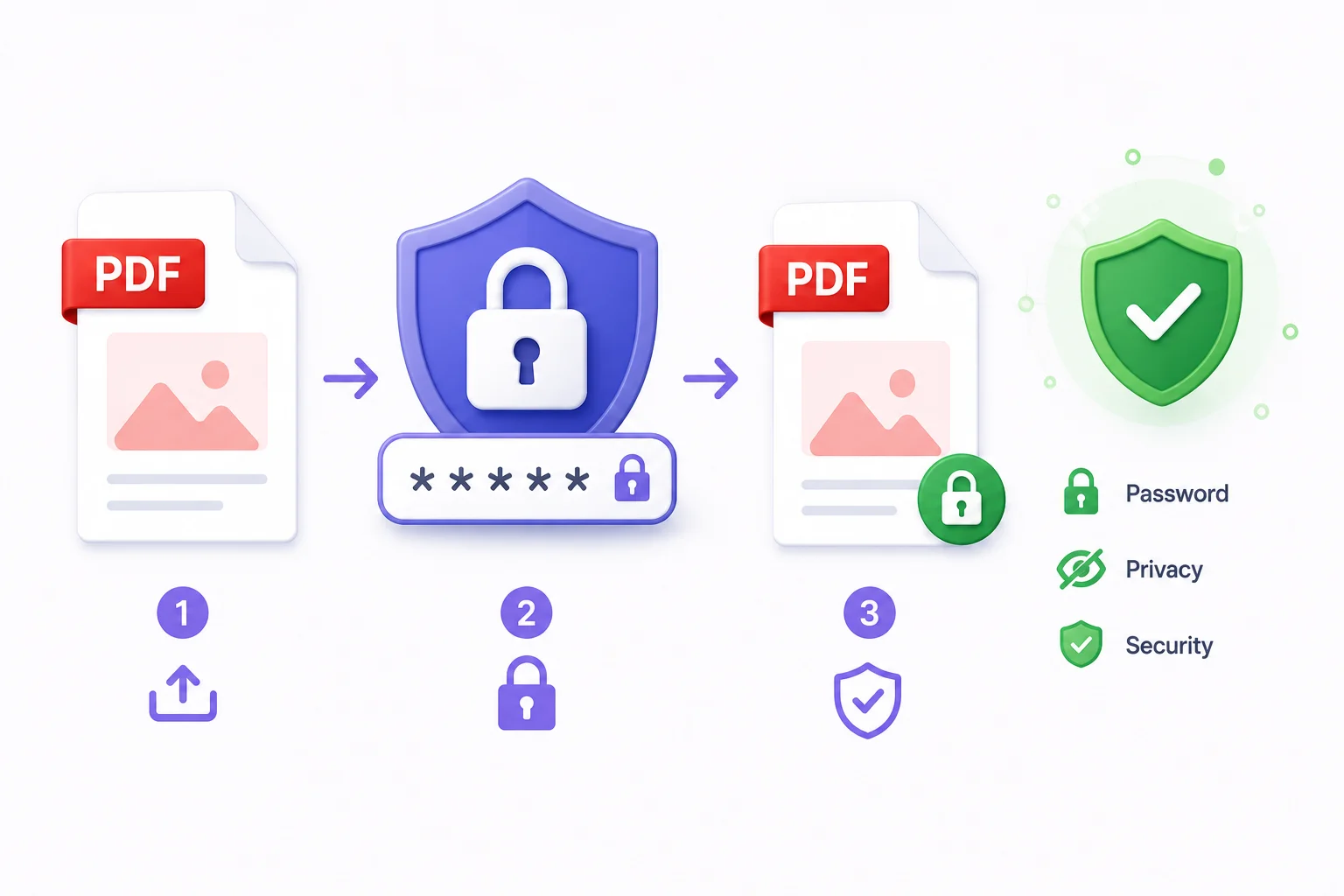
Sending a contract, payslip or NDA as a plain unprotected PDF is the digital equivalent of posting it through someone's letterbox unsealed. The document reaches its destination, but anyone who intercepts it along the way - or stumbles across it in a shared inbox, cloud folder, or forwarded thread - can read every word.
PDF password protection is not paranoia. It's a 60-second step that adds real encryption to your file. The right recipient enters the password and opens it normally. Everyone else sees a locked file.
This guide covers every practical scenario: contracts, invoices, HR documents, client files, and the privacy habits that actually matter.
Quick answer: How do I add a password to a PDF for free?
Open Protect PDF, upload your file, type a password and confirm it, then click Protect PDF and download the encrypted file. PDFCrush applies AES-128 encryption entirely in your browser - the file never leaves your device. The whole process takes under 60 seconds, and the result opens in any standard PDF reader once the recipient enters the password.
How PDF Password Protection Works
Before getting into specific document types, it's worth understanding what protection actually does - and what it doesn't do.
What a password does
PDF encryption scrambles the content of the file using AES (Advanced Encryption Standard). Without the correct password, the file's contents are mathematically inaccessible - a reader application can open the file container, but the actual text, images, and data inside it are unreadable.
The standard in use by modern PDF tools is AES-128 or AES-256. This is the same encryption standard used in banking and government systems. With a strong password, brute-force attacks are not practically viable.
Two types of PDF password
Open password (user password): Prevents the file from opening at all. Anyone who tries to open it - in any PDF reader, on any device - is prompted for the password. This is what most people mean when they say "password-protect a PDF."
Permissions password (owner password): Lets the file open normally, but restricts what recipients can do - printing, copying text, editing, adding annotations. This is less common for sharing and more common for distribution control.
Most business use cases need an open password. Permissions passwords are useful for distributed reports or forms where you want recipients to read but not extract.
What a password does not do
Password protection encrypts the file. It doesn't:
- Prevent a recipient who has the password from forwarding the file to someone else
- Stop someone with the password from printing it and handing it around
- Add a watermark or identify the recipient
For those controls, you need a combination of tools: watermarking identifies the recipient, redaction removes sensitive sections entirely, and legal agreements govern what recipients can do with the document.
How to Add a Password to a PDF - Step by Step
The process takes under 60 seconds:
- Open Protect PDF in your browser - no installation, no account
- Upload your PDF - click to browse or drag and drop
- Enter a password. Enter it again to confirm
- Click "Protect PDF"
- Download the encrypted file
The tool uses AES-128 encryption. The result is a standard password-protected PDF that opens in any PDF reader - Adobe, Preview on Mac, Chrome's built-in viewer, PDF readers on Android and iOS - anywhere.
Pick a password you can remember or store it in a password manager immediately after creating it. There is no password recovery for encrypted PDFs - the encryption is real.
Secure Sensitive PDF Documents
Not every PDF needs a password. But the documents that do need one share predictable characteristics. Understanding the categories makes the decision automatic rather than case-by-case.
What makes a PDF sensitive
A document is sensitive when it contains one or more of:
Personally identifiable information (PII): Full name combined with address, date of birth, national ID numbers, passport numbers, bank details, tax identification numbers. Exposure creates identity theft risk.
Financial data: Account balances, salary figures, pricing, commercial terms, invoice payment details. Exposure creates fraud risk and competitive disadvantage.
Legally binding terms: Contracts, NDAs, agreements. Exposure before execution creates negotiation risk. Exposure after execution creates liability risk.
Confidential business information: Strategies, client lists, pricing models, internal processes, unreleased product plans. Exposure creates competitive risk.
Health and personal records: Medical history, diagnoses, prescriptions, leave records. Exposure creates discrimination risk and regulatory liability in most jurisdictions.
Document categories that always need protection
| Document category | Why it's sensitive | Protection level |
|---|---|---|
| Identity documents | PII - enables identity theft | High |
| Bank and financial statements | Account details, balances | High |
| Contracts and agreements | Legal terms, pricing, obligations | High |
| Payslips and salary letters | Compensation, personal data | High |
| Medical certificates and records | Health data | High |
| Proposals and quotes | Pricing, methodology, strategy | High |
| Performance reviews | Personal career data | High |
| Tax documents | Financial data, ID information | High |
| Client reports and deliverables | Confidential business data | Medium-High |
| Internal business reports | Commercial data, strategy | Medium |
Layered protection for the most sensitive documents
For the highest-sensitivity categories - identity documents, medical records, legal agreements - protection should be layered:
- Redact sections not relevant to the recipient before sharing - see the guide to permanent PDF redaction for why a black box isn't enough
- Watermark if sending a draft or preview version
- Compress if the file is large (compression won't work on an already-encrypted file)
- Password protect before transmission
- Email the protected PDF; send the password via a separate channel
- Log what was sent, to whom, on what date, and which password was used
Protecting Contracts and Legal Documents
Contracts are the most critical documents most businesses handle. They contain pricing, terms, obligations, and signatures. A contract sent as an unprotected email attachment can be forwarded, modified, and misrepresented.
When to protect contracts
- NDAs and confidentiality agreements before signing
- Service agreements sent to new clients
- Employment contracts sent to candidates
- Partnership and vendor agreements
- Any contract with pricing, IP, or sensitive business terms
Recommended workflow for contracts
- Finalise the contract in your document editor
- Export as PDF
- Add a password using Protect PDF
- Sign the protected PDF digitally using Sign PDF if needed
- Email the protected PDF to the recipient
- Send the password separately - in a text message, a separate email, or via your shared communication platform
Never include the password in the same email as the attachment. If the email is forwarded or the inbox is accessed by someone else, both the file and the password travel together. If a clause needs a last-minute fix after the PDF is exported, the guide to editing a PDF without Adobe Acrobat covers making that change without re-exporting from the source document.
After signing: compress and archive
Signed contracts accumulate quickly. Compress each signed contract after filing - a 15 MB signed contract with scanned pages compresses to 2 - 3 MB without any quality loss, keeping your archive manageable without losing a single readable character.
How to Share Contracts Securely
Adding a password is one step. Secure contract sharing covers the full chain: how the document is prepared, transmitted, how the password reaches the recipient, and how the signed final version gets archived.
The complete secure contract sharing workflow
Step 1: Prepare the document Finalise the content. Remove any tracked changes, internal comments, or metadata not intended for the recipient before exporting. Word's "Inspect Document" or Google Docs' version history clean-up handle this.
Step 2: Export as PDF Export from your editor as a clean PDF. Flatten form fields and annotations on final versions.
Step 3: Compress if needed Contracts above 5 MB - common with scanned signature pages or multi-exhibit agreements - should be compressed before protection. The compressor cannot access encrypted content, so compression must come first.
Step 4: Add password protection Open Protect PDF, upload, set a strong password (see conventions below), download the encrypted file.
Step 5: Email the contract Send the protected PDF as a normal email attachment. The subject line can describe the document. The protection makes the content inaccessible regardless of who intercepts the email.
Step 6: Deliver the password separately
| Channel | Use when |
|---|---|
| SMS to verified number | Standard business agreements |
| Established client relationships | |
| Phone call | High-value or sensitive agreements - no written record of the password |
| Separate email sent 30+ min later | Acceptable for lower-risk documents |
| Password manager secure share | Internal team distribution |
Never: write the password in the same email as the file, in the subject line, or in a reply to the email thread that contains the attachment.
Step 7: Confirm receipt For high-value agreements, confirm the recipient opened the file before considering delivery complete.
Password conventions for contracts
Managing per-document passwords at scale requires a convention:
- Per-counterparty:
[CompanyName][Year]- e.g.,AcmeCorp2026. Client uses the same password for all documents from you. Simple and memorable. - Per-document-type: One password for contracts, a separate one for NDAs, another for proposals. Limits exposure if one category is compromised.
- Date-rotated:
Contract[MonthYear]- e.g.,ContractMay2026. Rotate quarterly. Recipients who receive a document in May know the password without prompting.
Archiving signed contracts
- Collect all signed pages as PDFs
- Merge into one final document
- Compress the merged file
- Re-protect with your archive password
- Store with restricted-access permissions in your document management system
Protecting Invoices and Financial Documents
Invoices contain bank account details, payment terms, company registration numbers, and client billing information. An invoice in the wrong hands is a phishing template.
What financial documents need protection
- Invoices sent to clients with bank/payment details
- Purchase orders with pricing and supplier information
- Bank statements, financial reports, account summaries
- Tax documents - ITR filings, GST returns, assessments
- Payslips and salary breakdowns
The invoice workflow
For invoices specifically, the protection approach depends on your volume and audience:
One-off or high-value invoices: Protect individually with a password. Use the client's name or account number as the password - it's something they know, you remember, and it's unique per client.
Regular monthly invoices to the same client: Establish a shared password at the start of the relationship. Both parties know it. Every invoice in that relationship uses the same password - no need to communicate a new one each time.
Invoices sent via accounting software: Most accounting platforms (Xero, QuickBooks, FreshBooks) send invoices through their own portals. If you're exporting and emailing PDFs manually, add protection before sending.
For invoices, a practical password convention: use the client's company name + invoice month, e.g., "AcmeMarch2026". Memorable, unique per period, not reused across clients.
After sending, run invoices through Invoice Extractor to automatically pull vendor details, line items, and totals into a structured format - useful for reconciliation and expense tracking. The guide to extracting invoice data to Excel covers that workflow end to end.
Protect Financial Documents Before Emailing
Financial documents sent by email are the primary target for business fraud. Invoice redirection fraud - where attackers intercept or impersonate invoice emails and substitute their own bank details - costs businesses worldwide billions each year. Payslips in shared inboxes are personal data breaches. Leaked financial reports before publication are regulatory violations.
Protection takes 60 seconds. The risk of skipping it is not theoretical.
Email-specific risks for financial PDFs
Unencrypted email transit: Standard email is not end-to-end encrypted. A message carrying an unprotected PDF invoice can be read by anyone with access to either mail server along the transmission path.
Shared inboxes and forwarding: Accounts payable teams share inboxes. Invoices get forwarded to approvers. Finance reports get copied to executives. An unprotected financial document circulates freely across every inbox it touches.
Email archiving systems: Corporate email archiving retains copies of every message - often for 7+ years for compliance. An unprotected invoice sent in 2024 may still be retrievable in an archived thread in 2031.
Reply thread contamination: When an unprotected invoice gets replied to, the original attachment travels with every reply. It may end up in dozens of inboxes across multiple organisations.
Protection workflow for financial documents by type
Invoices to clients:
- Generate the invoice as PDF
- Password: use
[ClientName][Month][Year]as a consistent convention - e.g.,AcmeApril2026 - Email the protected invoice
- Text the password to the accounts payable contact
For established relationships, maintain the same password convention. No new communication needed each cycle - the client knows the pattern.
Bank statements and financial reports for internal distribution:
- Export the statement or report as PDF
- Compress if above 5 MB
- Password protect with the appropriate team password
- Send to recipients with the password via Slack, Teams, or a phone call - not in the email body
Payslips:
- Generate individual payslip PDFs
- Protect each with the employee's unique identifier - employee ID, or a date of birth format agreed internally
- Email to the employee's personal email address on file
Never send payslips to a shared work email or distribution list. Send to the individual's personal address registered with HR. The payslip is personal data - shared inboxes are inappropriate recipients regardless of whether the file is protected.
What to verify before sending
Before emailing any financial PDF:
- File is password protected
- Password sent via a separate channel - not in the same email
- Sending to the correct individual address, not a distribution group
- File contains only what the recipient needs - redact sections not relevant to them
- File is compressed if above 5 MB to ensure reliable delivery
Protecting HR Documents
HR files sit at the intersection of legal obligation, personal privacy, and serious regulatory risk. A payslip or performance review in the wrong inbox is not just embarrassing - in many jurisdictions it's a data protection violation.
HR documents that require protection
- Payslips and salary letters
- Offer letters with compensation details
- Employment contracts and termination letters
- Performance reviews and disciplinary records
- Background check results and reference letters
- Leave records and medical certificates
- Onboarding documents with personal identification
HR-specific protection practices
Per-employee passwords: The most secure approach is a unique password per employee - their employee ID, date of birth in a specific format, or a combination. They already know this information. No password communication needed, and documents can only be opened by the correct person.
Department-level passwords: For internal HR reports distributed to a specific management team, a shared department password is acceptable. Change it when team members leave.
Sensitive medical and disciplinary records: These warrant the highest protection level. Consider using Redact PDF to permanently remove particularly sensitive sections before sharing with anyone who doesn't need the full context - a manager reviewing a leave policy doesn't need to see the underlying medical details. Adding sequential identifiers to multi-page HR case files also keeps disclosure logs auditable.
Legal context
In most jurisdictions (GDPR in Europe, PDPA in Singapore, IT Act and DPDP in India), personal data transmitted electronically must be protected with appropriate technical measures. Password protection with AES-128 encryption satisfies the "appropriate technical measures" standard for most routine HR document sharing.
Protecting Client Files and Deliverables
Client-facing documents carry commercial risk. If a proposal gets forwarded to a competitor or a deliverable is shared before the client has paid, the damage is real.
What client files need protection
- Project proposals and quotes with pricing
- Strategy documents, audits, and reports
- Design deliverables and creative briefs
- Research, data, and analysis reports
- Any document with client-specific insights, data, or pricing
Watermarking before final payment
For deliverables sent before full payment, consider adding a visible watermark to the PDF before protecting it. This identifies the document version clearly and discourages forwarding without acknowledgement. Use Watermark PDF to add a "DRAFT" or "CONFIDENTIAL" text layer, then protect the watermarked version with a password.
After payment, send the clean final version - still password-protected.
Proposals and quotes
Proposals are commercially sensitive on multiple levels: they expose your pricing, methodology, and strategy. A proposal forwarded to a competitor reveals your rates. A proposal circulated internally at a client before the deal is done creates negotiating risks.
Protect every proposal before sending. Use a password the client will remember - their company name plus a simple word is enough. The friction of entering a password is low. The risk of an unprotected proposal circulating is not.
Redacting before sharing
Some client documents contain information that isn't relevant to the recipient - internal cost breakdowns in a client-facing report, personal details about team members in a project file. Use Redact PDF to permanently remove those sections before protecting and sending. True redaction removes the content entirely, not just visually - it can't be selected, copied, or recovered, unlike a black box drawn over text (the redaction guide explains the difference in detail).
Encrypt PDFs for Client Sharing
"Password protection" and "encryption" are used interchangeably in most PDF tool interfaces. Understanding the distinction helps when clients or legal teams ask questions about document security standards.
What the encryption actually does
When you protect a PDF with a password, the tool applies a cipher to every byte of the file's content using the password as the key. PDFCrush uses AES-128 (Advanced Encryption Standard, 128-bit key length).
AES-128 has not been broken. A brute-force attack against an AES-128 encrypted file using a strong password would require more computational cycles than currently exist on Earth. The practical vulnerability is not the algorithm - it's the password strength. "password123" protected with AES-128 is weak. A 16-character random password protected with AES-128 is not.
The encryption covers everything inside the PDF: text, images, form fields, embedded fonts, metadata. The file container (the fact it's a PDF) is visible without the password. The contents are not.
AES-128 vs AES-256 for client documents
Most client-sharing use cases are served by AES-128 with a strong password. AES-256 uses a longer key and is marginally harder to attack in theory - the practical difference for document sharing with a strong password is negligible.
Consider AES-256 when:
- A compliance framework specifies it (some EU financial services, US government contractors)
- The document contains trade secrets with 10+ year sensitivity
- A client's security policy explicitly requires it
For standard proposals, reports, contracts, and deliverables: AES-128 with a strong, unique password is appropriate and defensible.
What to tell clients about encrypted PDFs
Clients unfamiliar with password-protected documents sometimes have friction opening them. A brief note in the covering email avoids support requests:
"This document is password protected. You'll be prompted for a password when you open it - I've sent the password [by text / separately]. It opens normally in any PDF app on any device."
That one sentence prevents most confusion.
Full client delivery workflow
- Finalise the deliverable in your tool of choice
- If draft stage: add a DRAFT - [ClientName] - [Date] watermark using Watermark PDF
- Redact any internal cost breakdowns, team rates, or notes not intended for the client
- Compress if above 5 MB - this must happen before encryption, not after
- Protect with a strong password: 12+ characters, mixed case, number, symbol
- Email the protected PDF with a brief note about the password
- Send the password via WhatsApp, SMS, or phone to the primary client contact
- Record the password in your CRM or client folder for future reference
For ongoing client relationships, maintain a persistent client password rather than generating a new one per document. Reduces communication overhead without weakening security - the password is already in the client's records.
PDF Privacy Tips That Actually Matter
Password protection is one layer. These are the additional practices that close the remaining gaps.
Send the password separately from the file
This is the single most important rule. If you email a protected PDF and include the password in the same email:
- Anyone who gains access to that email thread has both
- Email forwarding sends both automatically
- The protection is effectively decorative
Send the PDF by email. Send the password by text, WhatsApp, phone call, or a completely separate email sent later. For high-value documents, confirm receipt before sending the password.
Use strong passwords - not your company name
"Company2026", "password123", and the recipient's name are not passwords. They take seconds to guess. A strong PDF password:
- Is at least 12 characters
- Contains uppercase, lowercase, numbers, and at least one symbol
- Is not a dictionary word or obvious phrase
- Is unique to this document or recipient relationship - not reused from other systems
A password manager (1Password, Bitwarden, KeePass) generates and stores strong passwords without you having to remember them. Most have a built-in password generator.
Process sensitive PDFs locally, not on upload-based tools
Most online PDF tools send your file to a remote server for processing. Your sensitive contract or payslip is transmitted over the internet, processed on a machine you don't control, and potentially logged. Even with reputable tools, this is a risk for genuinely sensitive documents.
PDFCrush processes all files locally in your browser. The JavaScript runs on your machine. Your file never leaves your device - not for compression, protection, signing, or any other operation. For a thorough breakdown of why local processing matters, see stop uploading sensitive PDFs online.
Don't store unprotected sensitive PDFs in shared cloud folders
Google Drive, Dropbox, OneDrive - shared folders are convenient, but access controls drift over time. An ex-employee's access that wasn't revoked. A folder shared too broadly in a hurry. A link sent to the wrong person.
Sensitive PDFs in shared folders should be password-protected even there. The cloud storage protects against external attackers. The password protects against internal access creep.
Redact before sharing when in doubt
If you're not sure whether a section of a document is appropriate for a particular recipient, redact it. Permanently. Redact PDF re-renders marked areas as image data and removes the underlying text layer - it can't be undone, it can't be selected, and it can't be recovered by anyone receiving the file.
This is particularly important for:
- ID documents where only part is needed (show name and number, not address)
- Financial documents where only specific figures are relevant
- Legal documents being shared with parties who don't need full disclosure
- Medical or personal records being shared for limited purposes
Review your sharing history periodically
Every time you send a sensitive document, log it: what was sent, to whom, when, and what password was used. A simple spreadsheet is enough. When a client relationship ends, you know exactly which documents they have access to and which passwords to change.
Protect PDF → Compress → Send: The Right Order
One common question: should I protect before or after compressing?
Always compress before protecting. Here's why:
- Compression reads and re-encodes the PDF content
- If the file is already encrypted with a password, the compressor cannot access the content
- You'll get an error or a file that's no bigger than the original
The correct workflow:
- Create your PDF (export from Word, scan, fill a form)
- Compress if the file is large
- Add watermark or redaction if needed
- Add password protection
- Send - password separately
Remove Password From PDF Safely
Removing a password from a PDF is sometimes necessary - to edit, compress, merge, or re-share a document. Done correctly, it takes under a minute and leaves no trace of the old protection. Done carelessly, it creates an unprotected document that circulates without restriction.
When to remove a password
Legitimate reasons to unlock a PDF:
- The document needs to be updated and re-issued with revised terms
- You want to compress the file before re-protecting (compressor requires unencrypted content)
- You need to merge the document with other PDFs into a combined file
- The recipient has lost their copy and you need to resend with a new password
- You want to add a watermark, redact a section, or add page numbers
- The document is being archived in a system that requires unencrypted input
How to remove a PDF password - step by step
- Open Unlock PDF in your browser
- Upload the protected PDF
- Enter the correct password when prompted
- Download the unlocked file
The resulting PDF is identical to the original in content and layout. All pages, images, text, and formatting are preserved exactly. The encryption layer is removed.
Safety practices when unlocking
Work with a copy, not the original. Before unlocking, keep the password-protected version as your archive copy. Unlock a duplicate for the editing or compression step. If something goes wrong during editing, you still have the original protected version.
Re-protect immediately after your task is complete. Don't leave an unlocked sensitive document sitting in your Downloads folder. Complete the edit/compression/merge, re-protect the result, and delete the unprotected intermediate file.
Don't store unlocked sensitive documents in shared folders. If you unlock a contract or payslip to update it, work with the unlocked file on your local machine, not in a shared drive folder where others may access it during the editing window.
Change the password when re-protecting after significant updates. If the content has changed materially (new terms, revised figures, updated personal data), use a new password rather than the previous one. This ensures recipients working from old copies can't open the revised document with their old password.
When you can't unlock - forgotten passwords
If you've lost the password to a PDF you created and there's no copy in a password manager:
- Check if you have the source file (Word, Google Docs, Excel). Re-export as PDF and re-protect with a new password.
- Check email history for the message where you sent the password to a recipient - you may have a record.
- Check your password manager's history or audit log - some managers keep deleted entries recoverable for a period.
There is no "reset" or "recovery" option in the PDF standard itself. If the password is genuinely lost and no source file exists, the encrypted content is inaccessible.
The re-protection workflow
After unlocking and completing your task:
- Complete the edit, compression, merge, or update
- Open Protect PDF
- Set a new strong password (or the same one if appropriate)
- Download the re-protected file
- Delete the unprotected intermediate file from your device and any cloud sync folders
- Update your password records if the password changed
Common Mistakes When Protecting PDFs
Sending the password in the same email as the file. This is the single most common mistake, and it makes the protection decorative. Anyone who gains access to the thread - or any forwarded copy of it - has both the file and the key. Always send the password through a separate channel.
Using the company name or recipient's name as the password. "AcmeCorp" or "JohnSmith2026" takes seconds to guess from context clues in the email itself. A strong password is 12+ characters, mixed case, numbers, and a symbol - or better, generated and stored by a password manager.
Compressing or merging an already-encrypted PDF. Compression and merge tools need to read the file's content stream - an encrypted file is mathematically opaque to them. Unlock first, do the edit, then re-protect. Trying to compress a protected PDF directly just produces an error or a file that's no smaller.
Forgetting the password with no source file to fall back on. There is no recovery option in the PDF encryption standard - this is real encryption, not a UI lock. Store new passwords in a password manager the moment you create them, especially for documents you don't have an editable source for.
Treating password protection as the only control needed. A password stops an unauthorized person from opening the file. It does not stop the right person from forwarding it, printing it, or screenshotting it. For documents that need stronger guarantees, layer in watermarking and redaction - a password alone is one layer of several.
Summary: Which Documents Need Protection?
| Document type | Protection needed | Recommended approach |
|---|---|---|
| Contracts and NDAs | High | Open password + send separately |
| Invoices with payment details | High | Per-client password convention |
| Payslips and salary docs | High | Per-employee password |
| Proposals and quotes | High | Open password + watermark draft version |
| Client deliverables | Medium - High | Password + redact internal sections |
| Internal reports | Medium | Department-level shared password |
| General business correspondence | Low - Medium | Password if contains personal data |
The threshold is simple: if the document contains pricing, personal data, financial information, legal terms, or anything you wouldn't want forwarded without your knowledge, add a password. It takes 60 seconds and costs nothing.
What We Found Testing PDF Protection End to End
We ran a batch through the full protect/unlock cycle: a 12-page contract, a scanned 3-page payslip, and a 40-page client report with a draft watermark - checking encryption strength, round-trip fidelity, and where the workflow could trip someone up.
Encryption held up exactly as documented. Files protected with Protect PDF opened correctly with the right password in four different readers (Chrome, Adobe Reader, Preview on Mac, and a mobile PDF app) and refused to open - not partially, not in preview mode - without it. AES-128 is doing real work here, not a cosmetic lock.
Order of operations mattered exactly as the guide says. Attempting to compress an already-protected file produced no size reduction and a tool error - confirming that compress-then-protect is not just a recommendation but a hard requirement of how encryption works.
Round-trip via Unlock PDF was lossless. Protecting the contract, then unlocking it with the correct password, produced a file byte-identical in content to the original - same fonts, same layout, same form fields, same metadata aside from the encryption flag.
The watermark-then-protect order produced the cleanest result. Watermarking the report first, then protecting the watermarked version, kept the "DRAFT - Client Name" text legible and tamper-evident under encryption. Reversing the order would have meant unlocking the file just to add the watermark - an unnecessary extra step.
The weak spot was never the encryption - it was password handling. Every failure mode we could think of (forgotten passwords, passwords sent in the same email, reused passwords across clients) traces back to human process, not the cryptography. The technology is solid; the discipline around it is what determines whether it actually protects anything.
Conclusion: The Lock Is Easy - The Habit Is the Hard Part
Adding a password to a PDF takes under a minute with Protect PDF - upload, type a password twice, download. AES-128 encryption does the heavy lifting, and it has not been broken. What actually determines whether a document stays private is everything around that one click: a strong, unique password; sending it through a different channel than the file; compressing and redacting before encrypting, not after; and not leaving unlocked copies sitting in shared folders.
Build those habits once - a password convention per client, a note to send the password separately, a quick redaction pass on anything borderline - and protecting sensitive PDFs stops being a decision you make case by case. It becomes the default, and it costs nothing but the sixty seconds it always took.
Frequently Asked Questions
Related Articles
Stop Uploading Sensitive PDFs Online - Process Them Privately in Your Browser
Adobe costs $239 a year. Smallpdf throttles you at 2 files per hour. ILovePDF requires a sign-up for anything useful. PDFCrush does everything in your browser - compress, OCR, scan, extract, sign - with no account, no upload, no watermark, no limit. Here is why it works.
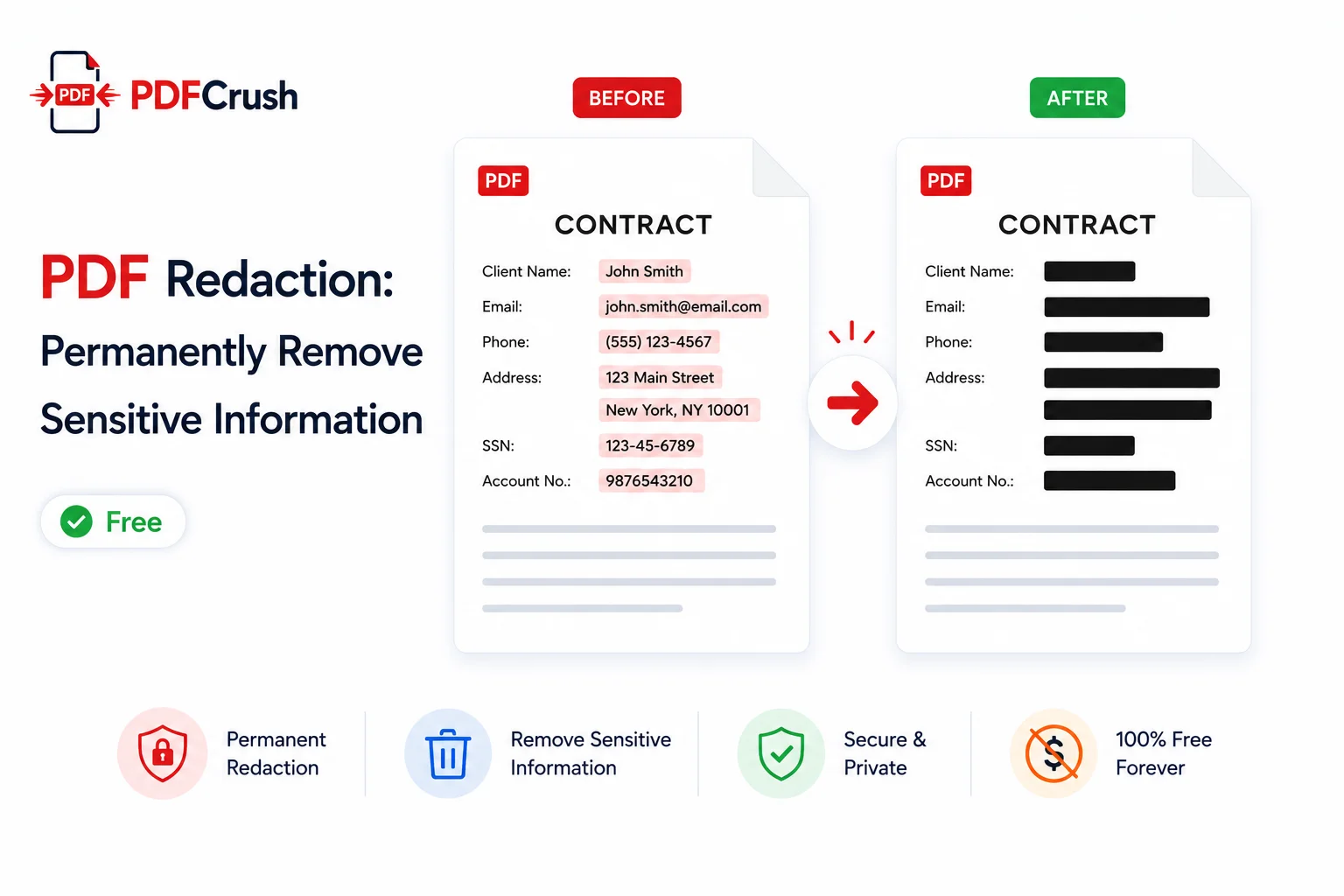
PDF Redaction: How to Permanently Remove Sensitive Information Free
Drawing a black box over text is not redaction — the text is still there. This guide explains what true PDF redaction is, why it matters, and how to permanently destroy sensitive content from any PDF for free, without Adobe, without uploading your files to any server.
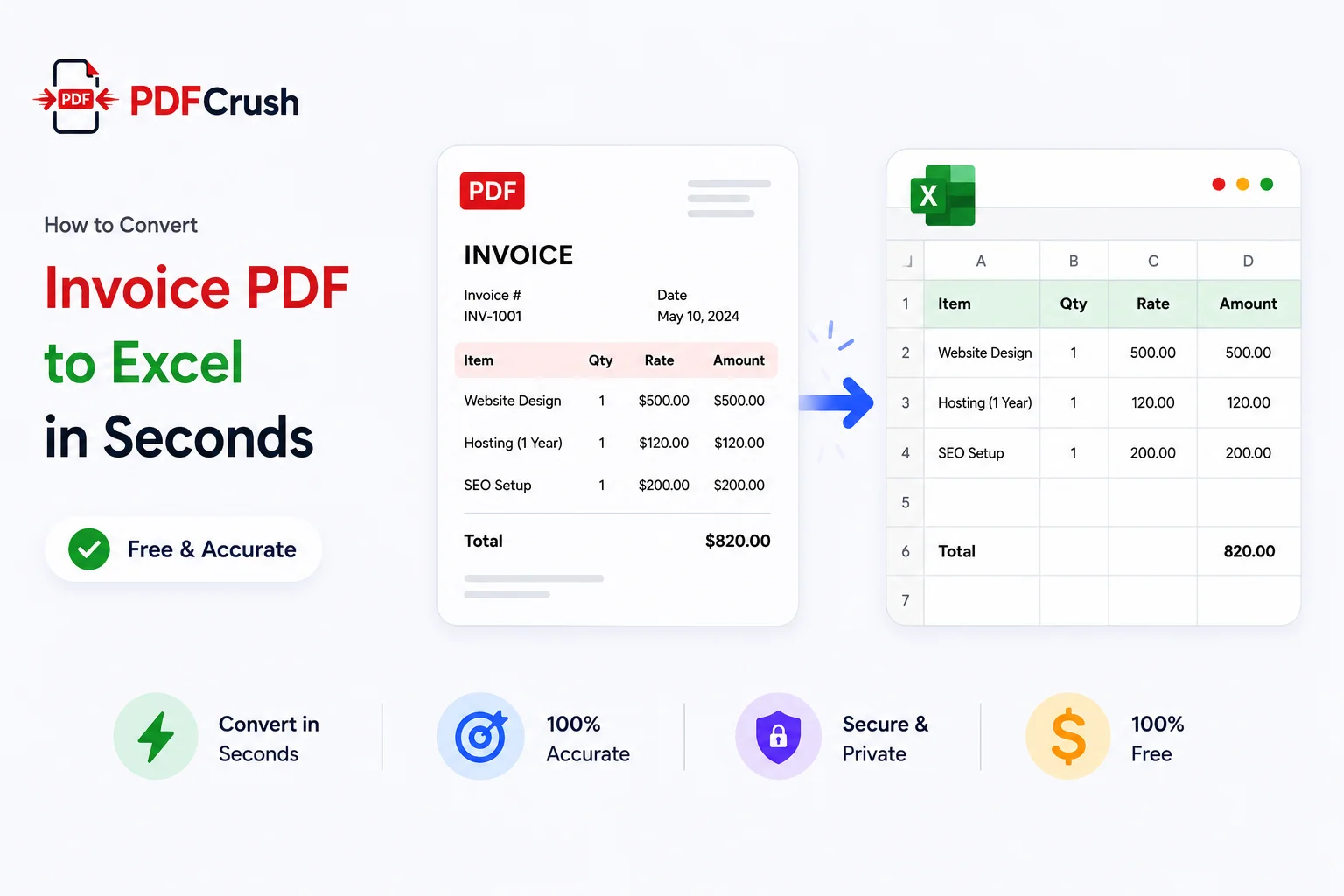
How to Convert Invoice PDF to Excel in Seconds (Free & Accurate)
Manually typing invoice data from PDFs into Excel is one of the most tedious jobs in accounting. Here's how to extract vendor details, line items, taxes, and totals from any invoice PDF automatically — free, in your browser, with nothing uploaded to any server.