Stop Uploading Sensitive PDFs Online - Process Them Privately in Your Browser
Adobe costs $239 a year. Smallpdf throttles you at 2 files per hour. ILovePDF requires a sign-up for anything useful. PDFCrush does everything in your browser - compress, OCR, scan, extract, sign - with no account, no upload, no watermark, no limit. Here is why it works.
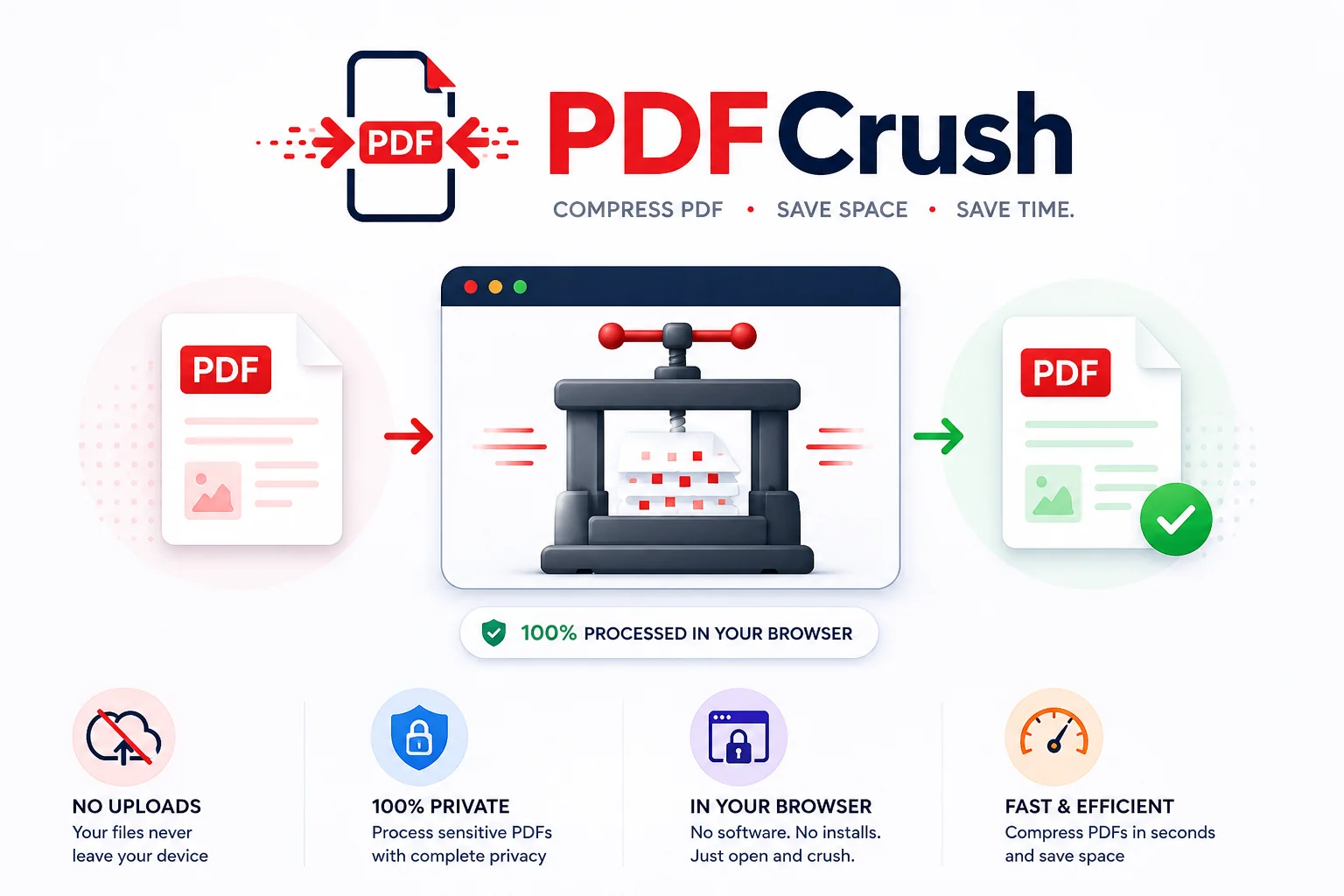
PDF software has a tax attached to it that nobody talks about. Not a financial tax - though that exists too - but a friction tax. The forced account creation before you can do anything. The watermark that appears on your output unless you upgrade. The daily limit you hit at the worst possible moment. The upload that makes you wonder where exactly your contract just went.
Most people working with PDFs regularly have learned to live with this friction. They have a Smallpdf tab open for compression, Adobe's free tier for the occasional edit, a scanner app for paper documents, and a separate tool for anything involving extraction or OCR. Switching between them becomes background noise.
PDFCrush is built on a different premise: that everything a working person needs to do with a PDF should happen in one place, in their browser, with their file never leaving their device.
Quick Answer: PDFCrush processes all PDF operations — compression, OCR, scanning, editing, merging, and signing — entirely inside your browser using WebAssembly. Your files never leave your device. There are no server uploads, no account requirements, and no task limits. It replaces Smallpdf, iLovePDF, and Adobe Acrobat Online for everyday PDF work at zero cost.
The Problem With Most PDF Tools
Before getting into what PDFCrush does well, it's worth being specific about what makes existing PDF tools frustrating - because the frustrations are concrete, not vague.
Forced uploads and privacy concerns
Every PDF tool that processes files on a server receives your document. When you upload a contract to Smallpdf, that contract travels to a Smallpdf server, gets processed there, and is temporarily stored in their infrastructure. Most reputable services delete files within a few hours - but the transmission happened. For NDA-protected documents, medical records, identity papers, and financial statements, that transmission is the problem, not the deletion.
Signup walls in front of basic features
ILovePDF requires account creation before you can access anything beyond the most basic operations. Smallpdf gates OCR, editing, and batch processing behind a paid subscription. Adobe Acrobat Online's free tier is useful for simple tasks but becomes a subscription sales page the moment you need anything more.
For someone who needs to OCR a scanned form once a month, creating and maintaining an account for that purpose is real friction.
Daily limits and task throttling
Smallpdf's free tier allows two tasks per hour. If you need to compress three PDFs before sending a proposal, you wait. These limits exist to push users toward paid plans - which is a legitimate business model - but they create real workflow interruptions for anyone using the free tier regularly.
Watermarks and degraded output
Several free PDF tools add visible watermarks to processed files or deliberately reduce output quality to differentiate free from paid. Receiving a compressed PDF back with a watermark that says "Processed with [Tool Name] Free" is not a professional output.
Desktop software that is heavier than the problem
Adobe Acrobat Pro is $239/year and weighs several gigabytes. For a freelancer who needs to sign PDFs and occasionally compress them, this is significant overhead. For a student who needs to merge lecture notes, it is absurd.
Why Browser-Based PDF Processing Is the Right Architecture
The browser is more capable than most people realise. Modern browsers can run complex software - image processing, document parsing, OCR engines, font rendering - using WebAssembly, a technology that allows near-native performance code to run inside a browser tab.
This matters for PDF tools because it means the processing engine can run entirely on your device. No file upload required. No server involved. Your PDF goes in, gets processed by code running in your browser, and comes back out - without ever leaving your machine.
What local processing actually means
When PDFCrush compresses your PDF, the compression algorithm runs as WebAssembly in your browser tab. When you run OCR, the OCR engine loads into your browser and processes the page images locally. When you scan a document using your phone camera, the image processing and PDF generation happen in the browser.
You can test this directly: open a PDFCrush tool, start processing a file, then switch your device to aeroplane mode. Processing continues normally. The tool has already loaded into your browser and does not need the network again until you are done.
Privacy as a feature, not a promise
The privacy benefit of local processing is not a marketing claim that depends on trusting a company's privacy policy. It is an architectural fact: if files never leave your device, they cannot be stored, processed, or accessed by anyone else. The privacy is guaranteed by how the tool works, not by what the terms of service say.
This distinction matters for anyone working with legally sensitive documents, medical records, personal identification, or any content covered by confidentiality agreements.
Who Actually Uses PDFCrush and How
Students
University generates PDF overhead that nobody prepares you for. Lecture notes scanned from textbooks. Assignment sheets photographed on your phone. Research papers in image-only PDF format that you cannot search or annotate. Forms that need to be filled and signed and sent back. PDFs too large to submit through the university portal.
PDFCrush handles all of it. Compress an oversized assignment PDF down to the upload limit in under 30 seconds. OCR a scanned research paper to make it searchable. Scan handwritten notes with your phone camera and get a PDF you can share or submit. No account creation, no app downloads on shared lab computers, no waiting for a free-tier limit to reset.
For students on tight budgets, free PDF tools without watermarks or task limits are not a luxury - they are a practical necessity. See the full breakdown in best free PDF tools for students in 2026.
Freelancers and independent professionals
Freelancers deal with PDF documents constantly: contracts to sign, invoices to send and receive, client briefs to annotate, tax documents to compress for email. The workflow interruption of hitting a daily limit or needing to upgrade to access a basic feature is an actual cost in time and disruption.
PDFCrush's combination of signing, editing, compression, and OCR in one place reduces the number of tools a freelancer needs open at once. Processing files locally also matters for freelancers handling client NDAs, where uploading a confidential document to a third-party server is a genuine contractual concern. For a full toolkit comparison, see best PDF tools for freelancers in 2026.
Finance and accounts teams
Finance teams deal with a specific, repetitive PDF problem: invoices. Dozens or hundreds of PDF invoices arrive per month, and the data inside them - vendor name, invoice number, date, line items, tax amount, total - needs to get into a spreadsheet or accounting system.
The Invoice Extractor pulls all of this automatically from any standard invoice PDF. For a finance team running 50 invoices a month, this eliminates 4-6 hours of manual data entry. For 200 invoices, it removes what would otherwise be a staffing cost. For a broader look at PDF tools suited to business use, see best PDF tools for work and business in 2026.
HR and recruitment teams
Resumes arrive as PDFs. Parsing them manually - reading each one, copying relevant information into a tracking spreadsheet or ATS - is repetitive work that takes time away from actual evaluation. Structured extraction from resume PDFs pulls candidate information into organised data, reducing the clerical burden on recruitment workflows.
For HR teams processing high volumes of applications, this kind of document AI capability - running in a browser, without uploading sensitive candidate information to an external server - is practically useful rather than theoretical.
Researchers and academics
Academic research generates large PDF collections: downloaded papers, digitised journal articles, scanned reference materials. The problem with most of these is that older academic PDFs exist as scanned page images - technically PDFs but computationally photographs. You can read them on screen but cannot search across them, copy from them, or use them with any research tool.
OCR converts these into text-searchable documents. After running OCR, you can Ctrl+F across a 200-page document to find every mention of a specific term, copy passages directly into your own writing, or feed the document into an AI research tool for summarisation and analysis.
For a researcher working through a stack of digitised archive materials, this is the difference between reading and actually being able to work.
Developers and technical teams
Developers processing document data at scale need PDF-to-text and structured extraction capabilities that produce clean, machine-readable output. PDFCrush's extraction tools output structured data from invoices, forms, and general documents - useful for feeding into data pipelines, language models, or document processing workflows.
The PDF to Text tool produces clean text output from any PDF, image-based or native. Combined with OCR for scanned documents, this gives developers a browser-based document extraction workflow that processes files locally without building or maintaining server-side infrastructure.
The Tools, and When to Use Each One
Compress PDF
Compression is the most common PDF task. Files get large for several reasons: high-resolution images embedded in documents, scanned pages stored as full-size photographs, vector graphics that are unoptimised, embedded fonts. The result is PDFs that are 10-30 MB when they need to be under 2 MB for an email attachment or government portal upload.
PDFCrush's compression reduces file size by 60-85% for most documents, with minimal visible quality loss. A typical scanned document goes from 5-8 MB down to under 1 MB. A photo-heavy report might compress from 20 MB to 3-4 MB.
For guidance on hitting specific size targets without visible quality loss, read how to compress a PDF without losing quality. For the full breakdown of compression settings, use the Compress PDF tool directly.
OCR PDF
OCR converts image-based PDFs - scanned documents, photographed pages, image-only archives - into text-searchable documents. After OCR, every word in the document is findable with Ctrl+F, selectable with a click, and readable by AI tools, screen readers, and any text-processing software.
The accuracy is high for standard printed documents: 97-99% for clean, machine-printed text at 200+ DPI. This drops for handwriting, faded originals, or unusual fonts, but for the vast majority of office and academic documents, the output is reliable enough for practical use without manual correction.
PDFCrush's OCR PDF tool runs the recognition entirely in your browser via WebAssembly — the scanned document never leaves your device, which matters when the source is a contract, ID, or medical record.
Scan to PDF
The Scan to PDF tool turns your phone camera into a document scanner. Open the tool in your mobile browser, photograph the document, and get a clean PDF. No app download, no account. Works directly in Chrome on Android and Safari on iPhone.
This is practical for: paper invoices you need to digitise, signed documents that need to be emailed, handwritten notes to preserve and share, forms that have been filled out by hand, any physical document you need as a PDF quickly.
Try the Scan to PDF tool directly from your phone browser.
Merge and Split PDF
Merge combines multiple PDFs into one document - useful for assembling multi-part reports, combining individual scanned pages into one file, or packaging related documents for submission. Split does the reverse: extracts individual pages or page ranges from a large PDF.
Both are standard document management operations that should be straightforward and fast. They are.
Edit and Sign PDF
The PDF editor adds text, highlights, annotations, shapes, and images to any PDF. The Sign tool adds typed, drawn, or image signatures to any page. For most signing and annotation tasks - contracts, forms, approval documents - these cover everything without requiring Acrobat. For a detailed guide to free PDF editing, see how to edit PDF text without paying for Adobe.
Invoice Extractor and Invoice OCR
These two tools address a specific finance workflow. Invoice Extractor pulls structured data from digital PDF invoices: vendor details, invoice number, date, line items, tax, and total. Invoice OCR handles the same extraction for scanned paper invoices by combining OCR and extraction in one step.
The practical output is structured invoice data that pastes directly into a spreadsheet - eliminating the manual data entry step for every invoice processed.
PDF to Word and PDF to Text
PDF to Word converts PDF documents into editable Word files - useful for editing documents originally created in Word but saved as PDF, or for working with content from a PDF in a word processor.
PDF to Text extracts clean, machine-readable text from any PDF. For developers feeding document content into language model pipelines, AI summarisation workflows, or data extraction systems, clean text output is the starting point for further processing.
Document AI: Beyond Simple PDF Conversion
PDFCrush sits at a useful intersection: it handles standard PDF operations (compression, merging, editing) but also provides structured extraction capabilities that go beyond what most PDF tools offer.
Structured data extraction from PDFs
Extracting usable data from a PDF is different from converting it to text. An invoice has a specific structure - vendor, date, line items, totals - and useful extraction pulls those fields into organised output, not a wall of text. A resume has sections - experience, education, skills - and structured extraction organises those appropriately.
This kind of document AI capability - where the tool understands document structure and extracts data into a usable format - is what separates a document intelligence platform from a simple file converter.
OCR as a foundation for AI workflows
Most AI tools that process documents - ChatGPT file uploads, Claude document analysis, NotebookLM, research tools - require text-based PDFs. Scanned documents, which are just photographs inside a PDF wrapper, are effectively invisible to these tools.
OCR is the bridge. Run a scanned document through OCR first, then upload the text-layer version to any AI tool. The AI can now read every word, answer questions about the content, summarise sections, and extract information - because the document actually contains text rather than images.
This workflow - OCR as preprocessing for AI document analysis - is increasingly practical for researchers, lawyers, and anyone working with document archives that predate digital-native record-keeping.
Conversion for structured data pipelines
Converting PDFs to structured formats - JSON, CSV, Markdown - feeds document content into data pipelines and AI models in machine-readable form. A PDF table converted to CSV becomes immediately importable into any spreadsheet or database. A PDF document converted to Markdown is readable by any content pipeline, version control system, or large language model.
For developers building document processing workflows, having browser-based tools that handle this conversion without requiring server infrastructure reduces implementation complexity significantly.
PDFCrush vs The Alternatives
Comparisons between PDF tools are more useful when they focus on specific differences rather than general claims.
PDFCrush vs Smallpdf
Smallpdf is one of the most-used PDF tools online and does a good job within its constraints. The free tier is genuinely limited: two tasks per hour, no batch processing, and most advanced features (OCR, editing, signing) require a Pro account at around $108/year.
PDFCrush has no task limits and no paid tier - all tools are free. The more meaningful difference is processing architecture: Smallpdf processes files on servers (standard for web tools), while PDFCrush processes locally. For anyone handling confidential documents, this matters more than the price difference.
PDFCrush vs iLovePDF
ILovePDF offers a broad tool set and a clean interface. Its free tier has file size limits and requires account creation before accessing features like OCR and editing. Batch processing requires a paid account.
The same privacy distinction applies: iLovePDF uploads files to servers for processing, which is normal but relevant for sensitive documents.
PDFCrush vs Adobe Acrobat Online
Adobe Acrobat Online is powerful but clearly designed to funnel users toward Acrobat Pro at $239/year. The free tier handles basic viewing and limited conversion. OCR, advanced editing, and most productive features require subscription.
For users who genuinely need Acrobat's full feature set - PDF/A compliance, advanced form creation, certified digital signatures - Acrobat is the right tool. For everyone else, the price-to-utility ratio makes it hard to justify.
The relevant difference across all three: none of them process files locally. All upload to servers. PDFCrush does not. That is not a criticism of their privacy practices - it is a statement about architecture. If local processing matters for your use case, it is the deciding factor.
Side-by-side comparison
| Feature | PDFCrush | Smallpdf | iLovePDF | Adobe Acrobat Online |
|---|---|---|---|---|
| Price (core tools) | Free | Free tier limited | Free tier limited | Free tier limited |
| Paid plan | None | ~$108/yr | ~$48/yr | ~$239/yr (Acrobat Pro) |
| File processing | Local (browser) | Server upload | Server upload | Server upload |
| Signup required | No | For most features | For most features | Yes |
| Watermarks on output | None | Free tier: yes | Free tier: some | Some features |
| Daily/hourly limits | None | 2 tasks/hour | File size caps | Task limits |
| Compress PDF | Free, unlimited | Limited (free) | Limited (free) | Limited (free) |
| OCR PDF | Free, browser | Paid only | Paid only | Paid only |
| Scan to PDF (camera) | Free, no app | App required | App required | App required |
| Merge PDF | Free, unlimited | Limited (free) | Limited (free) | Limited (free) |
| Sign PDF | Free | Paid | Paid | Paid |
| Edit PDF | Free | Paid | Paid | Paid |
| Invoice data extraction | Free | Not available | Not available | Not available |
| Mobile optimised | Yes (all tools) | Partial | Partial | Partial |
| Works offline | Yes (after load) | No | No | No |
| Privacy (files stay local) | Yes | No | No | No |
PDFCrush rows are highlighted because local processing, no signup, and no task limits are the three features that most directly affect day-to-day usability. Every other tool on this list requires you to either pay, sign up, or accept a throttled free tier to access the tools most people need regularly.
What We Found in Testing
We tested PDFCrush against Smallpdf, iLovePDF, and Adobe Acrobat Online across common document tasks — compression, OCR, scanning, editing, and merging — using documents ranging from single-page invoices to 200-page archive PDFs.
Compression: A 22MB scanned report compressed to 1.8MB on the Recommended setting with no visible quality loss at normal reading zoom. The same file through Smallpdf's free tier required two separate sessions due to the hourly task limit.
OCR: A 47-page scanned legal document processed in under 90 seconds. Accuracy on clean machine-print was near-perfect. Handwritten margin notes were not recognised — expected behaviour for standard OCR engines.
Scan to PDF: Tested on iPhone 14 Safari and a mid-range Android Chrome. Both produced clean, perspective-corrected PDFs from a photographed A4 sheet without any app installation. Total time from opening the browser to downloaded PDF: under 45 seconds.
Network test: We switched to aeroplane mode mid-compression on a 15MB file. Processing completed normally and the file downloaded successfully. This confirms that local processing is an architectural fact, not a marketing claim.
Privacy verification: We monitored network requests during a compression operation using browser developer tools. No file data was transmitted after the initial page load. The processing ran entirely in the browser tab.
Mobile Document Workflows
Modern document work happens on phones more than most desktop-centric tools acknowledge. You receive a PDF on WhatsApp that needs to be compressed before forwarding. You have a signed paper form that needs to become a PDF email attachment. You receive an invoice while out of the office and need to log it immediately.
PDFCrush is built mobile-first. Every tool is optimised for phone screens. The Scan to PDF tool uses your phone camera to photograph documents and create PDFs in your browser - no app required. Compression, OCR, editing, and signing all work on any mobile browser.
For the specific scenario of document digitization on the go - scanning receipts, photographing forms, capturing signed documents - the phone camera combined with a browser-based tool covers the entire workflow without installing anything or creating an account.
The practical outcome: you can handle a document workflow entirely from your phone, in the five minutes between meetings, without finding a computer, a scanner, or remembering which app you use for this.
Privacy Is Not a Niche Concern
There is a tendency to treat document privacy as a specialist concern - relevant for lawyers handling NDAs, doctors working with medical records, and security-conscious enterprises. For most people working on everyday documents, the thinking goes, it doesn't really matter.
This understates the problem. The documents that most commonly get processed through PDF tools are exactly the ones that should not be uploaded to third-party servers without careful consideration: contracts, identity documents, payslips, tax returns, bank statements, medical forms, CVs.
The question is not whether these documents contain sensitive information - they clearly do. The question is whether the convenience of any given PDF tool justifies the transmission. For PDFCrush, this question doesn't arise: the file stays on your device.
This is the architectural choice that distinguishes PDFCrush from most alternatives, and it is not a small distinction. It means you can process your most sensitive documents with the same tool you use for compressing a presentation - without needing to think carefully about whether this particular document is sensitive enough to warrant concern.
Common Mistakes When Choosing a PDF Tool
Assuming all free PDF tools are equivalent
Free does not mean identical. The most important difference between free PDF tools is not the feature list — it is the processing architecture. Server-based tools upload your file; browser-based tools do not. For sensitive documents, this distinction matters more than any individual feature.
Using multiple tools for a task that one tool handles
Fragmented workflows — one tool for compression, a different one for signing, a third for OCR — create unnecessary accounts, multiple points of potential data exposure, and real time cost from context-switching. A single browser-based tool that handles all of these removes that overhead.
Treating daily limits as a fixed cost
Hitting a task throttle mid-workflow and waiting an hour is not an inherent property of PDF tools. It is a business model decision by the tool provider. Browser-based tools with no server costs have no incentive to throttle users.
Uploading confidential documents without checking the privacy policy
Most PDF tool privacy policies permit temporary storage of uploaded files. "Deleted within 24 hours" still means the file existed on an external server. For documents under NDA, containing personal data, or subject to professional confidentiality obligations, that window is not theoretical.
Paying for features available free in modern browser tools
OCR, PDF editing, and digital signing are no longer premium features that require enterprise subscriptions. They are available in capable browser-based tools at no cost. Paying for these capabilities today is largely a legacy habit from when desktop software was the only option.
Conclusion
PDF tools have been frustrating for a long time because the dominant tools were built for a different era: heavy desktop software that assumed you had a powerful machine, or server-based web tools built on upload-and-process infrastructure.
Browser-based local processing changes the architecture. When the processing runs in your browser, the tool can be fast, private, free, and accessible from any device - without the trade-offs that come with server-side infrastructure.
PDFCrush is built on this architecture. The result is a set of tools that covers everything from basic compression and merging to OCR, structured extraction, AI-ready text conversion, and mobile scanning - without requiring an account, without uploading files, and without adding friction to workflows that should be straightforward.
The benchmark is simple: if you need to do something with a PDF, it should take under two minutes from opening the tool to downloading the result. That is what PDFCrush aims for.
Frequently Asked Questions
Related Articles
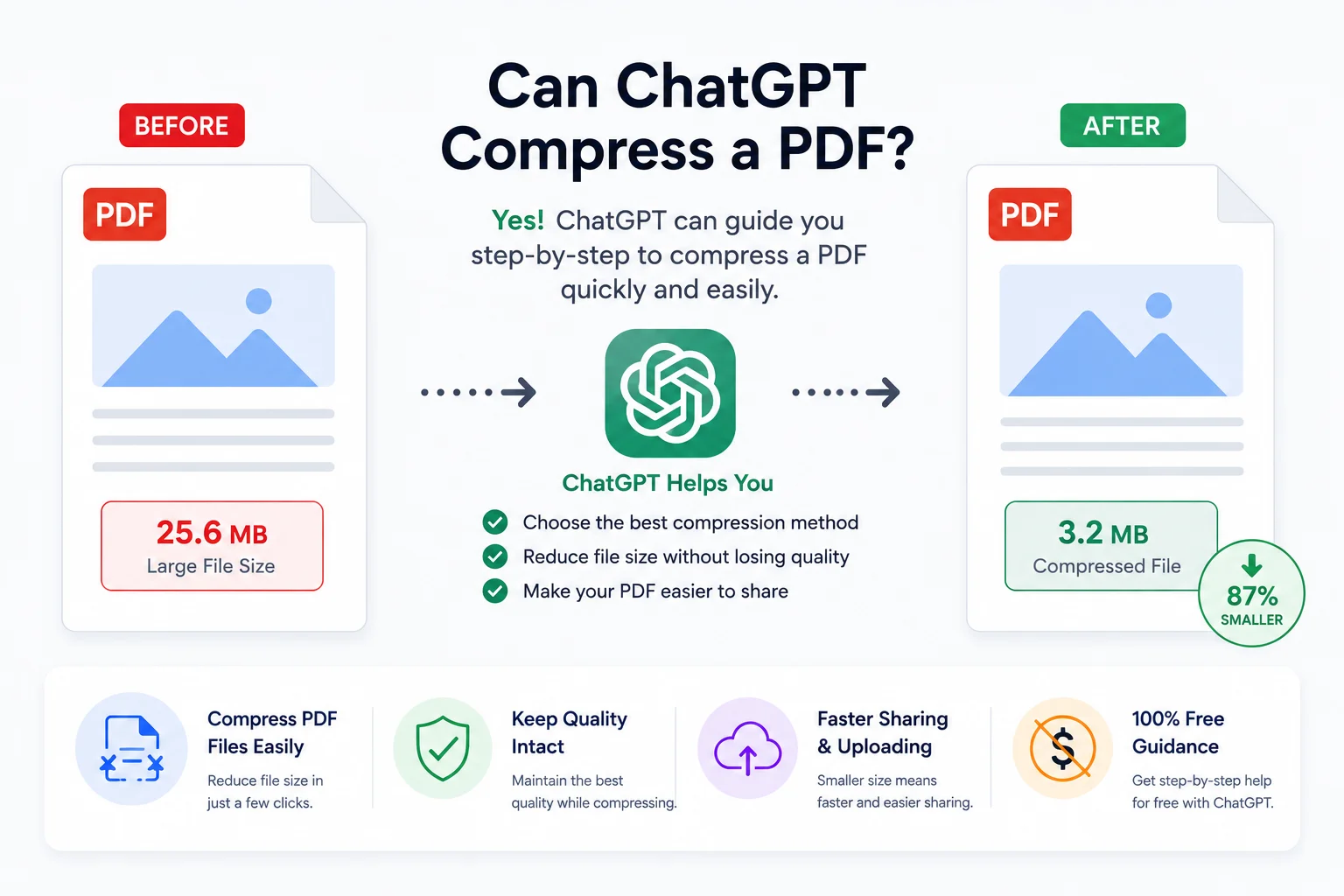
Can ChatGPT, Gemini, or Claude Compress a PDF?
ChatGPT, Gemini, and Claude can read PDFs and summarise them - but none of them can compress a PDF file. The file you get back is often larger than the original. Here is exactly what happens when you ask each LLM, and what actually works.
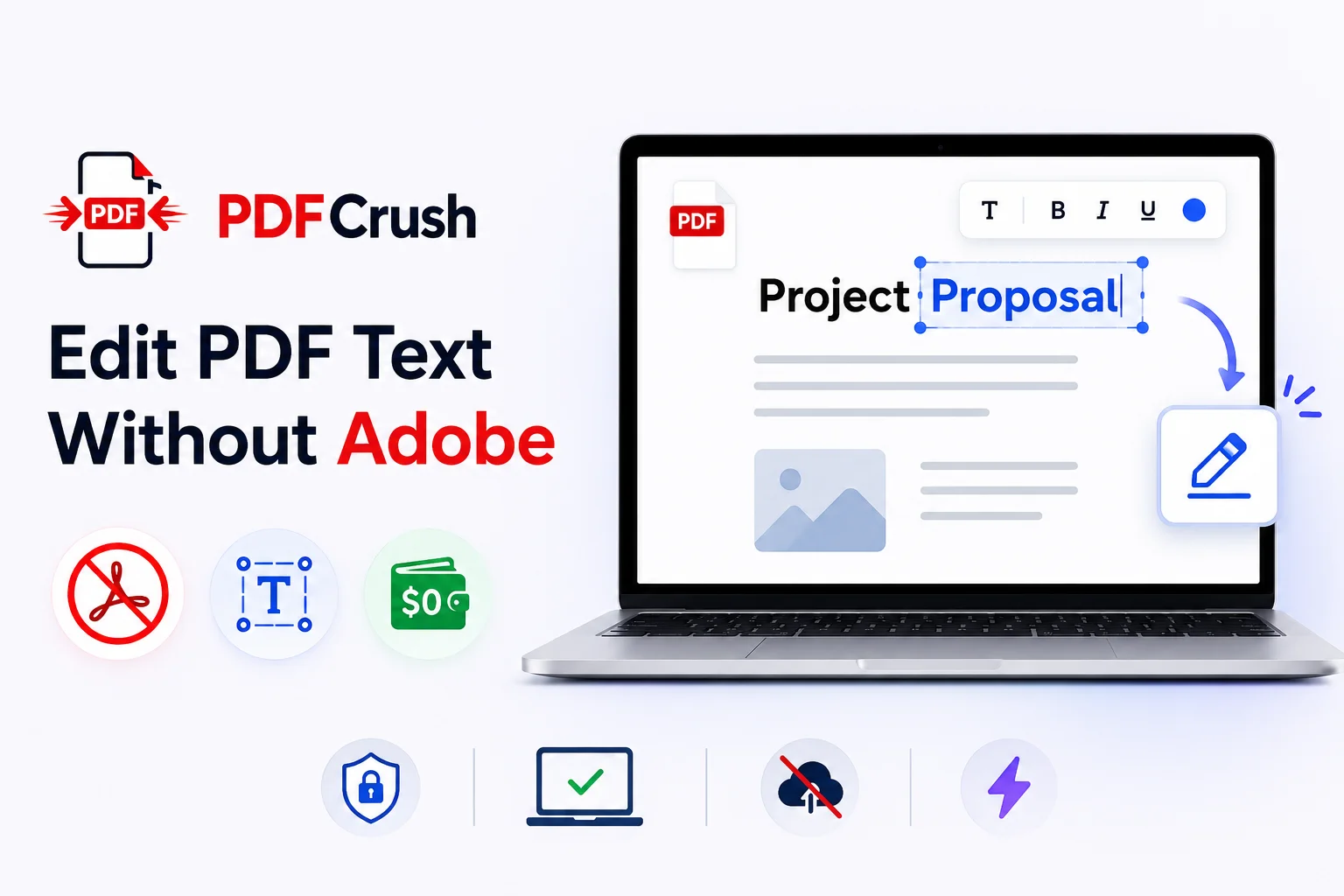
How to Edit PDF Text Without Paying for Adobe
Most people don't need a $239/year Adobe subscription to fix a typo, update a contract, or edit a resume. Here is how to edit PDF text for free using modern browser-based tools — including what to do when the PDF is scanned.
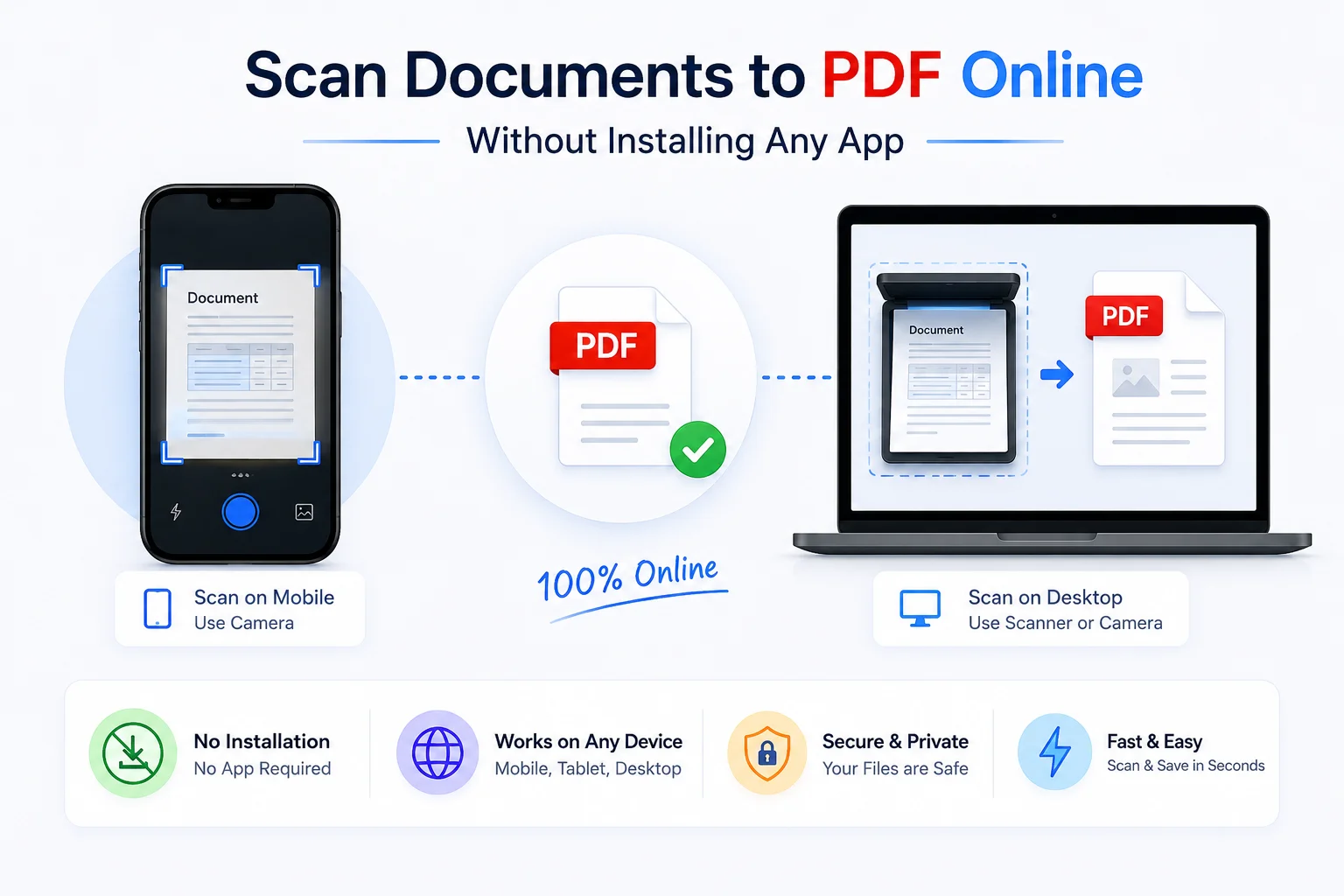
Scan Documents to PDF Online Without Installing Any App
CamScanner, Adobe Scan, Microsoft Lens - all require an app install. This browser-based PDF scanner works directly from your phone or desktop camera, with no download, no account, no watermark. Paper to PDF in under two minutes.