How to Merge PDF Files Online - Free & Fast
Whether you're combining a contract with its appendix, joining scanned pages into one document, or assembling a portfolio from individual pieces - merging PDFs takes under a minute with the right tool.
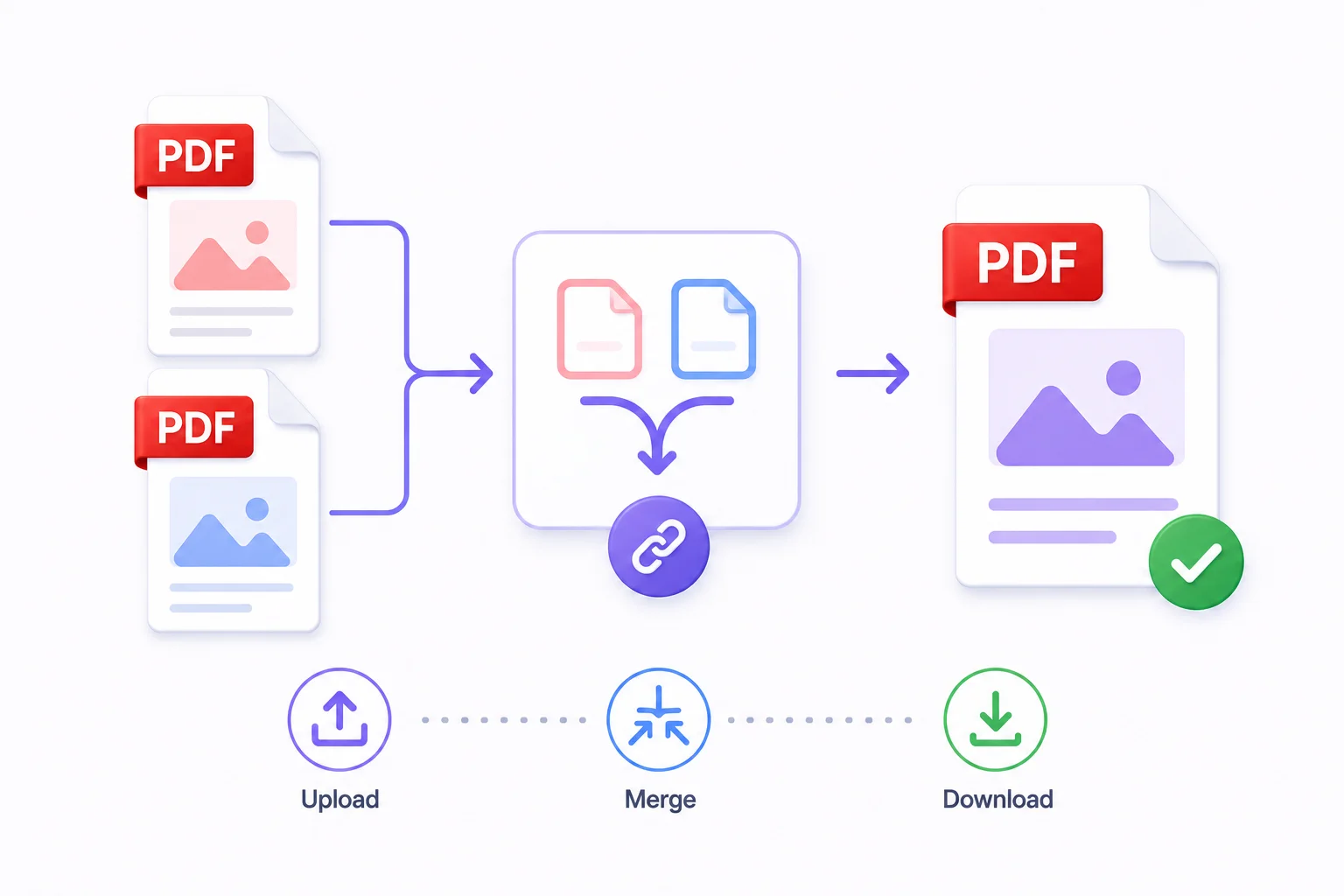
Multiple files where one clean document should be. A 10-page scanned report split across three files. A contract, an appendix, and a signed cover sheet that need to go in as a single submission. A portfolio of seven separate PDFs that a client needs to review together.
Merging PDFs is one of those tasks that sounds simple and should be - but most tools either limit how many files you can combine, add watermarks, or require an account. Here's how to do it cleanly, free, with drag-and-drop reordering and no account required.
Quick answer: How do I merge PDF files online for free?
Open Merge PDF, drag in up to 20 files, reorder the cards into the sequence you want, then click Merge PDFs. The combined file downloads with no watermark, no quality loss, and no account - the whole process runs in your browser and takes under a minute for most jobs.
How to Merge PDF Files in 4 Steps
- Open the Merge PDF tool in your browser
- Upload your PDF files - drag them in or click to browse. You can upload multiple files at once.
- Drag the file cards to set the order you want in the final document
- Click Merge PDFs - download the combined file
The output is a single standard PDF with no watermarks, no quality reduction, and no changes to the original page content.
For most merges, the whole process takes under 60 seconds.
When You Need to Merge PDFs
The situations where merging saves significant time:
Submissions with multiple documents Government portals, university applications, and visa applications often request multiple supporting documents but prefer or require a single PDF upload. Merge all supporting documents - covering letter, ID, certificates, bank statements - into one file for a clean, organised submission.
Multi-section assignments Lab reports with separate introduction, method, results, and appendix files. Group projects where each member submitted their section separately. Instead of submitting five individual files, merge them into one numbered document.
Monthly and quarterly reports Finance teams, operations leads, and project managers combining inputs from multiple contributors into one board pack or client report. Eight separate section PDFs become one clean document with a cover page.
Portfolio assembly Designers, writers, and consultants combining individual case studies, samples, and a cover page into a single portfolio PDF. A tailored portfolio built from the same master pieces can be reassembled for different pitches in minutes.
Invoice and receipt archives Combining monthly invoices, receipts, or expense reports into a single quarterly or annual document for accounting or audit purposes.
Scanned documents When a multi-page document was scanned one page at a time - each page saved as a separate PDF - merge them back into a single document before sharing or archiving. The guide to scanning documents to PDF free covers capturing those pages cleanly in the first place.
Legal and contract packages Contracts often include multiple components: the main agreement, schedules, annexures, and signature pages. Submitting these as a single merged PDF is cleaner and less error-prone than sending separate files. If a clause needs a quick correction before the package goes out, the guide to editing a PDF without Adobe Acrobat covers making that kind of small change without re-exporting the whole document.
Reordering Pages Before Merging
The merge tool lets you control order at two levels:
File-level reordering
Drag the file cards up or down to change the sequence entire documents appear in. The cover page card goes first, main document second, appendix last. Use the arrow buttons for precise positioning on mobile.
Page-level reordering
Expand any file card to see its individual pages as thumbnails. From here you can:
- Drag pages to reorder them within that file
- Rotate pages to fix orientation (portrait scans that saved as landscape)
- Click × to exclude specific pages - remove blank pages, duplicates, or cover pages you don't want in the merged output
This page-level control is useful when you only need selected pages from a larger document, without running a separate Split PDF step first.
Name your files before uploading - `01_Cover.pdf`, `02_Contract.pdf`, `03_Appendix.pdf`. They'll sort into the correct order automatically when you upload them, reducing the drag-and-drop reordering step to nothing.
Common Mistakes When Merging PDFs
Uploading files in the wrong order and merging anyway. The merge tool reorders by drag-and-drop, but it's easy to click Merge before checking the final sequence. Always glance down the file list top to bottom before confirming - re-merging a 40 MB document because page order is wrong wastes more time than the check would have.
Not removing blank or duplicate pages first. Scanned batches almost always include a few blank separator pages. Left in, they end up scattered through the final document where they're tedious to find and remove later. Strip them at the page level before merging, not after.
Skipping compression on large merges. Five 12 MB files merge into a 60 MB document that bounces off most email servers and portal upload limits. Compress the source files - or the merged output - before distributing, not after getting a bounce-back.
Merging password-protected PDFs without unlocking them first. A locked source file either fails to merge or merges as a placeholder. Run Unlock PDF on each protected file before adding it to the batch.
Assuming page order will sort itself out. Numbered filenames (01_Cover.pdf, 02_Body.pdf) sort automatically on upload; unnumbered ones (scan1.pdf, IMG_2024.pdf) don't. Rename before uploading to skip the manual reordering step entirely.
Tips for Better Merge Results
Compress large files first. A merged document containing several 15 MB files can easily reach 60-80 MB - too large for email or portal upload. Compress each file before merging, or compress the merged output before distributing. Running through Compress PDF after merging typically reduces the total by 50-70%.
Remove blank pages. Scanned documents often have blank pages at the end of each batch. Remove them with the page-level controls before merging to avoid a final document with unnecessary blank pages between sections.
Handle different page orientations. If some pages are portrait and some landscape (e.g., a wide table on its own page), rotate them to match before merging. Mixed orientations in a merged document can look unprofessional when printed.
Standardise page sizes where possible. PDFCrush preserves each page's original dimensions, so A4 and Letter pages can coexist in the same merged document. If consistent sizing matters - for a document that will be printed - standardise to one format before merging.
For very large merges. If you're merging 15+ files, merge in batches of 8-10 and then merge those intermediate outputs. This is more reliable than loading all files at once for very large or complex documents.
Merging PDFs on Your Phone
No laptop required. The merge tool works identically in a mobile browser.
On Android (Chrome):
- Open the Merge PDF tool in Chrome
- Tap to upload - Chrome opens your Files app or Google Drive picker
- Select multiple files at once by long-pressing and tapping additional files
- Drag cards to reorder, tap to expand and manage individual pages
- Tap Merge PDFs - the output downloads to your Downloads folder
- Share directly from Downloads
On iPhone (Safari):
- Open Safari and navigate to the Merge PDF tool
- Tap to browse - Safari opens Files or iCloud Drive
- Select your PDFs and merge
- Save the output to Files or share directly
For students who scan lecture notes one page at a time and need to combine them before an exam: the whole workflow - scan, merge, compress - works entirely from your phone. The roundup of free PDF tools worth knowing covers the rest of that toolkit.
What Happens to Page Quality When You Merge
No quality is lost in the merge process. PDFCrush uses pdf-lib to copy pages directly from one document to another - pages are not re-rendered, re-encoded, or re-compressed. The merged output contains exactly the same page data as each source file.
This means:
- Image quality is unchanged
- Text remains vector-crisp
- Form fields from interactive PDFs are preserved
- Hyperlinks within pages are preserved
- Page dimensions are preserved exactly
What does change: the document-level metadata updates to reflect the merged file (author, creation date). Bookmarks from individual files are merged into a flat structure rather than maintaining separate hierarchical trees.
Merge vs Split: When to Use Each
| If you need to... | Use... |
|---|---|
| Combine multiple PDFs into one | Merge PDF |
| Extract specific pages from a PDF | Split PDF |
| Combine and then remove unwanted pages | Merge PDF (with page exclusion) |
| Create separate files from a long document | Split PDF |
| Reorder pages within a single PDF | Rearrange PDF |
| Send only part of a merged document | Split PDF on the merged output |
A common workflow: Split a large source document to extract the relevant pages, merge those extracted pages with other documents, compress the result before sending.
After Merging: Next Steps
Compress before sharing. Merged documents are often large because they combine multiple source files. Run the merged PDF through Compress PDF before emailing or uploading. Most merged documents compress 50-70%.
Add page numbers. A long merged document without page numbers is hard to reference in conversation or feedback. Use Add Page Numbers to add consistent numbering across the entire merged document - useful for the same legal and submission packages covered in adding Bates numbers to a PDF.
Protect before sharing externally. If the merged document contains contracts, financial data, or sensitive information, protect it with a password before distributing. Use Protect PDF - it takes 60 seconds and adds AES-128 encryption. The case for keeping sensitive PDFs off third-party servers explains why that matters even more before a file goes out the door.
Make scanned pages searchable. If any of the merged documents were scanned, the merged output still has image-only pages. Run the merged file through OCR PDF to add a text layer across the entire document, making every page searchable.
Common Merge Scenarios: Step-by-Step
Combine a report with appendices
- Export the main report as PDF from Word or Google Docs
- Gather the appendix PDFs
- Open Merge PDF - upload cover page first, main report second, appendices in order
- Drag to arrange if needed
- Merge, compress, distribute
Assemble a portfolio PDF
- Export each case study or sample as PDF
- Prepare a cover page PDF separately
- Merge with cover page first, best work second, remaining pieces in relevance order
- Add page numbers
- Compress to under 5 MB for email
Combine scanned document pages
- Scan each page separately (or upload individual page photos via Scan to PDF)
- Open Merge PDF
- Upload all page PDFs in page-number order
- Merge into one document
- Run OCR to make the combined document searchable
- Compress before sharing
Submit a multi-document application
- Gather all required documents (certificates, IDs, statements, forms)
- Compress each document first if over 2 MB
- Merge in the order specified by the application instructions
- Check total size against the portal's upload limit
- Compress the merged file if needed before submitting
What We Found Merging Real Document Batches
We ran three representative jobs through Merge PDF: a 12-file university application bundle (certificates, transcripts, ID scans, totaling ~85 MB), a 6-file quarterly board pack (mixed A4 and Letter pages from different contributors), and a 20-file batch of single-page phone scans of receipts.
File-level drag-and-drop held up at the upper end. The 20-file receipt batch reordered smoothly with no lag, and the output preserved each page's original orientation and dimensions exactly - including the mix of portrait and landscape scans in the batch.
Mixed page sizes merged without forcing a common format. The board pack's A4 and Letter pages sat side by side in the output exactly as PDFCrush's docs describe - no resizing, no cropping, no distortion. Printed side by side, the size difference is visible, which matches the guidance to standardise sizes beforehand if the document is going to print.
The 85 MB application bundle merged cleanly but stayed large. The combined file landed at roughly 82 MB - close to the sum of its parts, confirming that merging doesn't compress. Running it through Compress PDF afterward brought it down to about 28 MB, comfortably under most university portal limits.
Bookmarks flattened as expected. Each source file's bookmark hierarchy collapsed into a single flat list in the merged output - exactly as the FAQ describes, and worth knowing in advance if you're relying on nested bookmarks for navigation.
Total time across all three jobs, including review and reordering: under 12 minutes - versus an afternoon of manually assembling and renaming files the old way.
Conclusion: One File Beats a Folder Full
Whether it's a university application, a board pack, or a year of scanned receipts, Merge PDF turns a scattered folder of files into the single clean document that portals, reviewers, and recipients actually want. Drag in up to 20 files, set the order, and download - no watermark, no quality loss, no account.
Pair it with Compress PDF when the combined file gets large, Add Page Numbers when it needs to be referenced section by section, and Protect PDF before anything sensitive goes out the door. All of it runs locally in the browser - the files never leave your device at any step.
Frequently Asked Questions
Related Articles
Best Free PDF Tools for Students in 2026
From merging scattered assignment files to compressing a resume before a portal deadline - here are the free PDF tools every student actually needs in 2026, with specific workflows for each.
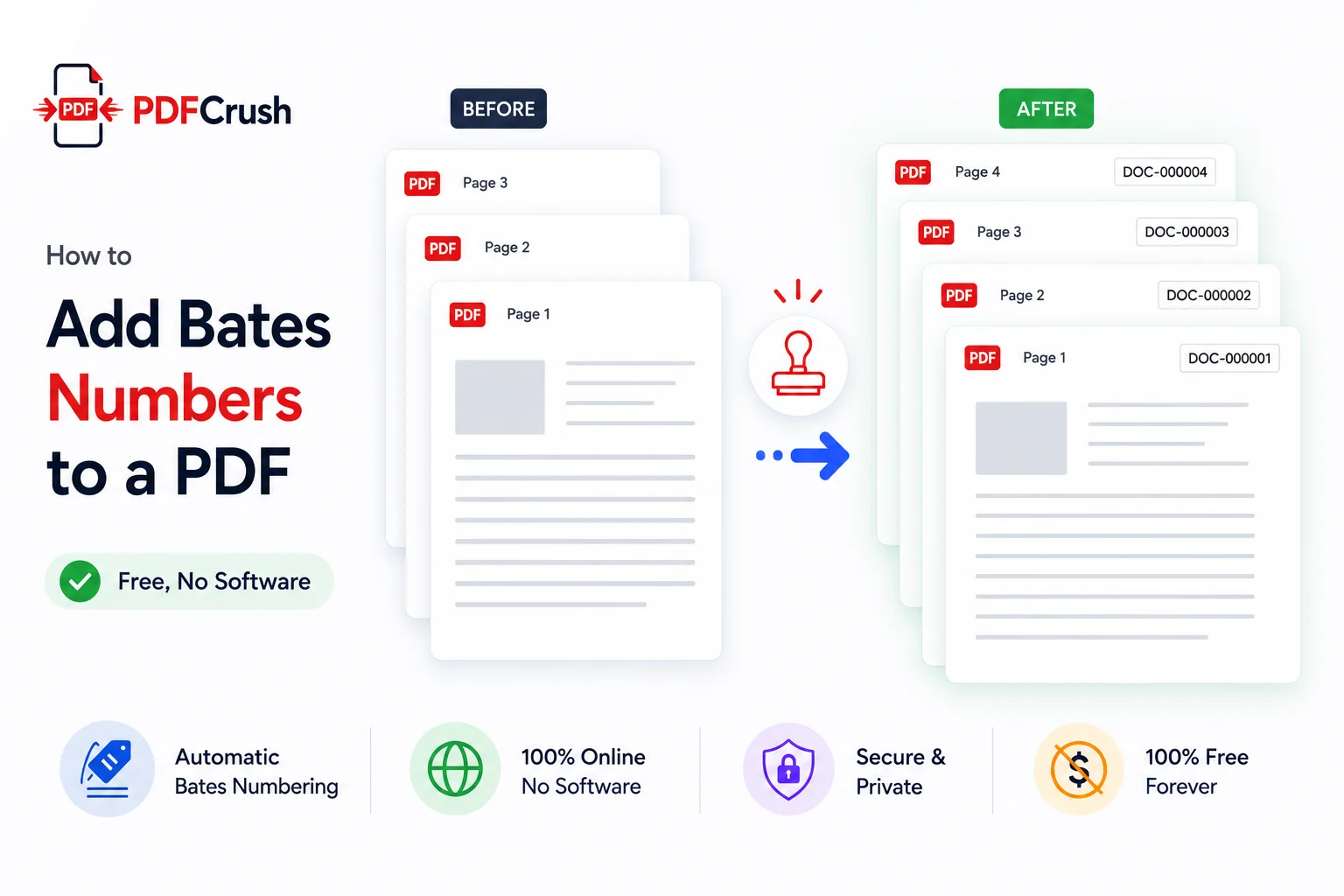
How to Add Bates Numbers to a PDF — Free, No Software
Bates numbering is the standard system for identifying pages in legal document production — but adding Bates stamps in Adobe Acrobat requires a paid subscription. Here is how to add Bates numbers to any PDF free, in your browser, without uploading a single page to any server.
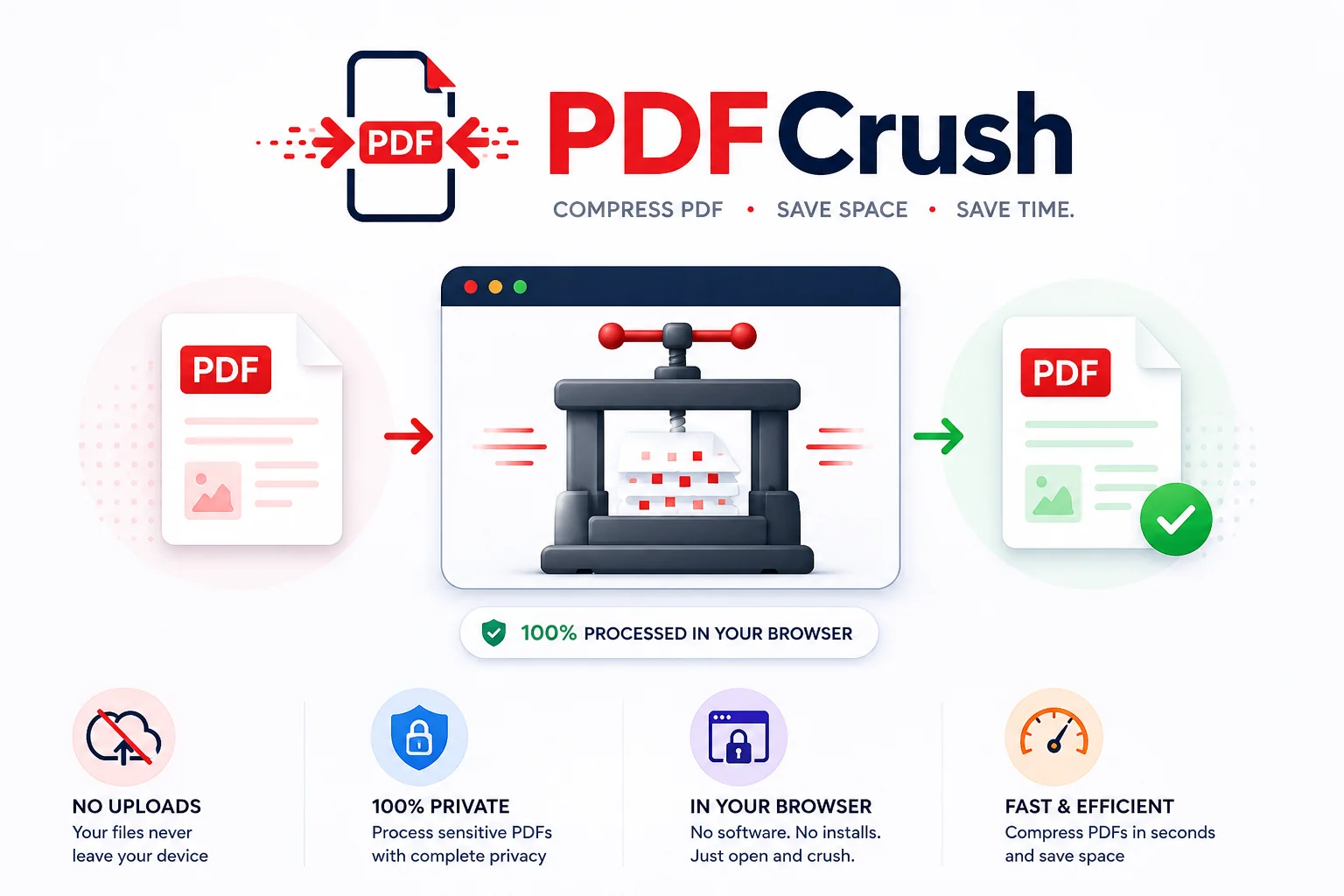
Stop Uploading Sensitive PDFs Online - Process Them Privately in Your Browser
Adobe costs $239 a year. Smallpdf throttles you at 2 files per hour. ILovePDF requires a sign-up for anything useful. PDFCrush does everything in your browser - compress, OCR, scan, extract, sign - with no account, no upload, no watermark, no limit. Here is why it works.