Common PDF Problems and How to Fix Them
PDFs seem simple until they break. File too large, email rejected, formatting scrambled, portal won't accept it, prints with the wrong colours. Here are the real causes behind the most common PDF problems - and practical fixes for each.
PDF is supposed to be the format that works everywhere - same layout, same fonts, same appearance on any device. In practice, something goes wrong more often than it should. The file is too large to email. The job portal rejects it. The formatting looks completely different on someone else's screen. The print job comes out wrong.
Most of these problems have clear causes and straightforward fixes. This is a diagnostic guide: what is actually happening, and what to do about it.
Quick answer: Why is my PDF too large or broken, and how do I fix it?
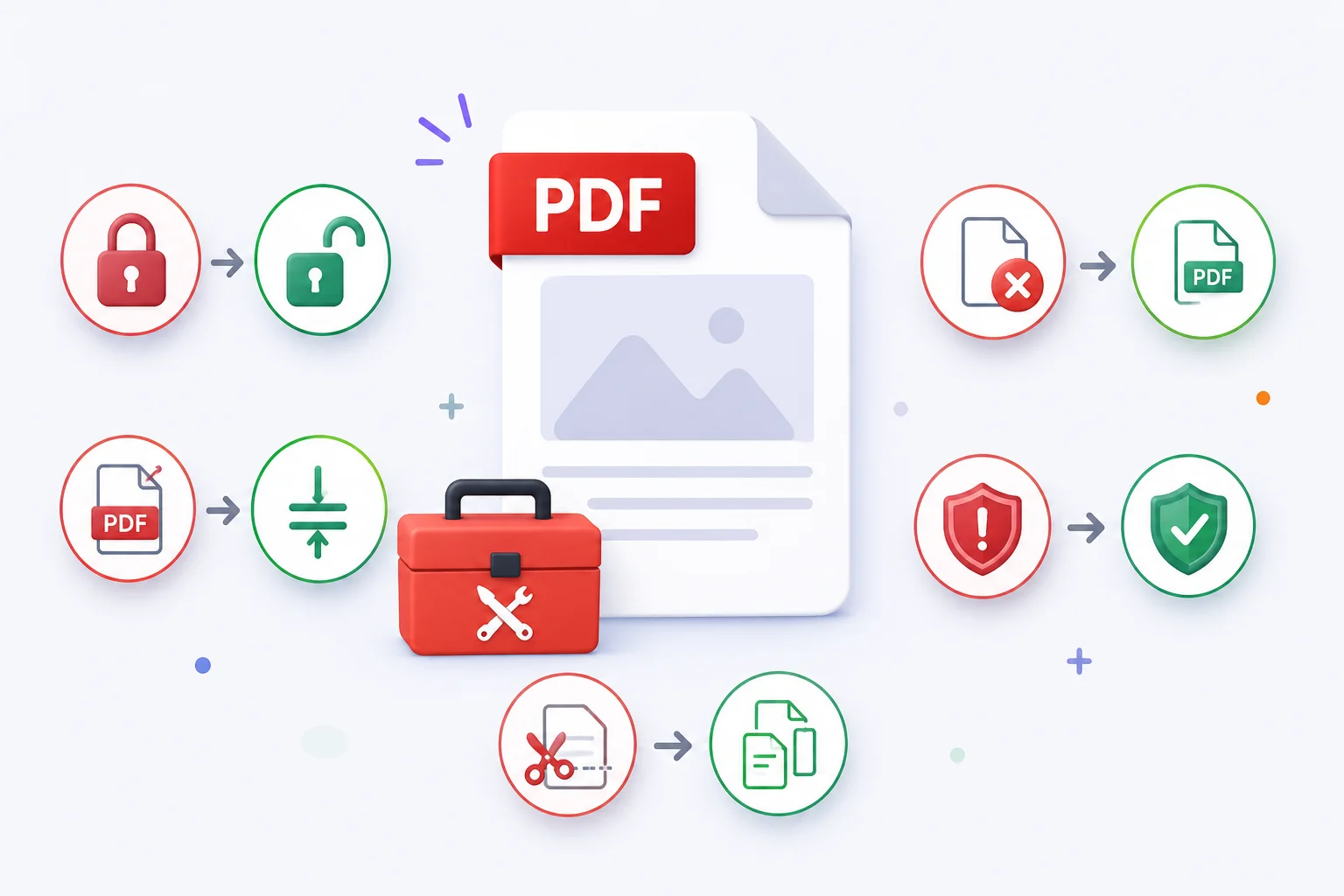
Most PDF problems trace back to one of three causes: the file is full of high-resolution scan or image data (fix: Compress PDF), the fonts aren't embedded so layout shifts on other devices (fix: re-export with fonts embedded), or it's a scanned image with no text layer that portals and ATS systems can't read (fix: OCR PDF). Nearly every "PDF won't work" problem reduces to one of these three, and each has a free, browser-based fix that takes under a minute.
Why Is My PDF So Large?
File size is the source of most PDF frustrations - emails bouncing, uploads failing, slow opens, mobile apps struggling. Before you can fix it, understanding why it happened makes the solution obvious.
Scanned pages
When you scan a physical document, each page is stored as a photograph. A single A4 page at 300 DPI in colour can be 3-6 MB by itself. Ten scanned pages becomes a 30-60 MB file, even though the actual readable content is just text on paper. The scanner captures every speck of dust and imperfection on the paper at full resolution - all of it stored in the PDF.
High-resolution embedded images
PDFs exported from PowerPoint, Word, or design tools often contain photos and diagrams at their original full resolution. One high-quality product photo can add 4-8 MB. A document with ten such images has a brutal total size before you've even considered anything else.
Print-quality export settings
Software like InDesign, Illustrator, Figma, and even PowerPoint defaults to print-quality export - 300 DPI or higher - because that is what commercial printers require. For a document you are only sharing digitally, 96-150 DPI is indistinguishable on screen.
Hidden overhead
PDFs carry things the reader never sees: editing history, document thumbnails, full copies of embedded fonts, layer data from the authoring tool. None of it is visible, but all of it adds file weight.
The fix
Compress the PDF. A good compressor re-encodes images at resolution appropriate for screen viewing, strips unnecessary metadata, and reduces the file to a fraction of its original size - typically without any visible quality change.
Scanned documents are the best compression candidates. A 20 MB scanned contract typically compresses to 2-4 MB. A 45 MB scanned property document can reach under 5 MB. The compression works because you are replacing oversized photographs of text with smaller photographs of text - and at normal reading size, 150 DPI looks identical to 300 DPI.
Why Does Email Reject My PDF Attachment?
You attach a PDF, hit send, and get an error. Or it looks like it sent but the recipient never receives it. Email attachment limits are almost always the cause.
| Provider | Limit |
|---|---|
| Gmail | 25 MB total per email |
| Outlook / Microsoft 365 | 20 MB (organisations often configure lower) |
| Apple Mail | 20 MB |
| Yahoo Mail | 25 MB |
| Corporate email servers | Often 10 MB or less |
If the email appears to send but never arrives, the recipient's mail server may be silently dropping it. Spam filters sometimes block large attachments even when the sender's server accepted them.
The fix
Compress the PDF before attaching. For most documents:
- A scanned invoice or contract starting at 12 MB typically compresses to 1.5-3 MB
- A presentation PDF starting at 18 MB typically compresses to 5-9 MB
- A text-only report starting at 4 MB typically compresses to 2-3 MB
If the file is legitimately huge - a multi-hundred-page document - compress first, then split it into sections and send as separate emails. The guide to splitting a PDF covers the fastest way to break a long document into mailable chunks. Or upload to cloud storage and share a link instead.
If an email appeared to send but the recipient says they never got it, file size is the first thing to check - even if you think it was under the limit. Attachments close to the limit sometimes cause delivery issues due to email headers and encoding overhead.
Why Are Scanned PDFs So Much Larger Than Regular PDFs?
A two-page contract typed in Word might be 80 KB. The same contract scanned to PDF after signing might be 8 MB. A 100x size difference for identical readable content.
How regular PDFs store text
A text-based PDF stores words as mathematical instructions. The letter "A" is not a picture of the letter A - it is a set of vector coordinates describing how to draw it. This takes almost no space. A full page of dense text might be 5-15 KB. Scale it to any size; the text stays perfectly sharp.
How scanned PDFs store text
When you scan a document, the scanner photographs the paper. It does not recognise that those marks are letters - it captures everything it sees as a grid of pixels. A 300 DPI scan of an A4 page creates roughly 2480 × 3508 pixels - nearly 9 million pixels - for one page. Even with image compression, that is enormous compared to a few vector coordinates.
The scanner has no way to know which pixels are text and which are white space. It stores all of them equally. Which is why a 10-page scanned document weighs 10-30x more than the equivalent typed PDF.
The fix
For files you have already received: Compress the PDF. The compressor re-encodes page images at a lower resolution (sufficient for reading, not for commercial print) and dramatically reduces size.
For future scans: Scan at 150-200 DPI instead of 300 DPI for documents that will only be read digitally. The visual difference on screen is negligible, but the file is roughly half the size of a 300 DPI scan.
To make scanned text searchable: Run the document through OCR PDF (optical character recognition). This adds a text layer to the PDF so you can search, copy, and select text - and it also helps with compression efficiency. The guide to scanning documents to PDF covers capturing cleaner originals in the first place, which means less to fix later.
Why Does PDF Formatting Break on Another Device?
You open a PDF someone else created and the layout is completely different from what they described. Or you share a PDF and the recipient says it looks wrong.
Missing fonts
This is the most common cause. If the PDF does not embed the fonts used in the document, the viewer on the receiving device substitutes a similar font. Even a close substitute has different character widths. A line that fitted perfectly in Calibri might overflow by two characters when rendered in a similar-looking substitute - pushing text into the next line, shifting everything below it, breaking the entire layout.
The fix: re-export the PDF with fonts embedded. In Word, go to File → Options → Save → check "Embed fonts in the file". In Google Docs, exported PDFs embed fonts automatically. In design tools, look for the option in export settings. If re-exporting from source isn't an option and only a small section needs correcting, the guide to editing a PDF without Adobe Acrobat covers fixing layout issues directly in the PDF.
Different PDF viewers
Not all viewers render documents identically. Adobe Reader, Chrome's built-in viewer, Preview on Mac, and Foxit all make slightly different interpretation choices when rendering complex PDFs - particularly for transparency effects, gradient blends, and overlapping objects. A design-heavy PDF might look perfect in Adobe Reader and slightly off in a browser viewer.
For important documents, test in both Chrome and Adobe Reader before sending.
Version incompatibility
Older PDF viewers sometimes struggle with newer PDF features - interactive elements, layers, and transparency effects created in modern tools may render incorrectly or not at all in outdated readers.
Exporting to PDF/A (the archival PDF standard) avoids most of these issues by restricting the document to features all compliant readers must support. Most export tools have a PDF/A option.
The fix for layout-sensitive documents
When exact layout matters - contracts, legal documents, formal reports:
- Embed all fonts on export
- Flatten any transparency before export
- Test in both Chrome and Adobe Reader before sending
- If the document uses unusual fonts, convert text to outlines in your design tool before exporting - this bakes letterforms as shapes so no font file is needed on the recipient's device
Why Did the Job Portal Reject My Resume PDF?
Job portals have become strict about what they accept. A rejection can mean several different things - size limit, wrong format, or a parsing failure that is invisible until you wonder why you are getting no responses.
Size limit exceeded
Most portals cap uploads at 2-5 MB. A well-formatted resume should be well under 1 MB. If yours is larger, it almost certainly contains embedded images (a profile photo, decorative elements) or was exported at print quality from a design tool.
Fix: compress the PDF, or strip decorative images from the template if they are not essential to the content. Multi-document submissions - resume plus certificates plus references - should be merged into one clean file before checking it against the portal's size limit, not submitted as separate uploads.
Scanned resume - the ATS cannot read it
Many job portals feed resumes into ATS (applicant tracking systems) that extract text for parsing. If your resume is a scanned image or a photograph of a printed document, the ATS sees a picture - not text. It cannot read your name, your experience, or your skills. Your application may be silently dropped or filed under an empty record.
Fix: always submit a text-based PDF exported directly from Word, Google Docs, or a resume builder. Never submit a photo or scan of a printed resume for ATS-parsed applications. The roundup of free PDF tools worth knowing for job hunting and coursework covers the rest of that document toolkit.
Incorrect file type or PDF features
Some portals specify "PDF only" but reject PDFs containing interactive form fields, JavaScript, or embedded files. When in doubt, export to PDF/A-1b - a clean, universally compatible format - and try again.
Complex layouts confuse the ATS parser
Two-column resume templates, tables, text boxes, and graphic elements can cause ATS parsers to read text in the wrong order - across columns instead of down them - producing a garbled version of your experience. For ATS submission, single-column simple layouts parse most reliably.
Resume submission checklist
- File is under 1 MB (compress if not)
- PDF exported directly from Word or Google Docs (not scanned, not photographed)
- No complex multi-column layout or text boxes
- No JavaScript, interactive fields, or embedded attachments
- File name is clean: no special characters, no spaces (e.g.,
James-Rivera-Resume.pdf)
Why Does My PDF Open Slowly?
A PDF that takes five seconds to display the first page is usually suffering from one of two problems: it is large, or it is not linearised.
File size
A 50 MB PDF takes longer to transfer and render than a 2 MB PDF - especially noticeable on mobile, slower connections, and older devices. Compression is the first fix.
Not linearised (no fast web view)
Linearisation is a PDF optimisation that rearranges the file structure so the first page can display immediately while the rest of the document loads in the background. Sometimes called "fast web view" or "optimised for web."
Without linearisation, the PDF viewer must download the entire file before displaying anything. For a 10-page document, this means waiting for all 10 pages to arrive before seeing page one.
Most modern PDF export tools support linearisation - look for "optimise for web", "fast web view", or "linearise" in the export options. Enabling it makes a noticeable difference in perceived load time when sharing PDFs via email or web.
Too many pages without section splitting
Very long PDFs - 200+ pages - can be slow even when well-optimised. If you only need to share a section, split the PDF first and share only the relevant pages - the guide to splitting a PDF into multiple files covers picking the right split mode for the job.
The fix
- Compress to reduce total file size
- Re-export with "optimise for web" or linearisation enabled
- If only certain pages are needed, split and share those pages
Why Does My PDF Look Different When Printed?
The document looked correct on screen. The printout disagrees. Here are the most common causes.
Colour shift - screen colours vs print colours
Screens use RGB colour (red, green, blue light), which can display vivid colours that print cannot reproduce. Printers use CMYK ink (cyan, magenta, yellow, black). The conversion from RGB to CMYK causes colour shifts - particularly with bright blues, vivid greens, and saturated reds, which can appear duller, darker, or slightly different in hue when printed.
For everyday office documents, the auto-conversion most printers do is fine. For anything visual - marketing materials, brochures, design portfolios - export with a CMYK colour profile and test-print before finalising.
Font substitution changes layout
If fonts are not embedded in the PDF, the printer's rendering engine substitutes a different font - just as a PDF viewer would. The result is shifted spacing, overflowing text, and broken layout. Embed fonts on export to prevent this.
Print scaling settings
This is a very common source of confusion that is easy to miss. The print dialog has scaling options: "fit to page," "shrink to fit," "actual size." If "fit to page" is enabled when the document has narrow margins, the printer scales the content down to avoid cutting anything off. This adds white space around the edges and shifts the visual proportions of the entire document.
For documents where exact sizing matters - forms, contracts, anything with precise layout - always print at "actual size" (100%) and ensure the document margins account for the printer's non-printable area.
Non-printable margins
Home and office printers cannot print to the very edge of the paper. Most have a non-printable margin of 4-8mm around all sides. If your PDF has content right up to the edge - a full-bleed background colour, text near the margin - it will be cut off.
The fix: keep important content at least 5-8mm from the page edge, or use a printer that supports borderless printing (most photo printers do, most office printers do not).
Print checklist
- Print dialog: set to "actual size" or "100%", not "fit to page"
- Fonts are embedded in the PDF
- For colour-critical documents: export with CMYK profile
- Important content is at least 5-8mm from all page edges
Common Mistakes People Make Fixing These Problems
Compressing instead of diagnosing. Compression fixes "too large" but does nothing for "fonts not embedded" or "ATS can't read my scan." Running every problem through a compressor wastes a step and sometimes masks the real issue - a compressed scan is still a scan with no text layer.
Re-scanning at the same DPI that caused the problem. If a 300 DPI scan produced an 8 MB file, re-scanning at 300 DPI produces another 8 MB file. Drop to 150-200 DPI for anything that's only going to be read on screen - the visual difference is negligible, the size difference is not.
Assuming "it looks fine on my screen" means it's fine everywhere. Font substitution, colour shifts, and print-margin issues are invisible until the file leaves your machine. Test layout-sensitive documents in a second viewer (Chrome and Adobe Reader) before sending - not after a client calls about broken formatting.
Submitting a scanned resume to an ATS-parsed portal. This single mistake silently kills applications. If a resume was photographed or scanned rather than exported from a word processor, the ATS sees an image, not text - and the application is effectively never read.
Fixing the symptom and resending the same broken file. Compressing a PDF with missing fonts produces a smaller PDF with the same missing fonts. Identify which of the three root causes (size, fonts, missing text layer) is actually in play before picking a tool.
Quick Fix Reference
| Problem | Most likely cause | Fix |
|---|---|---|
| PDF too large to email | Scanned images, high-res exports, metadata | Compress PDF |
| Email attachment rejected | Over size limit (20-25 MB) | Compress PDF, or share via cloud link |
| Scanned PDF is huge | Each page stored as full-resolution photograph | Compress PDF, or rescan at 150 DPI |
| Formatting breaks on other device | Missing embedded fonts | Re-export with fonts embedded |
| Job portal rejects resume | Over size limit, or scanned (not text-based) | Export from Word/Docs, compress under 1 MB |
| ATS cannot read resume | Scanned image PDF, not text-based | Re-export as text-based PDF from source |
| PDF opens slowly | Large file, not linearised | Compress, enable "fast web view" on export |
| Colours wrong when printed | RGB/CMYK mismatch | Export with CMYK profile, test print first |
| Layout breaks when printed | "Fit to page" scaling in print dialog | Print at actual size (100%), embed fonts |
| White border in print | Non-printable printer margin | Keep content 5-8mm from page edges |
| Missing images after sharing | Linked images, not embedded | Re-export with images embedded |
| Portal rejects PDF | Size limit, PDF features, or scanned content | Compress, export to PDF/A-1b format |
A Note on Privacy When Fixing PDFs Online
When you fix a PDF using an online tool, your document goes to that tool's server. For a contract, medical record, payslip, or identity document, that is a real consideration.
PDFCrush processes all files locally in your browser using WebAssembly. Your PDF is never uploaded to any server. Compression, editing, splitting, merging - everything runs in your browser tab. Turn off your internet connection mid-process and it keeps working. There is nothing on a server to breach, retain, or misuse.
For sensitive documents, this is the right architecture to use - the full case for keeping PDFs off third-party servers explains why that matters even for routine fixes like compression and font re-export.
What We Found Diagnosing Real Broken PDFs
We collected ten PDFs that had each triggered a real-world complaint - bounced emails, portal rejections, "looks wrong on my screen" reports - and ran them through the diagnostic process in this guide to see how often the stated cause matched the actual cause.
Eight of ten were a file-size problem at the root, even when the symptom looked like something else. A "the portal won't accept this" rejection and a "Gmail bounced it" rejection turned out to share the same underlying cause: a scanned document carrying 6-9 MB per page. Compress PDF brought all eight under their respective limits on the first pass, with reductions between 78% and 91%.
One was a font-embedding problem disguised as a "formatting is broken" complaint. The sender insisted the layout was correct on their machine - and it was. The recipient's device substituted a different font for an unembedded typeface, shifting line breaks throughout a four-page contract. Re-exporting with fonts embedded fixed it in one pass; no amount of compression would have touched it.
One was a missing-text-layer problem masquerading as a "rejected resume." The file was small (400 KB) and well within every size limit - but it was a photographed resume with no extractable text. The portal's ATS had nothing to parse. Running it through OCR PDF didn't fix the underlying issue (an ATS still prefers a native text-based export), which matched the guidance above: re-export from the source document, don't patch a scan.
The pattern that mattered most: symptom and cause were misaligned in 2 of 10 cases. Both would have been "fixed" the wrong way - by compressing - if the sender had stopped at the first plausible explanation instead of checking what was actually inside the file.
Conclusion: Diagnose Before You Compress
Almost every "my PDF is broken" complaint reduces to one of three causes - oversized image data, missing embedded fonts, or a missing text layer - and each has a specific, free fix: Compress PDF, re-export with fonts embedded, or OCR PDF. The mistake worth avoiding isn't picking the wrong tool; it's skipping the five seconds of diagnosis that tells you which of the three you're actually looking at.
Once you know the cause, the fix takes under a minute, runs entirely in your browser, and the file never has to leave your device to get there.
Frequently Asked Questions
Related Articles
How to Edit PDF Without Adobe Acrobat - Free Online Tools That Actually Work
Adobe Acrobat Pro costs $239 a year. For most people - freelancers, students, remote workers - that's a subscription for a tool they need once a week. Here's how to do everything Acrobat does, for free, in a browser.
Best Free PDF Tools for Students in 2026
From merging scattered assignment files to compressing a resume before a portal deadline - here are the free PDF tools every student actually needs in 2026, with specific workflows for each.
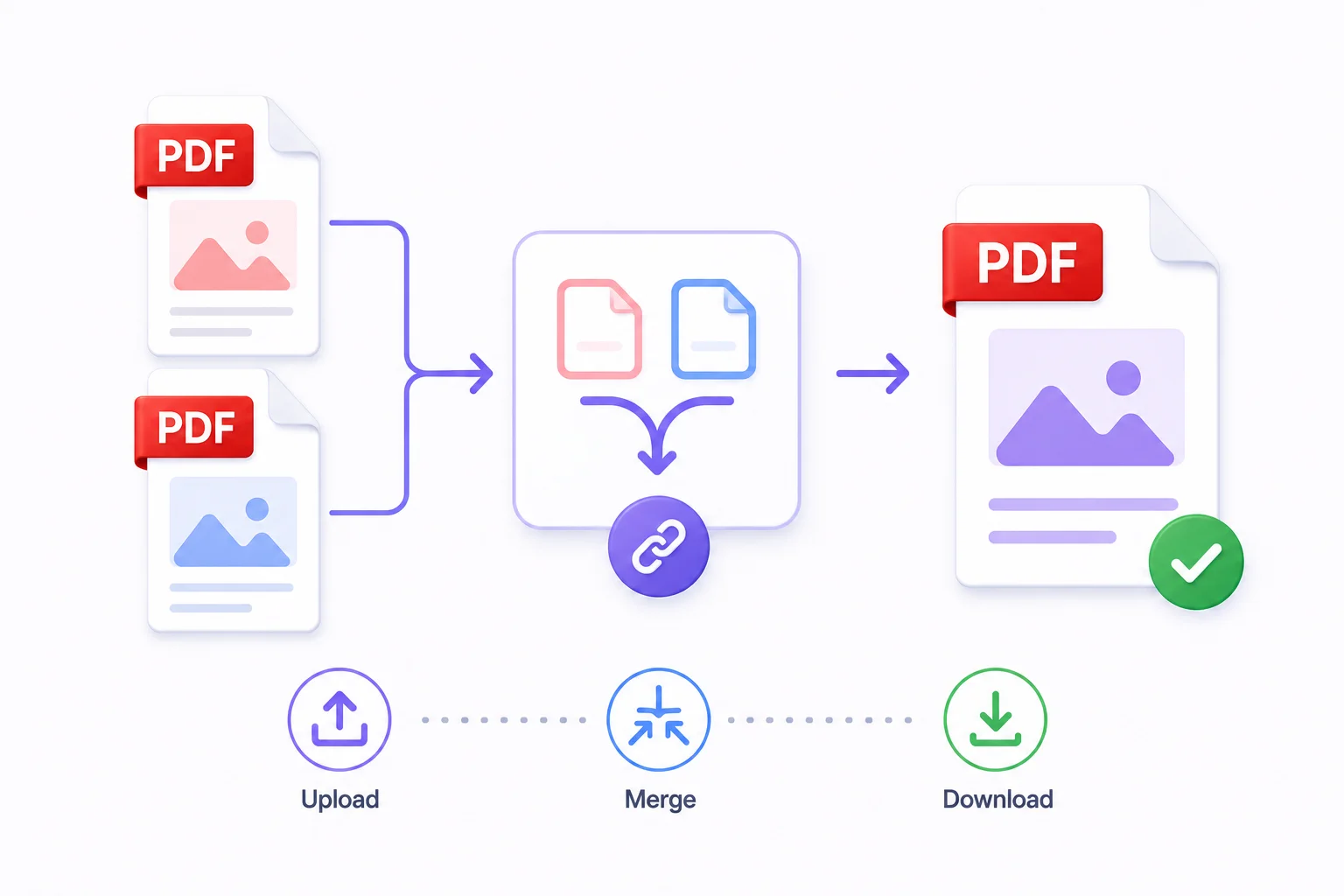
How to Merge PDF Files Online - Free & Fast
Whether you're combining a contract with its appendix, joining scanned pages into one document, or assembling a portfolio from individual pieces - merging PDFs takes under a minute with the right tool.