How to Split a PDF Into Multiple Files
Split a large PDF by page range, every N pages, or into individual pages. Four split modes with visual page selection - free and instant.
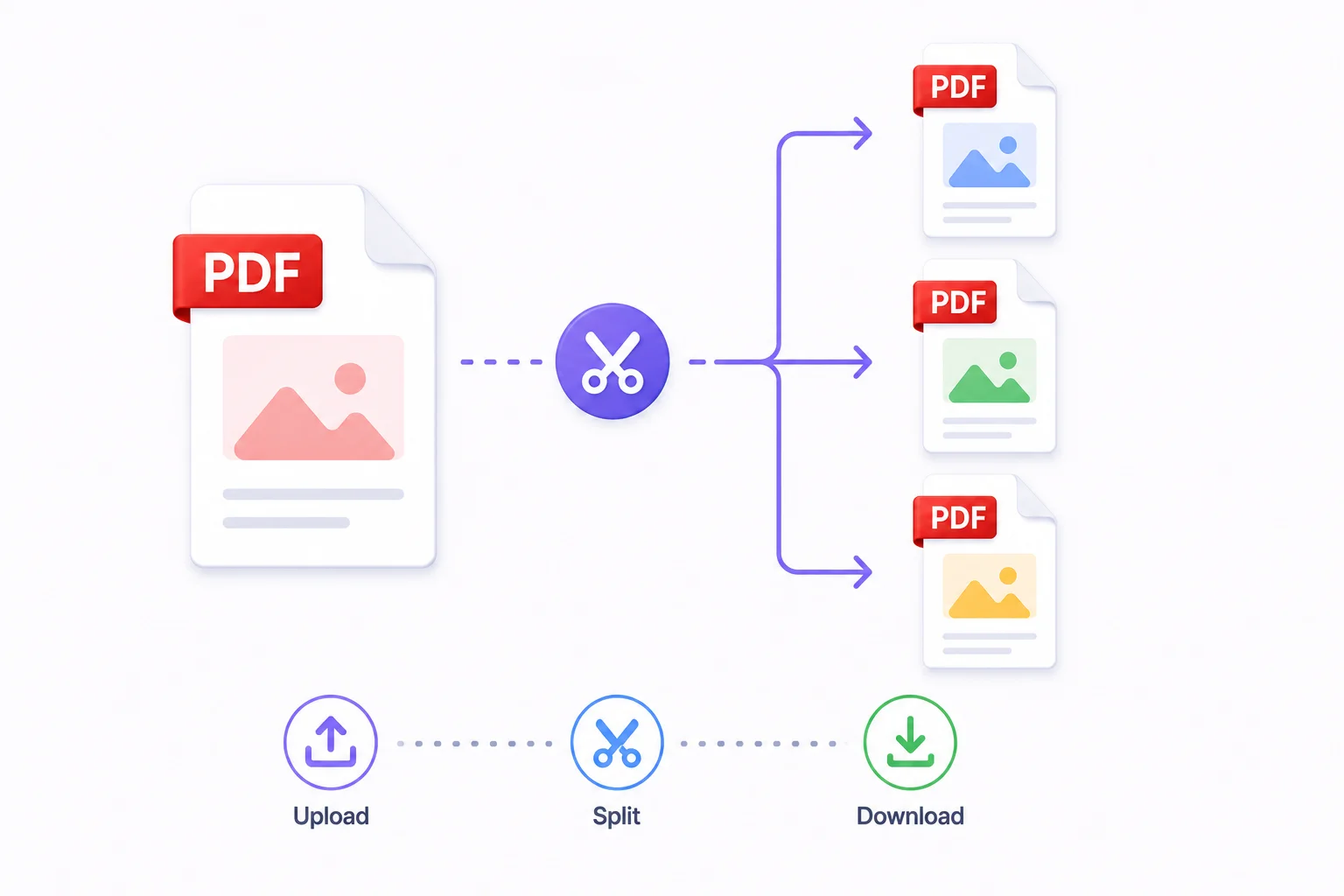
A 200-page report, a combined contract bundle, an archive of scanned invoices - sometimes a PDF is simply too large to work with efficiently. Splitting it into focused, manageable sections solves the problem instantly.
Quick answer: How do I split a PDF into multiple files for free?
Open Split PDF, upload your document, and pick a mode: Visual Selection for specific pages, By Page Range for defined sections, Every N Pages for equal chunks, or All Pages Individually to unbundle everything. Click Split and download the results - individually or as one ZIP. No quality loss, no account, runs entirely in your browser.
Four Ways to Split a PDF
PDFCrush's Split PDF tool offers four distinct split modes. Each suits different scenarios - knowing which to use saves time.
1. Visual selection
Click individual page thumbnails to select exactly the pages you want. Selected pages are extracted into one new PDF. Perfect for pulling a specific chapter from a manual, a specific invoice from a combined statement, or a specific page you need to share without the rest of the document.
Works best when you need specific non-contiguous pages - for example, pages 3, 7, and 12 from a 20-page report.
2. By page range
Enter ranges like 1-5, 7, 9-12 to define multiple output files at once. Each comma-separated entry becomes a separate PDF.
This is the most precise mode. You define exact boundaries rather than clicking thumbnails. Useful for splitting a document you know well - a contract where the annexures start at page 35, or a report where each section has a known page range.
3. Every N pages
Split the document into equal-sized chunks. A 100-page document split every 10 pages produces 10 files automatically. No need to count pages or enter ranges manually.
Useful for:
- Archiving equal-length sections of a long scanned document
- Breaking a large batch scan into individual documents of consistent size
- Distributing sections of equal length to different reviewers
4. All pages individually
Extract every page as its own PDF file. All outputs are packaged into a single ZIP download.
The complete unbundling option. Useful when you've received a combined document - multiple invoices merged into one, separate letters batch-scanned together - and need each page as its own standalone file.
Step-by-Step: How to Split a PDF
Splitting by page range
- Open the Split PDF tool and upload your document
- Select By Page Range from the split method panel
- Type your first range - for example,
1-10. The page count updates live as you type - Click Add Another Range to define additional output files
- Repeat for each section you want to create
- Click Split into N PDFs to process
- Download individual files or click Download ZIP for everything at once
Splitting with visual selection
- Upload your document to the Split PDF tool
- Select Visual Selection mode
- Scroll through the page thumbnails
- Click to select the pages you want - selected pages highlight
- Click Split to extract the selected pages into a new PDF
- Download the result
Splitting every N pages
- Upload your document
- Select Every N Pages
- Enter your chunk size - for example,
10splits a 100-page document into ten 10-page files - Click Split
- Download as a ZIP
Splitting into individual pages
- Upload your document
- Select All Pages Individually
- Click Split
- Download the ZIP - each page is a numbered separate PDF
When to Split a PDF
Splitting solves more problems than most people expect.
Extracting a chapter from a long document. A 300-page technical manual, a full legal code, an annual report. You need the section from pages 47-89. Visual selection or page range gives you exactly those pages as a standalone PDF.
Separating invoices from a combined statement. Finance teams often receive batch PDFs - a month's worth of invoices in one file, or a combined supplier statement. Split to extract individual invoices before filing or forwarding to the relevant team.
Breaking large documents for email. Most email clients cap attachments at 20-25 MB. A large scanned report or archive may exceed this. Split into sections, compress each, then send.
Removing confidential pages before sharing. A report where some pages contain internal financial data, salary figures, or strategy notes not meant for external distribution. Split off those pages, share the rest. Doing this in the browser - rather than uploading the full report to a server first just to extract a few pages - keeps the sensitive sections off infrastructure you don't control. The case against uploading sensitive PDFs online covers why that distinction matters.
Creating chapter-by-chapter handouts. Course materials, manuals, and study guides distributed section by section. Split the master PDF into individual chapter files rather than sending a 200-page document when someone needs a 20-page chapter.
Breaking scanned batch files into individual documents. A batch scan from a document feeder produces one large PDF - a stack of letters, forms, or receipts in one file. Split into individual documents for proper filing.
Preparing pages for OCR. Scanned documents split into smaller sections run through OCR PDF faster. Or extract just the pages with unreadable scans and run OCR on those specifically, then merge the result back. The guide to scanning documents to PDF covers the capture side of that same workflow.
Pulling individual invoices for bookkeeping. A combined statement with twelve invoices in one file becomes twelve separate documents - each ready to run through invoice data extraction on its own.
Name your split files immediately after downloading. "split_1.pdf" and "split_2.pdf" in your Downloads folder look identical. Rename them to reflect their content - "Q1_Report_Chapters1-3.pdf" or "InvoiceBundle_Jan2026_P1-5.pdf".
Common Mistakes When Splitting PDFs
Picking the wrong split mode for the job. Visual Selection for a 200-page document where you need pages 3, 47, and 198 means a lot of scrolling. By Page Range does the same job in one line - 3, 47, 198. Match the mode to the task before starting, not partway through.
Forgetting the source is encrypted. Upload a password-protected PDF and the split tool can't read its contents. Unlock PDF first, then split the unlocked copy - trying to split the locked original just wastes a round trip.
Not renaming output files immediately. A ZIP full of split_1.pdf through split_12.pdf looks identical a week later. Rename on download, while you still remember which range is which.
Assuming splitting shrinks the file. Splitting copies pages as-is - a 5-page extract from a 50 MB scan can still be 8-10 MB. If the output needs to be small for email, compress it after splitting, not instead of it.
Sending confidential pages with the rest of the document. If only a few pages of a report contain salary figures or internal notes, split those out before sharing the rest externally - don't rely on the recipient to "just skip those pages."
Splitting PDFs on Mobile
No laptop needed. The Split PDF tool works identically in a mobile browser.
On Android (Chrome):
- Open Chrome and navigate to the Split PDF tool
- Tap to upload - Chrome opens your Files app or Google Drive
- Select your PDF
- Choose your split mode - page range works well on mobile since you type ranges directly
- Process and download
- The split files save to your Downloads folder, ready to share via Gmail, WhatsApp, or any app
On iPhone (Safari):
- Open Safari and navigate to the tool
- Tap to browse - Safari opens Files or iCloud Drive
- Select your PDF, set your split parameters
- Download - iOS prompts you to save to Files or share directly
Mobile splitting is most useful when you've received a large PDF and need to forward only part of it. Open the PDF in a browser tab, split, and share the relevant section - no laptop required.
What Happens to Quality When You Split
Nothing. Pages are copied directly from the source PDF to the output files without any re-encoding or re-rendering. The images, text, vector elements, and formatting in each page transfer as-is.
This means:
- Image quality is unchanged - no compression applied during splitting
- Text remains vector-crisp
- Page dimensions are preserved exactly
- Form fields and hyperlinks within pages are preserved
- File size of each segment is proportional to the corresponding pages in the original
The only exception: encrypted PDFs need to be unlocked before splitting. The split tool cannot access the content of password-protected files.
Split vs Merge: When to Use Each
| If you need to... | Use... |
|---|---|
| Break one PDF into multiple files | Split PDF |
| Combine multiple PDFs into one | Merge PDF |
| Extract specific pages from a document | Split PDF |
| Join selected pages from different documents | Merge PDF |
| Send only part of a large document | Split PDF |
| Create one clean document from separate sections | Merge PDF |
| Remove pages from a document | Split PDF (keep desired pages) |
| Reorder pages within a single document | Rearrange PDF |
A common workflow: receive a combined document, split out the pages you need, merge those with other documents, compress the result before sending.
After Splitting: Next Steps
Compress before sending. Pages from a split document retain their original file size. A 5-page extract from a 50 MB scanned document may still be 10 MB. Run Compress PDF before emailing or uploading.
Run OCR on scanned sections. If the source was a scanned PDF, split files are still image-only - no selectable text. Run OCR PDF on each split file to add a text layer.
Merge specific sections with other documents. After splitting out the pages you need, merge them with related documents - a contract chapter with its cover page and signature page, or extracted invoices with their matching purchase orders. The guide to merging PDFs online covers reordering and batching that workflow in detail.
Protect before sharing. If you've extracted a section for a specific recipient, add a password with Protect PDF before sending to prevent forwarding.
Redact instead of just removing, where it matters. Splitting off confidential pages works when the whole page is sensitive. When only part of a remaining page needs to disappear - a name, an account number, a clause - drawing a black box isn't enough. The guide to permanently redacting a PDF explains why and how to do it properly.
What We Found Splitting Real Documents
We tested all four split modes on three representative files: a 240-page technical manual, a 60-page combined invoice statement (12 invoices, 5 pages each), and a 30-page batch scan from a document feeder.
By Page Range was the fastest mode for known structure. Splitting the manual into its 9 chapters using comma-separated ranges (1-22, 23-41, ...) took under a minute, including typing the ranges from the table of contents. Visual Selection would have meant scrolling through 240 thumbnails.
Every N Pages handled the invoice statement perfectly - entering 5 produced exactly 12 files, one per invoice, with zero manual page-counting. This is the mode that scales best for batch documents with a consistent structure.
All Pages Individually was the right call for the scanned batch - 30 single-page files, ZIP-downloaded, ready to rename and file individually. Trying to do this with page ranges would have meant typing 30 single-page entries.
Quality held exactly as documented. Across all three files and 240+ output pages, none showed any re-encoding artifacts - text stayed selectable, images stayed crisp, and file sizes scaled proportionally to page count, confirming the "no re-rendering" claim in practice, not just on paper.
One genuine snag: the combined statement was password-protected. Unlock PDF handled it in seconds, but it's a step that's easy to forget until the split tool stalls on an encrypted file.
Conclusion: The Right Slice for the Job
Splitting a PDF is rarely just "break it apart" - the four modes in Split PDF exist because different documents call for different cuts. Known chapter boundaries call for By Page Range. Repeating batch structures call for Every N Pages. A handful of scattered pages call for Visual Selection. A full unbundling calls for All Pages Individually.
Whichever mode fits, the result downloads with no quality loss, no watermark, and no account - entirely in your browser. From there, compress what's too big, merge what belongs together, and protect what's headed somewhere sensitive.
Frequently Asked Questions
Related Articles
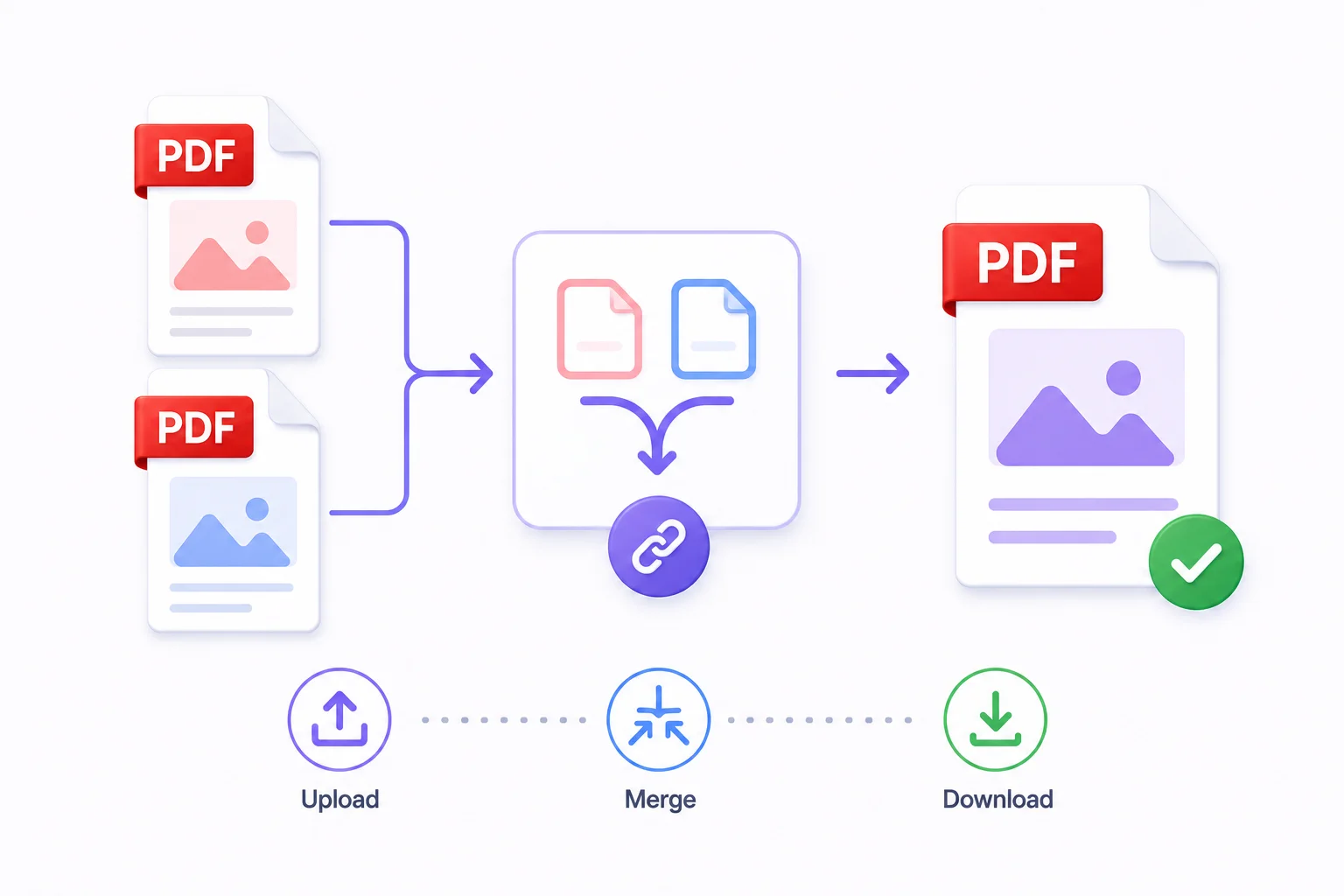
How to Merge PDF Files Online - Free & Fast
Whether you're combining a contract with its appendix, joining scanned pages into one document, or assembling a portfolio from individual pieces - merging PDFs takes under a minute with the right tool.
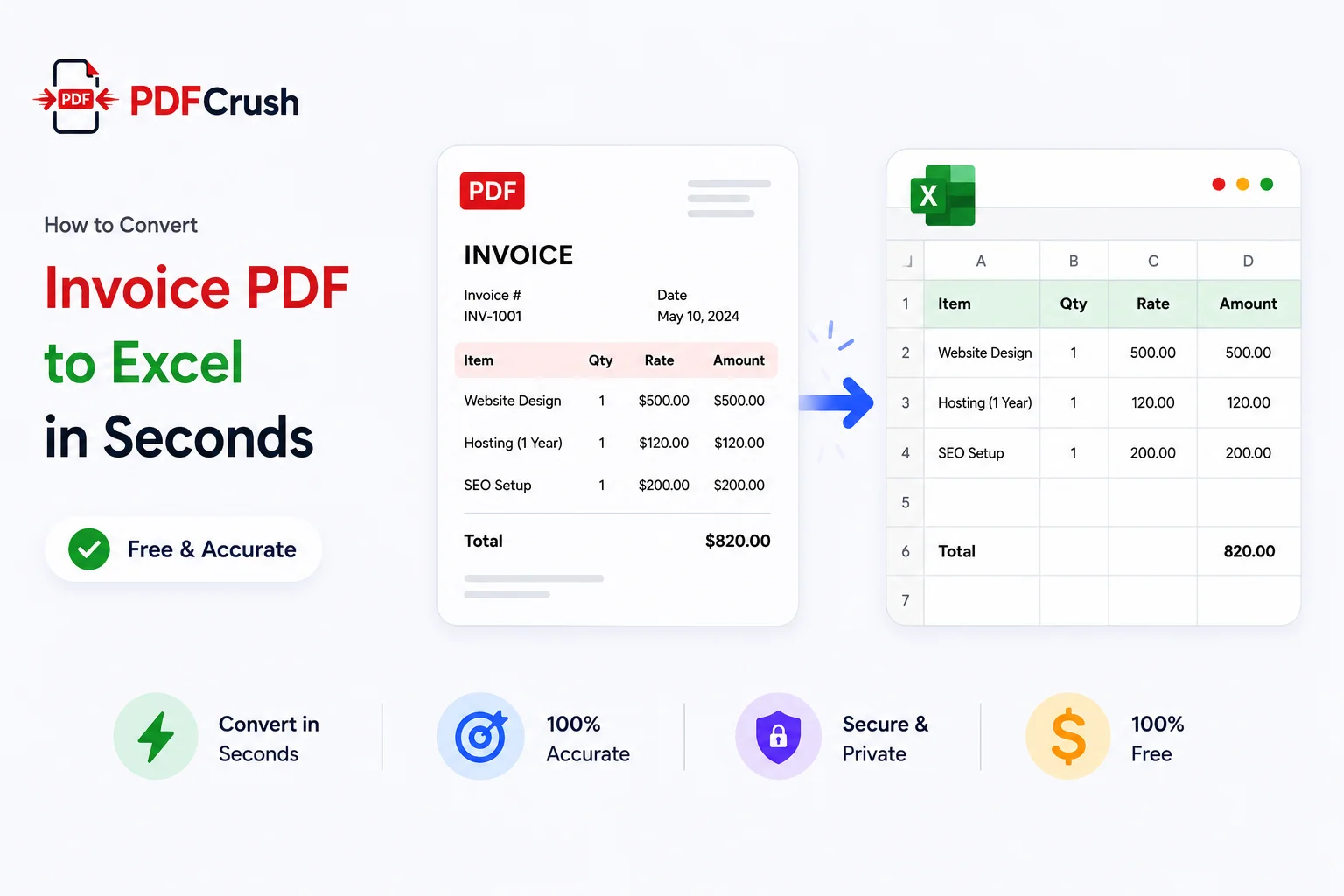
How to Convert Invoice PDF to Excel in Seconds (Free & Accurate)
Manually typing invoice data from PDFs into Excel is one of the most tedious jobs in accounting. Here's how to extract vendor details, line items, taxes, and totals from any invoice PDF automatically — free, in your browser, with nothing uploaded to any server.
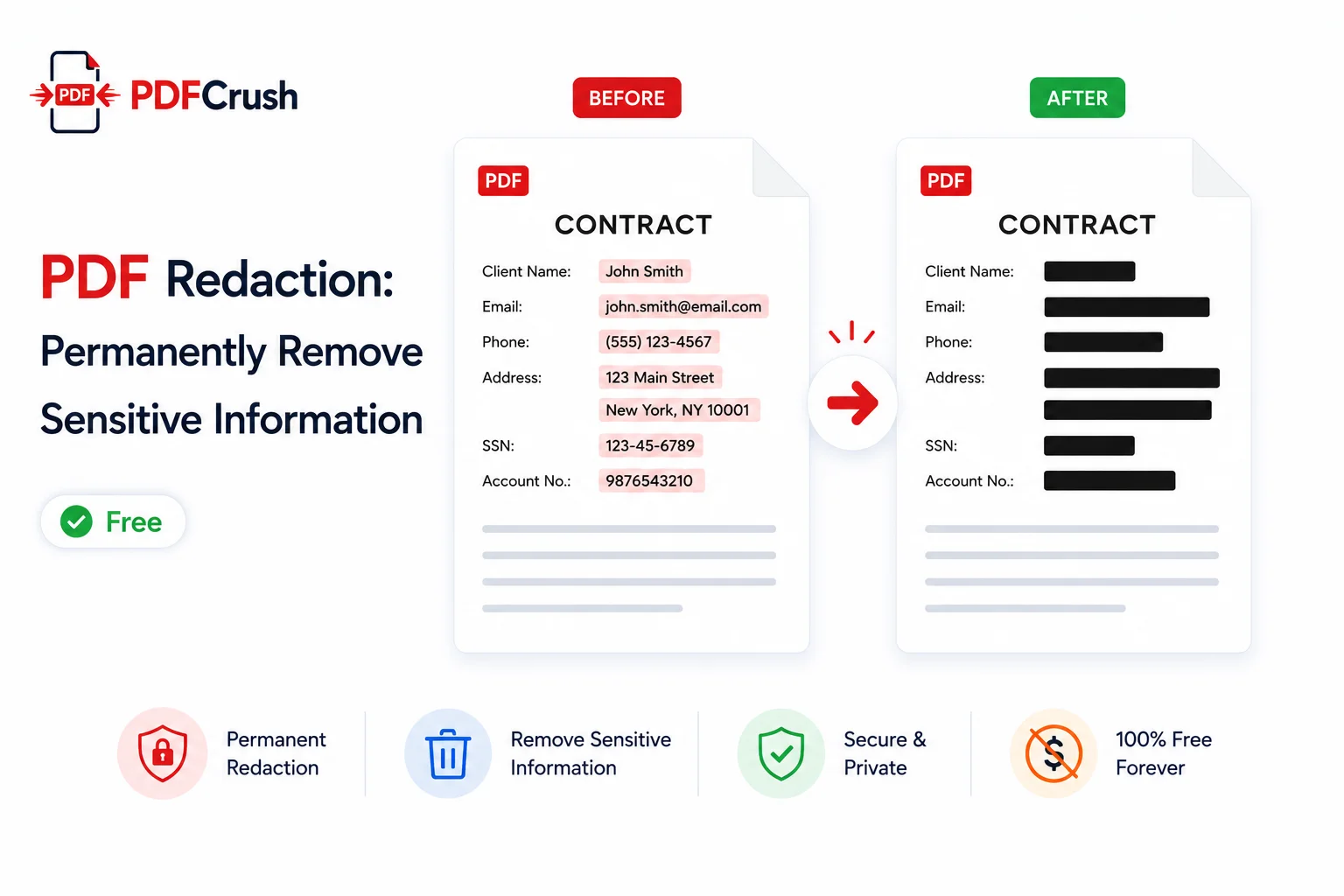
PDF Redaction: How to Permanently Remove Sensitive Information Free
Drawing a black box over text is not redaction — the text is still there. This guide explains what true PDF redaction is, why it matters, and how to permanently destroy sensitive content from any PDF for free, without Adobe, without uploading your files to any server.