How to Sign a PDF Digitally Without Printing - Free Online
Stop printing, signing, and scanning documents. Here's how to add a legally valid digital signature to any PDF in under 60 seconds — free, in your browser, without uploading your document anywhere.
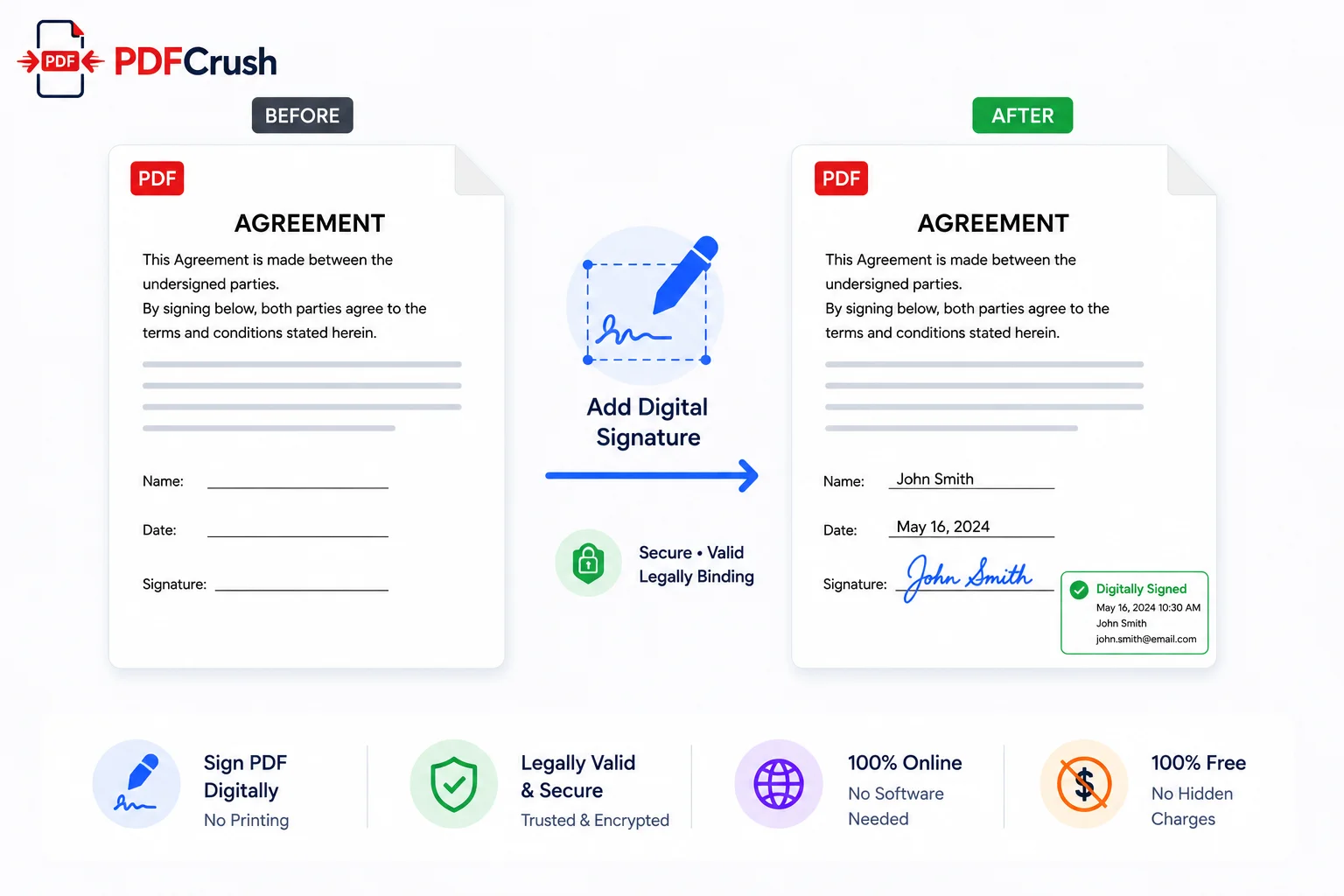
Printing a document, signing it with a pen, and scanning it back into a PDF is a workflow that survives mostly out of habit. It adds 5-10 minutes to what should be a 30-second task. You need a printer, a scanner or camera, and a computer to stitch the pieces back together. And the result — a scanned PDF — often looks worse than the original.
Digital signing removes every step between "open the document" and "send it back signed." You sign directly on the PDF in your browser, download, and email. Total time: under a minute.
And you do not need Adobe Acrobat, DocuSign, or any paid service to do it.
Quick answer: How do you sign a PDF digitally without printing?
Use a browser-based signing tool. Upload your PDF, create your signature by drawing, typing, or uploading an image, place it on the signature line, and download. PDFCrush's Sign PDF tool does everything in your browser — no printing, no scanning, no software installation, and no file uploads. Your document stays on your device the entire time.
Why People Still Print and Sign (And Why You Should Stop)
The print-sign-scan workflow persists for three reasons: habit, uncertainty about legality, and not knowing that free tools exist that handle this well. The same friction applies to other PDF tasks — our guide to common PDF problems covers why most people stick with outdated workflows and how to break the habit.
The actual cost of print-sign-scan
For a single document, printing and scanning adds about 8 minutes. If you sign five documents a week, that is 40 minutes — nearly 35 hours a year. For freelancers, contractors, and anyone handling regular paperwork, that is real time spent on a task that technology has already solved.
The quality problem
A scanned signature PDF is a photograph of a printed page. The resolution is lower, the colours may shift, the alignment is rarely perfect, and the file size is larger than a native PDF. The recipient receives a document that looks noticeably worse than the original. This is the same reason our guide to cleaning up scanned PDFs recommends avoiding print-scan cycles whenever possible.
The device barrier
Print-sign-scan requires access to a printer and a scanner or camera. If you are working remotely, travelling, or handling documents outside office hours, you may not have both available. Mobile signing removes this dependency entirely — you can sign any document from your phone.
The environmental angle
Printing a single page for a signature and then discarding it is wasteful. For documents that exist only as digital files, introducing paper into the workflow makes no sense.
Three Ways to Create a Digital Signature
Draw your signature
Draw your signature directly in the browser using a mouse, trackpad, or touchscreen. The signature is captured as a clean, high-resolution image. On a touchscreen device (phone, tablet, touchscreen laptop), this produces a natural result close to your pen signature.
Best for: quick signing on any device, especially mobile. No preparation needed.
Type your signature
Type your name and choose from several handwriting-style fonts. This produces a consistent, professional-looking signature every time. The typed signature is rendered as an image and placed on the document.
Best for: formal documents where you want a clean, repeatable signature. Useful when your drawn signature varies each time.
Upload a signature image
If you have a scanned or photographed image of your physical ink signature, you can upload it. The tool places the image onto the PDF, typically with background removal so it overlays cleanly on the page.
Best for: situations where you want your exact physical signature appearance. Requires preparing the image beforehand.
Which method should you use?
For most everyday signing — contracts, proposals, agreements — the drawn or typed method is fastest and most practical. Upload an image only if you specifically need your ink signature appearance or if the recipient expects to see your handwritten signature style.
How to Sign a PDF Online (Step by Step)
- Open the Sign PDF tool — navigate to PDFCrush's Sign PDF tool in your browser
- Upload your PDF — drag and drop or browse to select the document
- Create your signature — click "Create Signature" and choose Draw, Type, or Upload
- Place the signature — click "Page N" to place on the current page or "All Pages" to add it everywhere
- Position and resize — drag the signature to the correct spot, use corner handles to adjust size
- Add initials if needed — create a smaller signature or initial set for other pages
- Download — click Save PDF to download the signed document
The entire process takes under 60 seconds for a standard single-signature document.
Where to Place Signatures and Initials
Standard contracts and agreements
Most contracts expect:
- Full signature on the final page, typically on the signature line
- Initials on every preceding page (to acknowledge each page was reviewed)
The Sign PDF tool supports placing multiple signature instances across different pages. Create your full signature, place it on the last page. Create a smaller initial set, place it on each preceding page.
Forms with designated signature fields
Many PDF forms have a clearly marked signature line or box. Zoom in to align your signature precisely within the field. If the form has interactive signature fields, the Fill PDF Form tool may detect them automatically. For a broader look at handling form documents, see our guide to editing PDFs without Adobe Acrobat, which covers form filling in detail.
Invoices and receipts
For invoices requiring sign-off, place your signature near the bottom of the document — typically below the total amount or in a "Signature" section. One signature on the last page is usually sufficient.
Are Electronic Signatures Legally Valid?
This is the most common concern, and the answer depends on what kind of document you are signing.
Everyday business documents
For client proposals, service agreements, freelance contracts, change orders, lease renewals, consent forms, and purchase orders — an electronic signature placed via an online tool and returned by email is legally valid in most jurisdictions. The legal standard is consent and intent, not the specific method of signing.
The ESIGN Act in the United States (2000) established that electronic signatures carry the same legal weight as handwritten signatures for most transactions. The EU's eIDAS regulation (2016) provides a similar framework. For more on keeping signed documents secure, read our guide to protecting PDF files online.
Documents requiring witnessed or notarised signatures
Some documents — wills, certain property transfers, court filings — require physical presence, a witness, or notarisation. Electronic signature tools do not replace these requirements. Check the specific document's legal requirements.
Documents requiring qualified electronic signatures
For highly regulated contexts — certain financial transactions, clinical trial documents, some government filings — a qualified electronic signature (QES) with specific identity verification and audit trail requirements may be legally required. Dedicated e-signature platforms like DocuSign and Adobe Sign provide this. PDFCrush's Sign PDF tool provides standard electronic signatures suitable for the broad majority of business use.
Practical recommendation
For 95% of documents that need signing — proposals, contracts, invoices, forms, agreements — a standard electronic signature placed via a browser tool is legally sufficient. For the remaining 5% with specific regulatory requirements, use a platform that provides QES capabilities. Freelancers and small businesses handling contracts daily will find our best PDF tools for freelancers guide useful for building a complete document workflow.
Signing PDFs on Mobile
Mobile is where digital signing truly shines. Drawing your signature with your finger on a touchscreen produces a more natural result than using a mouse on desktop.
On Android (Chrome)
- Open Chrome and navigate to the Sign PDF tool
- Tap to upload your PDF from Files, Google Drive, or Downloads
- Tap "Create Signature" and draw your signature with your finger
- Tap to place it, drag to position, and resize
- Tap Download — the signed PDF saves to your Downloads folder
- Share directly from Downloads via WhatsApp, Gmail, or any app
On iPhone (Safari)
- Open Safari and navigate to the Sign PDF tool
- Tap to upload from Files, iCloud Drive, or your email attachments
- Draw your signature on the touchscreen
- Place, position, and download
- iOS prompts to save to Files, share, or open in another app
No app installation, no account creation, no upload to a server.
Adding Signatures to Form Filled Documents
A common workflow: receive a PDF form, fill in the fields, and sign it. This is handled by combining two tools.
- Open the Fill PDF Form tool — fill in text fields, checkboxes, and dropdowns
- Download the filled form
- Open the Sign PDF tool — upload the filled form
- Place your signature on the signature line
- Download the completed, signed document
Both tools process files locally. Your data never leaves your device.
Common Mistakes When Signing PDFs Digitally
Using a black rectangle as a signature placeholder. Some people crop a scanned signature tightly and end up with a black or white box around it. Use PNG format with transparency, or choose the Draw option which produces a clean signature image automatically.
Placing the signature on the wrong page. Always verify which page your signature lands on. Use the per-page placement option to target a specific page when the document has multiple signature locations.
Forgetting to initial other pages. For contracts, initial each page or risk someone arguing that not all pages were reviewed. Place initials on all preceding pages before adding the full signature to the last page.
Skipping password protection on signed sensitive documents. A signed contract contains your name and potentially sensitive terms. Before emailing it, add password protection with the Protect PDF tool.
Assuming all free signing tools handle files privately. Many free PDF signing websites upload your document to a server. If the document contains confidential information, ensure your tool processes locally. PDFCrush does — your file never leaves your browser.
Comparison: Signing PDFs Across Different Tools
| Feature | PDFCrush | Adobe Acrobat | DocuSign | Smallpdf |
|---|---|---|---|---|
| Price | Free | $239/yr | From $10/mo | Free (limited) |
| Draw signature | ✅ Yes | ✅ Yes | ✅ Yes | ✅ Yes |
| Type signature | ✅ Yes | ✅ Yes | ✅ Yes | ✅ Yes |
| Upload signature image | ✅ Yes | ✅ Yes | ✅ Yes | ✅ Yes |
| Place on all pages | ✅ Yes | ✅ Yes | ✅ Yes | ❌ No |
| Local processing | ✅ Yes | ✅ Yes (desktop) | ❌ Server | ❌ Server |
| No sign-up required | ✅ Yes | ❌ No | ❌ No | ❌ No |
| Mobile browser | ✅ Yes | ❌ No | ✅ App | ✅ Yes |
| Audit trail | ❌ No | ✅ Yes | ✅ Yes | ❌ No |
| QES support | ❌ No | ✅ Yes | ✅ Yes | ❌ No |
| Output limits | None | None | Paid plan limits | 2 tasks/hour |
PDFCrush is the only free option that combines all three signature methods with local browser processing and no sign-up requirement. For the 95% of signing needs that do not require an audit trail or QES, it covers the workflow completely.
What We Found Testing Digital Signature Tools
We tested six different signing methods across devices: drawing with a mouse on desktop, drawing with a finger on a phone, typing a signature, uploading a scanned signature, signing inside a form-filled document, and placing initials on multi-page contracts.
Speed: PDFCrush averaged 45 seconds from opening the page to downloading a signed document. Adobe Acrobat and DocuSign took longer due to account sign-in steps and additional workflow screens.
Signature quality: Drawn signatures on a touchscreen produced the most natural results across all tools. Mouse-drawn signatures were less natural-looking but still legible. Typed signatures looked consistent and professional. Uploaded image quality depended on the source image resolution.
Multi-page handling: PDFCrush's "All Pages" option placed the signature on every page in one click. This was significantly faster than tools requiring per-page placement.
Mobile experience: Only PDFCrush and Smallpdf worked in a mobile browser without requiring an app download. PDFCrush's touch-optimised signature canvas made finger-drawing easy.
Privacy: Only PDFCrush processed the document entirely in the browser. All other tools uploaded the PDF (and the signed version) to a server at some point in the workflow.
Conclusion
Printing, signing, and scanning a PDF is a workflow that should have ended a decade ago. Digital signing is faster, produces better results, works from anywhere, and is legally valid for the vast majority of documents.
PDFCrush's Sign PDF tool gives you three ways to create a signature — draw, type, or upload — and places it on any PDF page in seconds. It works on any device, requires no account, and processes everything locally so your document never leaves your browser.
For the complete workflow — fill a form, sign it, and protect it before sending — combine the Fill PDF Form tool, Sign PDF tool, and Protect PDF tool. All free, all browser-based, all private.
If you are also editing PDFs or adding annotations, the guide to editing PDFs without Adobe covers the full range of annotation, highlighting, and form-filling tools available for free.
Frequently Asked Questions
Related Articles
How to Edit PDF Without Adobe Acrobat - Free Online Tools That Actually Work
Adobe Acrobat Pro costs $239 a year. For most people - freelancers, students, remote workers - that's a subscription for a tool they need once a week. Here's how to do everything Acrobat does, for free, in a browser.
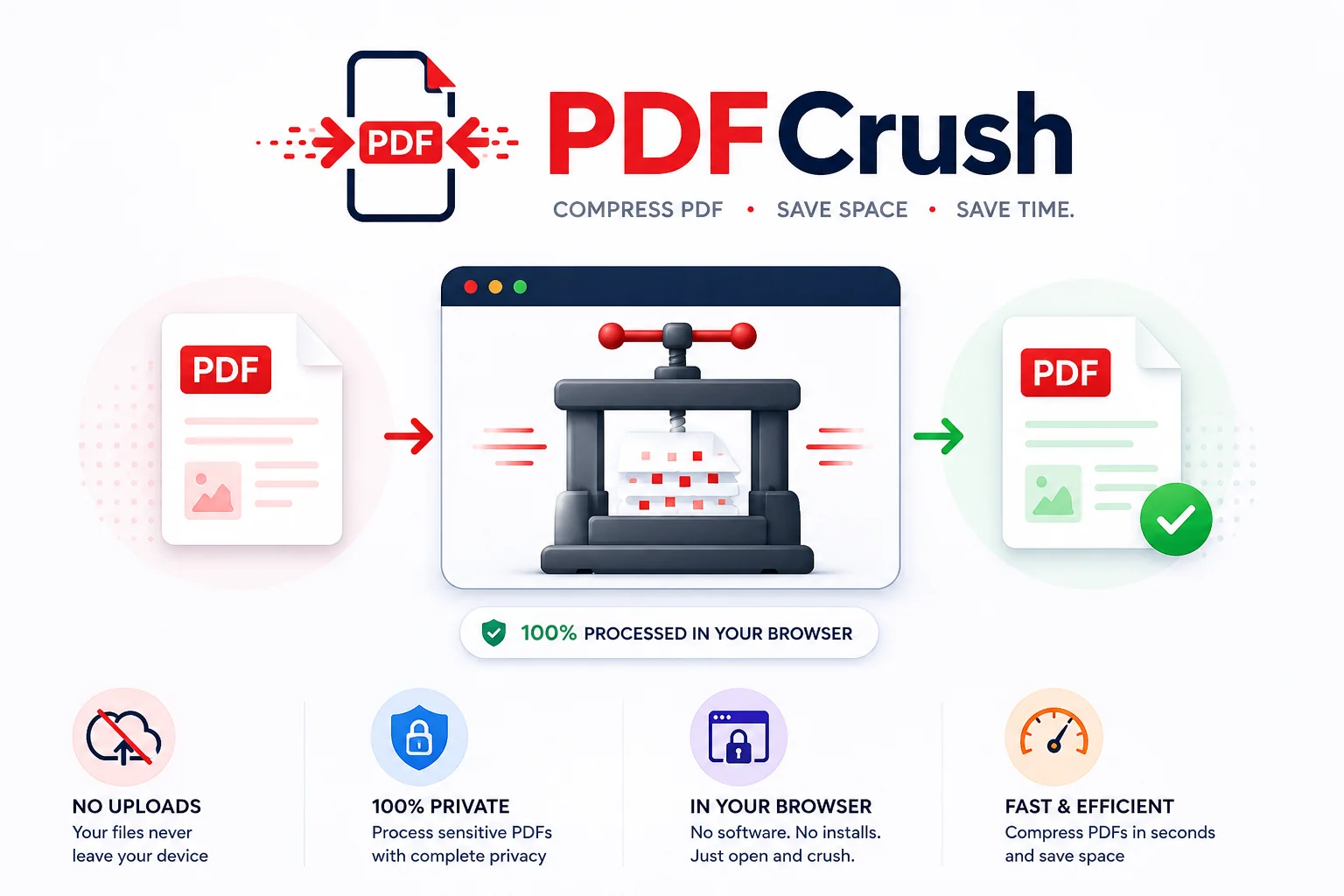
Stop Uploading Sensitive PDFs Online - Process Them Privately in Your Browser
Adobe costs $239 a year. Smallpdf throttles you at 2 files per hour. ILovePDF requires a sign-up for anything useful. PDFCrush does everything in your browser - compress, OCR, scan, extract, sign - with no account, no upload, no watermark, no limit. Here is why it works.
Common PDF Problems and How to Fix Them
PDFs seem simple until they break. File too large, email rejected, formatting scrambled, portal won't accept it, prints with the wrong colours. Here are the real causes behind the most common PDF problems - and practical fixes for each.