How to Add a Photo or Image to a PDF - Free Online
Need to add a logo to a proposal, insert a photo into a report, or place a signature image on a contract? Here's how to add images to any PDF page online for free — no software installation, no account, and nothing uploaded.
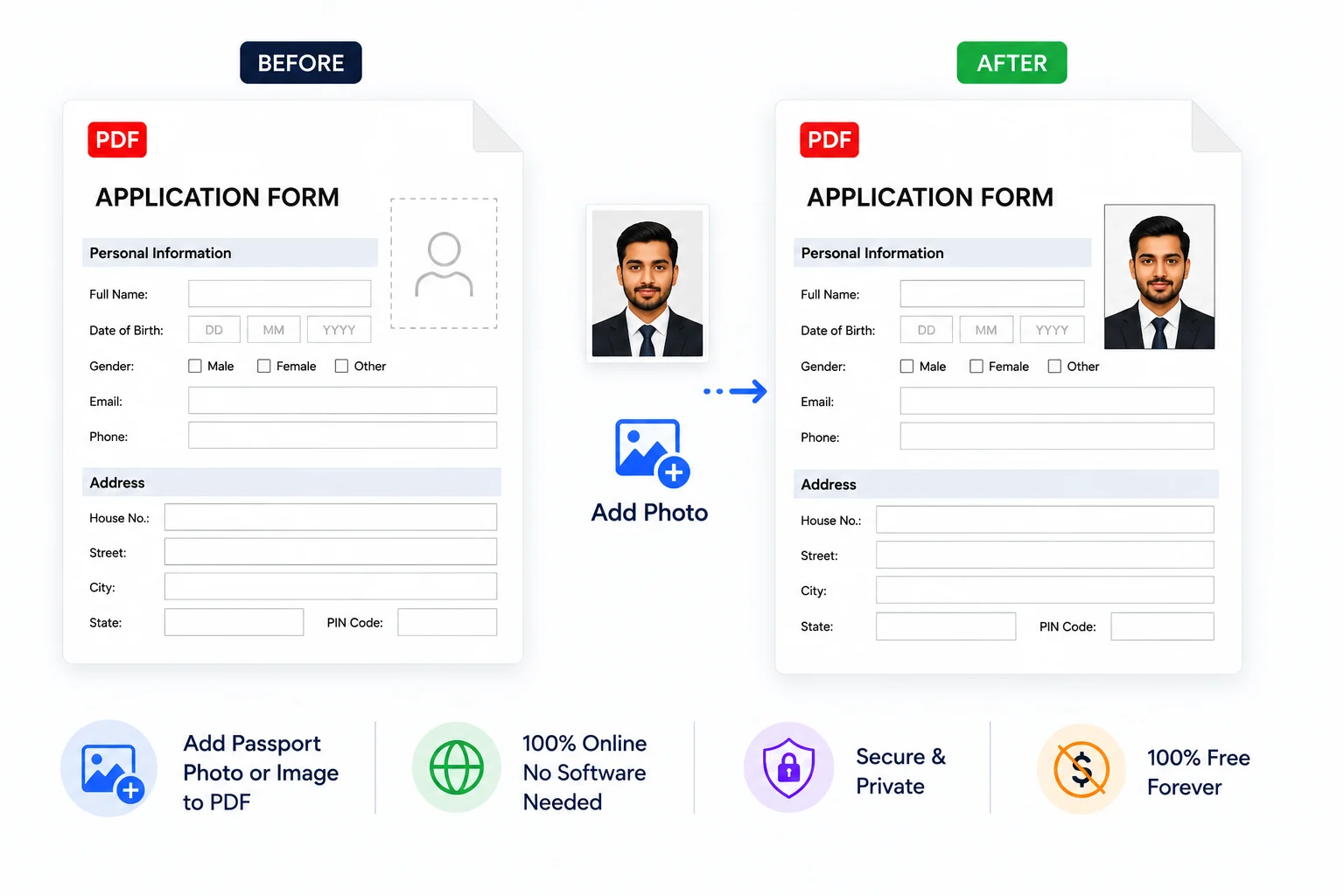
You have a PDF form that needs your passport size photo in the designated box. A proposal missing your company logo. A contract requiring a signature image. These are everyday tasks that should take seconds — but finding the right tool to insert a photo into a PDF form or add an image to a PDF page can be surprisingly frustrating.
Desktop PDF editors are expensive and heavy. Most free online tools watermark your output or limit you to a few files per day. And many of them upload your document to a server, which is not ideal when the PDF contains client information or personal content.
Whether you need to add a passport size photo to a PDF form, insert a logo into an invoice, or place a product photo in a catalog — the process is straightforward when you have the right tool. One that lets you insert, position, resize, and style images directly in your browser, free, without uploading anything.
Quick answer: How do you add a photo or image to a PDF?
Use a browser-based PDF image inserter. Upload your PDF, upload your image — a passport photo for a form, a logo for a proposal, or any picture — then drag to position, resize, and rotate. PDFCrush's Add Photo to PDF tool handles this in your browser. Supports JPG, PNG (with transparency), and WebP. Place images on a single page or all pages at once. Nothing uploaded, 100% private.
When You Need to Add Images to a PDF
Company logos on proposals and invoices
Your proposal PDF looks professional except it is missing your logo in the header. Or worse — someone else's branding is still there from a template. Adding your logo as an image overlay is the quickest fix. Place it in the top corner, resize to fit, and the document looks like it was built that way. For a full comparison of tools that handle this well, see our best free PDF tools of 2026 guide.
Product photos in catalogs and reports
Creating a product catalog, portfolio, or photo-heavy report often means starting from a text PDF and adding images afterward. Rather than rebuilding the document from scratch, you can insert product photos directly onto the relevant pages, positioned exactly where they need to be. After placing images, use the Compress PDF tool to keep file size manageable — our compression guide covers the best settings.
Signature images on contracts
If you have a scanned image of your handwritten signature, you can add it to any contract PDF without printing, signing, and scanning. Upload the signature image, place it on the signature line, resize if needed, and the document is ready. The Sign PDF tool handles this directly with signature-specific features — check our digital signing guide for the full workflow. The Add Photo to PDF tool also works well for placing signature images manually.
Passport size photo on application forms
Adding a passport size photo to a PDF form is one of the most common image-insertion tasks. Job applications, visa forms, university enrolment documents, and government ID applications all require a photograph placed in a designated box on the form.
To add a passport size photo to a PDF form:
- Crop your photo to passport size (typically 2×2 inches or 35×45 mm) using any photo editor
- Open the PDF form in the Add Photo to PDF tool
- Upload the cropped passport photo
- Drag it into the photo box on the form — the positioning and resizing controls let you align it perfectly within the frame
- Adjust the opacity if the photo needs to sit behind a form overlay
- Download the completed form with photo attached
The tool preserves the photo at its original resolution, so your passport photo stays sharp and meets submission requirements.
Headshots on ID cards and certificates
For documents that require a photograph — ID cards, certificates, visitor badges, or staff directories — you can insert a headshot photo onto the correct position in the PDF template. The precise positioning and resizing controls make it easy to align the photo within a designated frame. For related document customisation, see our guide to adding Bates numbers to PDFs and the page numbering guide.
Screenshots in documentation and guides
Technical documentation, user manuals, and how-to guides frequently need screenshots inserted at specific points. Add screenshots as images directly onto the PDF pages where the accompanying text describes them.
How to Add an Image to a PDF (Step by Step)
The process is consistent across most browser-based tools. Here is how it works with PDFCrush:
- Open the Add Photo to PDF tool — navigate to PDFCrush's Add Photo to PDF in your browser
- Upload your PDF — drag and drop the file or click to browse
- Upload your image — click the image upload area and select a JPG, PNG, or WebP file from your device
- Place the image — choose "Page N" to place it on the current page only, or "All Pages" to add it to every page
- Position and resize — drag the image to the correct position, use the corner handles to resize, and adjust rotation if needed
- Adjust opacity — for watermarks or logos that should sit subtly over content, reduce the opacity
- Download — click Save PDF to download the final file with images embedded
Total time: under a minute for most documents.
Image Placement Options
Positioning
Once placed, images can be dragged freely anywhere on the page. There are no fixed insertion points — place the image exactly where you need it.
Sizing
Drag corner handles to resize proportionally. Most tools maintain the aspect ratio automatically so your image does not stretch or distort.
Rotation
A rotation slider lets you rotate the image by any angle. This is useful for aligning images on a page that is scanned at an angle, or for creative layouts.
Opacity
Adjusting opacity turns your image into a semi-transparent overlay. This is specifically useful for:
- Watermarks (CONFIDENTIAL, DRAFT) over document content
- Logo backgrounds that should not distract from the main content
- Background images that text should sit on top of
Multiple images
You can add as many images as needed — one logo in the header, a signature at the bottom, product photos throughout. Each image is independently movable and resizable. For fillable PDF forms that need a photo attachment, place your passport photo first, then fill in the remaining form fields.
Image Formats and Quality Considerations
Supported formats
- JPG — best for photographs and complex images. Smaller file size, slight compression loss
- PNG — best for logos, graphics, and images requiring transparency. Lossless quality
- WebP — modern format with good compression and quality, smaller file sizes
Transparency
PNG transparency (alpha channel) is fully preserved. A logo with a transparent background overlays cleanly on top of PDF content — no white box around it. This is critical for professional-looking logos and watermarks. If you are dealing with scanned documents that need cleanup before adding images, our scanned PDF cleanup guide covers the preprocessing steps.
Image quality
The image is embedded at its native resolution. A 300 DPI photo stays at 300 DPI in the PDF. For print-ready documents, use high-resolution images. For digital-only documents, moderate resolution (150 DPI or standard web resolution) keeps file size manageable.
File size impact
Adding images increases the PDF file size roughly by the size of the images added. One 500KB logo adds about 500KB. Ten 5MB photos add about 50MB. If the final file is too large, use the Compress PDF tool after adding images to reduce the size.
Adding Images on Mobile
The same workflow works on your phone:
- Open Chrome or Safari and go to the Add Photo to PDF tool
- Upload a PDF from your phone storage, email, or cloud drive
- Tap to upload a photo from your camera roll or take a new photo
- Position, resize, and rotate using touch gestures
- Download the completed PDF
This is practical when you need to add a photo to a document while away from your desk — a signed document photo, a product shot for a quick quote, or a receipt image on an expense report.
Common Mistakes When Adding Images to PDFs
Using a low-resolution image for print. A 72 DPI web image looks fine on screen but pixelated when printed. For print-ready PDFs, use images at 300 DPI or higher.
Not checking transparency. A logo saved as JPG instead of PNG will have a solid white background that covers content underneath. Use PNG with transparency for logos and overlays.
Adding oversized images without compressing first. A 20MB photo adds 20MB to your PDF. Compress large photos before adding, or run the PDF through a compression tool afterward.
Misplacing the image on the wrong page. Always verify which page the image lands on. Use the per-page placement option ("Page N") to target a specific page when needed. This is especially important when adding a passport photo to a multi-page application form — the photo box is usually on page 1.
Forgetting that the tool processes locally. Many tools upload your PDF and images to a server. If you are dealing with confidential documents, ensure your tool processes everything locally. PDFCrush does this by default — your files never leave your browser.
Comparison: Adding Images to PDF Across Different Tools
| Feature | PDFCrush | Adobe Acrobat | Smallpdf | Preview (Mac) |
|---|---|---|---|---|
| Price | Free | $239/yr | Free (limited) | Free (Mac only) |
| Local processing | ✅ Yes | ✅ Yes | ❌ Server upload | ✅ Yes |
| PNG transparency preserved | ✅ Yes | ✅ Yes | ✅ Yes | ✅ Yes |
| Drag to position | ✅ Yes | ✅ Yes | ✅ Yes | ✅ Yes |
| Opacity control | ✅ Yes | ✅ Yes | ❌ No | ❌ No |
| Place on all pages | ✅ Yes | ✅ Yes | ❌ No | ❌ No |
| Rotation control | ✅ Yes | ✅ Yes | ❌ No | ❌ No |
| Mobile browser | ✅ Yes | ❌ No | ✅ Yes | ❌ No |
| Sign-up required | ❌ No | ✅ Yes | ❌ No | ✅ Has macOS account |
| Output limits | None | None | 2 tasks/hour | None |
What We Found Testing Image Placement
We tested adding images to PDFs across five common scenarios: placing a logo in the header of a 10-page proposal, inserting product photos into a catalog, adding a signature image to a contract, placing a transparent watermark across all pages, and inserting a headshot into an ID card template.
Precision: PDFCrush and Acrobat both allowed pixel-level positioning. The drag interaction was smooth, and zooming in before placing helped with alignment in tight spaces.
Transparency: PNG transparency was preserved correctly in all tested tools. JPEG logos had visible white backgrounds that covered underlying text — reinforcing the importance of using PNG for logos.
Batch placement: Adding the same logo to all 10 pages of the proposal took one click in PDFCrush (using the "All Pages" option). Smallpdf required repeating the placement 10 times. Preview on Mac offers drag-and-drop but no multi-page placement.
Mobile: Only PDFCrush and Smallpdf worked in a mobile browser. PDFCrush's touch-based drag and resize felt natural on a phone screen.
Conclusion
Adding images to a PDF — whether it is a passport size photo for an application form, a logo for a proposal, or a signature for a contract — should be trivial. With the right tool, it is. Upload your PDF, upload your image, position it, download. No software to install, no subscription to maintain, no file uploads to worry about.
PDFCrush's Add Photo to PDF tool handles JPG, PNG, and WebP images with full transparency support. Place images on individual pages or all pages at once. Resize, rotate, and adjust opacity — all in your browser, free, with your files never leaving your device.
If you are also adding signatures to contracts, the signing guide covers the dedicated signature workflow. And for a broader look at everything you can do without Acrobat, see the complete guide to editing PDFs without Adobe.
Frequently Asked Questions
Related Articles
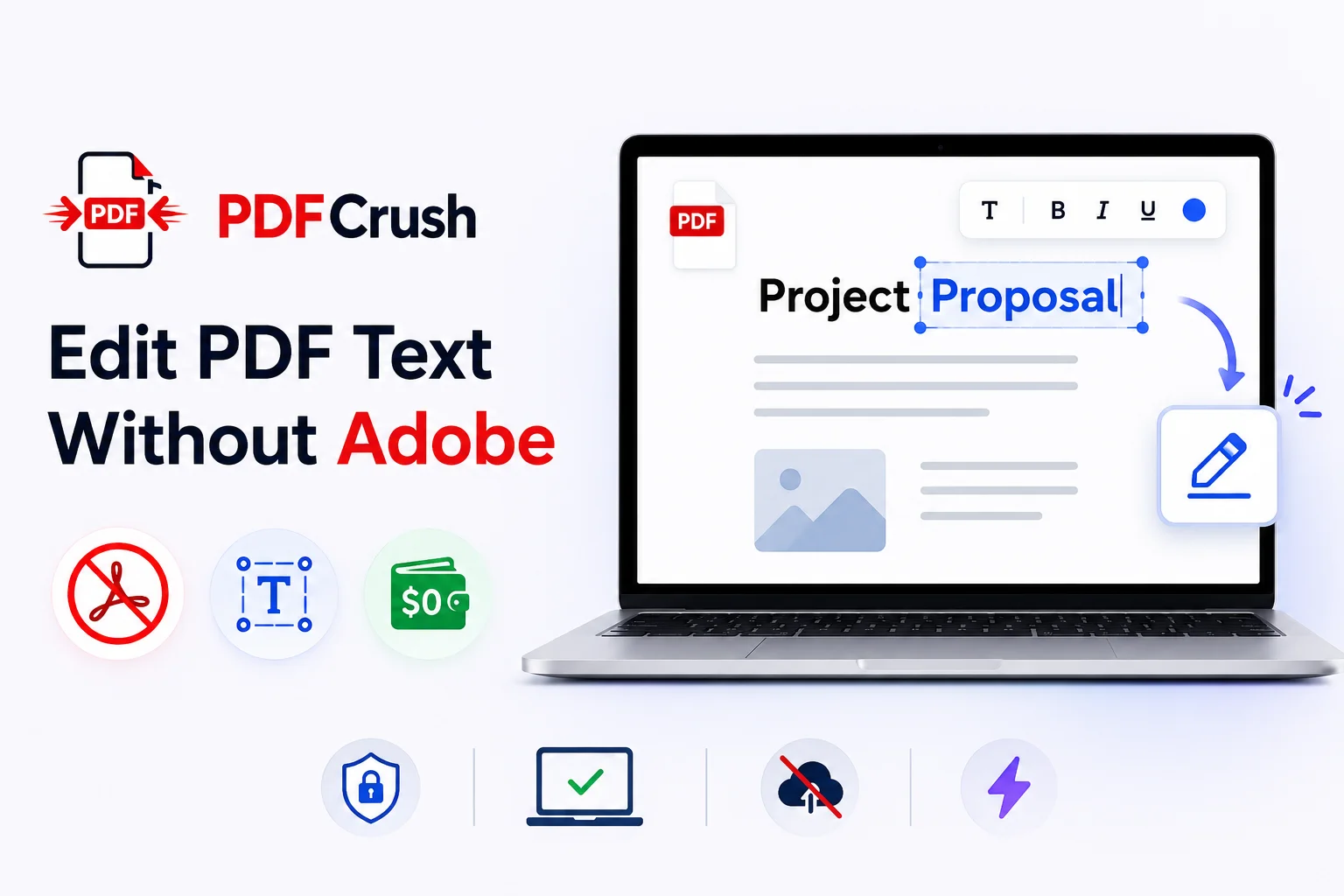
How to Edit PDF Without Adobe Acrobat - Free Online Tools That Actually Work
Adobe Acrobat Pro costs $239 a year. For most people - freelancers, students, remote workers - that's a subscription for a tool they need once a week. Here's how to do everything Acrobat does, for free, in a browser.
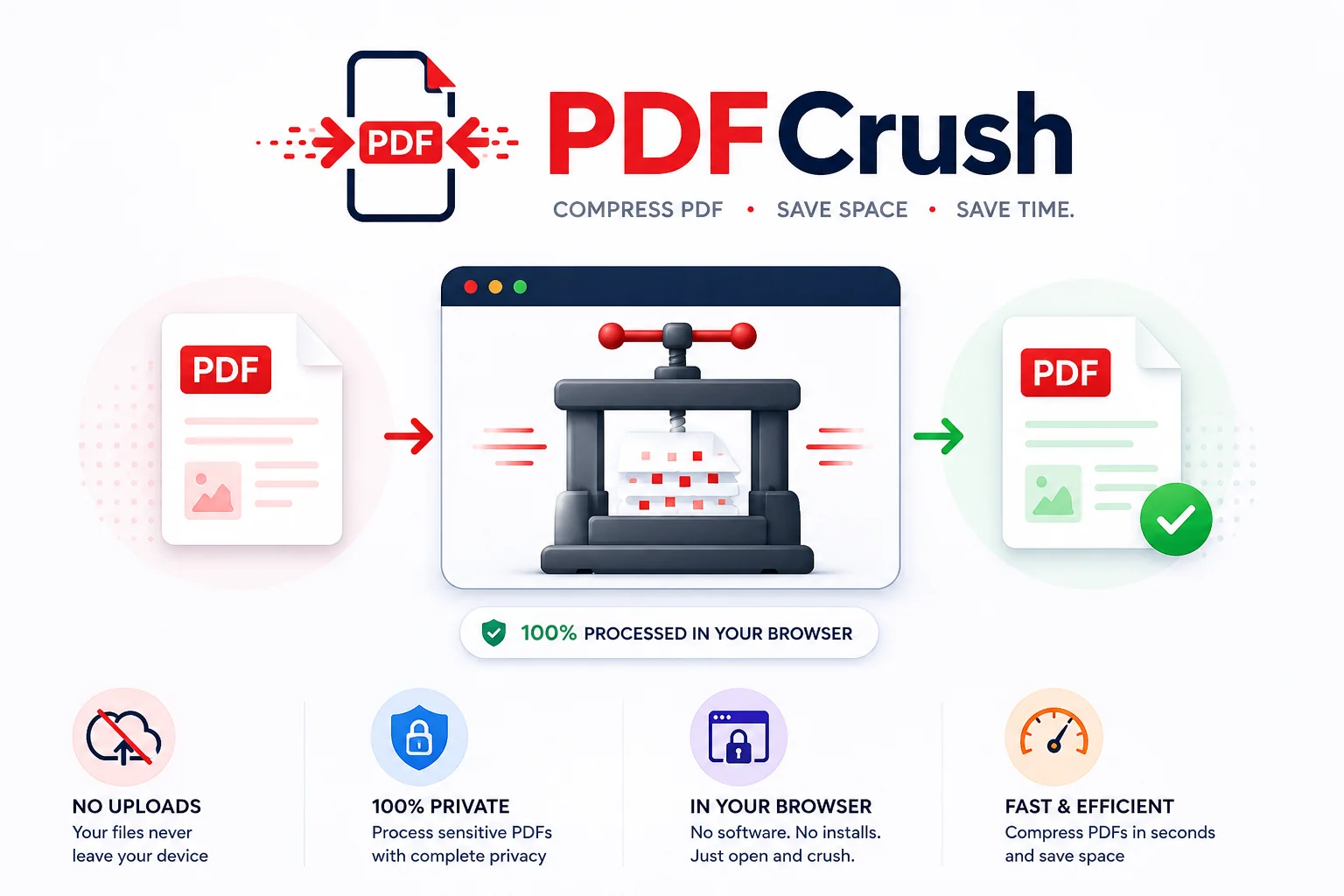
Stop Uploading Sensitive PDFs Online - Process Them Privately in Your Browser
Adobe costs $239 a year. Smallpdf throttles you at 2 files per hour. ILovePDF requires a sign-up for anything useful. PDFCrush does everything in your browser - compress, OCR, scan, extract, sign - with no account, no upload, no watermark, no limit. Here is why it works.
Common PDF Problems and How to Fix Them
PDFs seem simple until they break. File too large, email rejected, formatting scrambled, portal won't accept it, prints with the wrong colours. Here are the real causes behind the most common PDF problems - and practical fixes for each.