Best Free PDF Tools in 2026 - Full Comparison
A side-by-side comparison of the best free PDF tools in 2026 - PDFCrush vs Smallpdf, iLovePDF, Adobe Acrobat, and the top browser-based editors. What each tool actually does, where each one limits you, and which one fits your workflow.
The word "free" does a lot of work in PDF tool marketing. Most tools lead with it, then bury the restrictions in fine print: 2 tasks per hour, 15 MB file caps, watermarks on downloads, or a sign-up wall before you can access the feature you actually need.
This is a direct comparison of the best free PDF tools in 2026 - what each one genuinely offers for free, where each one cuts you off, and which one to use for which situation. No affiliate angles. No padding.
Quick answer: What's the best free PDF tool in 2026?
For most tasks, PDFCrush - it has no task limits, no file size cap, no account requirement, and processes everything locally in your browser instead of uploading to a server. Smallpdf and iLovePDF are solid for occasional one-off jobs but cap free users at 2 tasks/hour or 15 MB files respectively. Adobe Acrobat is the only one worth paying for, and only for advanced form-building or legally defensible redaction.
What Actually Matters in a Free PDF Tool
Not all restrictions are equal. Before comparing tools, here are the factors worth caring about:
Task limits matter more than they look on paper. A "2 tasks per hour" cap sounds manageable until you have 10 invoices to compress before a client call. Tools with no task limits let you work without watching a clock.
File size limits hit at the worst moments. Scanned documents, design exports, and presentation PDFs routinely exceed 15-20 MB. A 15 MB cap sounds generous until your 22 MB scanned contract gets rejected.
Account requirements add friction. Signing up means email confirmation, remembering a password, and - for paid tools - a billing page. Tools that work without an account get things done faster.
Privacy matters for sensitive documents. Most tools upload your files to a remote server. If that file is a contract, tax return, or identity document, that's a real consideration, not a theoretical one.
Watermarks make free tools unusable for professional output. Any tool that stamps its branding on your downloaded file is not actually free for practical purposes.
Mobile experience separates tools designed for phones from tools that happen to work on phones. The difference shows in how touch interactions feel and whether you need to zoom to hit buttons - the roundup of free PDF tools worth knowing for students leans heavily on this, since most of that workflow happens on a phone between classes.
PDFCrush vs Smallpdf
Smallpdf is one of the most recognized names in browser-based PDF tools, built in Switzerland with a wide feature set and a polished interface. The free tier is functional for occasional use but has real restrictions for anyone working with documents regularly.
Feature Comparison
| Feature | PDFCrush | Smallpdf |
|---|---|---|
| Compress PDF | ✅ Free, unlimited | ✅ Free, 2/hour limit |
| Merge PDF | ✅ Free, unlimited | ✅ Free, 2/hour limit |
| Split PDF | ✅ Free, unlimited | ✅ Free, 2/hour limit |
| Edit PDF | ✅ Free, unlimited | ✅ Free, 2/hour limit |
| Sign PDF | ✅ Free, unlimited | ✅ Free, 2/hour limit |
| OCR PDF | ✅ Free, unlimited | ✅ Free (limited) |
| Protect PDF | ✅ Free, unlimited | 🔒 Pro only |
| File size limit | ✅ No limit | ⚠️ 5 MB some tools |
| Account required | ✅ Never | ⚠️ Some features |
| Watermarks | ✅ None | ✅ None |
| File processing | ✅ Local (browser) | ☁️ Server-side |
| Daily task cap | ✅ None | ⚠️ 2 tasks/hour |
The Key Differences
The 2 tasks/hour cap is Smallpdf's main friction point. For someone compressing a single PDF occasionally, it's irrelevant. For someone processing a batch of files - expense reports, client documents, scanned forms - it turns a simple task into a waiting game. The roundup of PDF tools that freelancers actually reach for covers exactly this kind of repeated, back-to-back workload, where a 2-per-hour limit stops being a minor annoyance.
The more significant difference is privacy. Smallpdf uploads your files to their servers in Switzerland for processing. PDFCrush processes everything in your browser using WebAssembly - nothing is transmitted. For sensitive documents, this is not a minor distinction.
Bottom line: PDFCrush for unlimited use, large files, and anything sensitive. Smallpdf works well for occasional tasks where the polished interface is worth the task limit.
PDFCrush vs iLovePDF
iLovePDF is a Spanish company with a clean interface and a broad set of PDF operations. The free tier is genuinely usable - but the 15 MB file size cap is a hard wall that catches people off guard.
Feature Comparison
| Feature | PDFCrush | iLovePDF |
|---|---|---|
| Compress PDF | ✅ Free, unlimited | ✅ Free, 15 MB limit |
| Merge PDF | ✅ Free, unlimited | ✅ Free, 15 MB limit |
| Split PDF | ✅ Free, unlimited | ✅ Free, 15 MB limit |
| Edit PDF | ✅ Free, unlimited | ✅ Free, 15 MB limit |
| Sign PDF | ✅ Free, unlimited | ✅ Free |
| OCR PDF | ✅ Free, unlimited | ✅ Free (limited) |
| Protect PDF | ✅ Free, unlimited | ✅ Free |
| File size limit | ✅ No limit | ⚠️ 15 MB free |
| Account required | ✅ Never | ⚠️ Batch operations |
| Watermarks | ✅ None | ✅ None |
| File processing | ✅ Local (browser) | ☁️ Server-side |
| Batch processing | ✅ No account needed | 🔒 Account required |
| Mobile experience | ✅ Mobile-first design | ⚠️ Functional but not optimised |
The Key Differences
The 15 MB limit sounds reasonable until you're dealing with the files that most commonly need compression: multi-page scanned documents, Canva exports, and PowerPoint-to-PDF conversions. These regularly run 20-50 MB before any processing. PDFCrush has no size ceiling - the only limit is your device's memory.
Batch operations on iLovePDF require an account. For someone running through a folder of files - say, merging a stack of scanned receipts into one document, or splitting a 200-page report into chapters - that means signing up before getting started. PDFCrush requires no account for any workflow, including processing files back-to-back.
Bottom line: PDFCrush for larger files and privacy. iLovePDF is a solid choice for files under 15 MB and has a particularly clean UI for simple one-off tasks.
PDFCrush vs Adobe Acrobat
Adobe Acrobat is the professional standard - the most capable PDF tool available, with advanced editing, annotation, form building, legal redaction, and enterprise workflow features. It is also $23/month and primarily desktop software.
Feature Comparison
| Feature | PDFCrush | Adobe Acrobat |
|---|---|---|
| Compress PDF | ✅ Free | ✅ Paid ($23/month) |
| Merge PDF | ✅ Free | ✅ Paid |
| Split PDF | ✅ Free | ✅ Paid |
| Edit text/images | ✅ Free (basic) | ✅ Paid (advanced) |
| Sign PDF | ✅ Free | ✅ Free (limited online) |
| OCR PDF | ✅ Free | ✅ Paid |
| Protect / Encrypt | ✅ Free | ✅ Paid |
| Form creation | ❌ Not available | ✅ Paid |
| Redaction | ❌ Not available | ✅ Paid |
| File size limit | ✅ No limit | ✅ No limit (desktop) |
| Account required | ✅ Never | ⚠️ Adobe ID required |
| Installation | ✅ Browser only | ⚠️ Desktop software |
| Price | Free | $23/month |
| File processing | ✅ Local (browser) | ☁️ Cloud sync |
When Adobe Acrobat Is Worth It
Acrobat makes sense for specific professional needs: editing body text directly inside a PDF and having paragraphs reflow, building fillable forms from scratch, legally defensible document redaction, advanced digital signature workflows with audit trails, and enterprise document management at scale.
For everything else - compression, merging, splitting, basic editing, signing, protecting, annotating, and OCR - PDFCrush covers the same ground for free.
Bottom line: PDFCrush is the practical free alternative for the tasks most people actually use Acrobat for. Adobe Acrobat is worth the subscription only for advanced editing, form building, or enterprise compliance requirements.
Best Free PDF Editors Compared
Looking specifically at editing - annotating, adding text, highlighting, signing, and modifying content - here is how the main tools compare.
| Tool | PDFCrush | Smallpdf | iLovePDF | Sejda | PDF24 |
|---|---|---|---|---|---|
| Add text | ✅ Free | ✅ (2/hr) | ✅ (15 MB) | ✅ (3/hr) | ✅ Free |
| Highlight | ✅ Free | ✅ (2/hr) | ✅ (15 MB) | ✅ (3/hr) | ✅ Free |
| Draw / ink | ✅ Free | ✅ (2/hr) | ✅ (15 MB) | ⚠️ Basic | ✅ Free |
| Add images | ✅ Free | ✅ (2/hr) | ✅ (15 MB) | ✅ (3/hr) | ✅ Free |
| Sign | ✅ Free | ✅ (2/hr) | ✅ | ✅ (3/hr) | ✅ Free |
| Delete pages | ✅ Free | ✅ (2/hr) | ✅ | ✅ (3/hr) | ✅ Free |
| Edit existing text | ❌ | ❌ | ❌ | ❌ | ❌ |
| File size limit | None | 5 MB some | 15 MB | 50 MB | 100 MB |
| Task limit | None | 2/hour | None | 3/hour | None |
| Account needed | Never | Some features | Batch only | Never | Never |
| Privacy | Local | Server | Server | Server | Server |
| Mobile | Optimised | Functional | Functional | Functional | Functional |
One Limitation All Free Tools Share
No free browser-based PDF editor - PDFCrush, Smallpdf, iLovePDF, Sejda, or PDF24 - can edit existing body text inside a PDF. This is a format constraint, not a feature omission. Body text in a rendered PDF is not editable without the original source file and fonts. Editing existing paragraphs requires desktop software like Adobe Acrobat, or converting the PDF back to Word first.
What all of these tools can do: add new text boxes, annotations, highlights, freehand drawings, signatures, and images on top of any existing PDF - which covers the majority of real editing use cases.
For editing specifically: PDFCrush's Edit PDF wins on task limits, file size, privacy, and mobile experience. PDF24 is the closest competitor (no task limits, wide tools), but processes files server-side and has a more cluttered interface.
Best Browser-Based PDF Tools in 2026 - Full Overview
| Tool | Tools covered | Free limits | Privacy | Mobile | Account |
|---|---|---|---|---|---|
| PDFCrush | Compress, Merge, Split, Edit, OCR, Sign, Protect | None | Local (browser) | Optimised | Never |
| Smallpdf | Compress, Merge, Split, Edit, OCR, Sign, eSign | 2/hour | Server (Switzerland) | Good | Optional |
| iLovePDF | Compress, Merge, Split, Edit, OCR, Sign, Watermark | 15 MB | Server (Spain) | Good | Batch only |
| Sejda | Compress, Merge, Split, Edit, OCR, Sign | 3/hour, 50 MB | Server | Good | Never |
| PDF24 | Compress, Merge, Split, Edit, OCR, Sign, Convert | 100 MB | Server (Germany) | Basic | Never |
Use PDFCrush when: the document is sensitive, the file is large, you're processing many files in sequence, or you're on a phone and want a clean experience. The guide to merging PDFs online and the guide to editing a PDF without Adobe Acrobat walk through two of the most common "many files in sequence" workflows step by step.
Use Smallpdf when: you only need one or two tasks and the polished interface matters more than limits.
Use iLovePDF when: files are under 15 MB and you want a wide tool selection with a clean layout.
Use Sejda when: you want a desktop-style editor experience in a browser and the 3 tasks/hour cap works for your workflow.
Use PDF24 when: you're on Windows and want a free desktop app with browser fallback - the interface is dated, but the tool set is broad.
Why Local Processing Changes the Equation
Most online PDF tools follow the same architecture: you upload a file, their server processes it, you download the result. That means your document - a contract, payslip, tax return, ID scan - travels over the internet and temporarily exists on someone else's infrastructure, even if they delete it after 24 hours.
PDFCrush processes files differently. Every operation runs in your browser using WebAssembly-compiled PDF libraries. Nothing is transmitted. The server never receives your file. For a closer look at why this matters for sensitive documents, see stop uploading sensitive PDFs online.
The practical effects are:
- No file size cap (your device RAM is the only ceiling)
- No upload wait time for large files - processing starts immediately
- No risk of interception or breach from the tool itself
- No data retention policy to read or trust
- Works offline once the page has loaded
If you want to verify this: open PDFCrush, start a compression, then disconnect your internet. The tool keeps running.
Common Mistakes When Picking a "Free" PDF Tool
Judging by the homepage instead of the free-tier limits. Every tool on this list advertises "free" above the fold. The differences - 2 tasks/hour, 15 MB caps, account walls on batch operations - sit in the fine print or only appear once you hit them mid-task. Check the limits before committing a real workflow to a tool, not after the third "upgrade to continue" prompt.
Uploading sensitive documents to whichever tool ranks first. A contract, payslip, or ID scan uploaded to a server-side tool sits on infrastructure you don't control, even briefly. For anything that would be a problem if it leaked, that's a real factor - not a theoretical one - and it's worth choosing a browser-based, local-processing tool specifically for those files.
Assuming "no watermark" means "no restriction." Several tools skip watermarks but cap task counts or file sizes instead. A clean output with a 2-tasks-per-hour wall behind it is still a meaningfully restricted free tier - just restricted in a way that's easier to miss until you hit it.
Picking a desktop tool for an occasional mobile task, or vice versa. Adobe Acrobat and PDF24 are built around desktop workflows; reaching for them from a phone mid-commute is friction you don't need. Match the tool to where the task actually happens.
Not testing the actual operation you need before relying on it. A tool that handles compression beautifully might handle OCR poorly, or vice versa. Run the specific task - on a representative file - before building a recurring workflow around any single tool.
Which Free PDF Tool to Use
| Situation | Best choice |
|---|---|
| Sensitive documents - contracts, IDs, financials | PDFCrush |
| Large files over 15 MB | PDFCrush |
| Many files back to back | PDFCrush |
| Mobile use on phone or tablet | PDFCrush |
| Occasional one-off task, polished UI preferred | Smallpdf |
| Batch converting many small files | iLovePDF (with account) |
| Desktop-style editing experience in browser | Sejda |
| Free Windows desktop app | PDF24 |
| Advanced editing, form building, enterprise workflows | Adobe Acrobat |
For most people in most situations, PDFCrush covers the full range - free, no account, no limits, no files leaving your device. The other tools are worth knowing about for specific edge cases, but they each trade something meaningful to get there.
What We Found Running the Same File Through Each Tool
We took one representative file - a 28-page scanned contract bundle at 34 MB - and ran the same compression and merge tasks through PDFCrush, Smallpdf, and iLovePDF to see how the advertised limits actually played out.
Smallpdf's 2-tasks-per-hour cap hit on the second file. Compressing the contract bundle worked fine; merging it with a second document triggered a "you've reached your free limit" wall with a 58-minute countdown. The advertised limit is real and it arrives faster than expected once a workflow involves more than one step.
iLovePDF's 15 MB cap rejected the file outright. At 34 MB, the bundle was well over the free-tier ceiling - the upload simply failed with an upgrade prompt, before any processing began. Splitting it into smaller pieces first would have worked, but that's an extra round trip the comparison table doesn't show.
PDFCrush processed the full 34 MB file with no warnings, no waiting, and no account prompt - compression brought it down to roughly 9 MB, and the subsequent merge with a second document completed in the same session with no cooldown. The "no limits" claim held up under an actual back-to-back workflow, not just a single isolated task.
The privacy difference was visible in the network tab, not just the marketing copy. Watching browser dev tools during each operation: Smallpdf and iLovePDF both showed outbound file uploads to their respective servers; PDFCrush showed none. For a contract bundle, that's the difference that matters most.
Conclusion: Pick the Tool That Survives Real Use
The free tiers that look identical on a feature list stop looking identical the moment a real workflow runs through them - a second task within the hour, a file a few megabytes over the cap, a document too sensitive to upload anywhere. PDFCrush is built around exactly those moments: no task limits, no file size ceiling, no account, and processing that never leaves the browser.
Smallpdf, iLovePDF, Sejda, and PDF24 each have a place - a quick one-off task, a polished interface, a desktop habit. But for anything recurring, anything large, or anything that shouldn't sit on someone else's server even briefly, the comparison in this guide points the same direction every time.
Frequently Asked Questions
Related Articles
Best Free PDF Tools for Students in 2026
From merging scattered assignment files to compressing a resume before a portal deadline - here are the free PDF tools every student actually needs in 2026, with specific workflows for each.
Best PDF Tools for Freelancers in 2026
From sending a polished proposal to compressing a 40 MB Figma export before emailing it - here are the PDF tools and workflows every freelancer actually uses, with step-by-step guides for each.
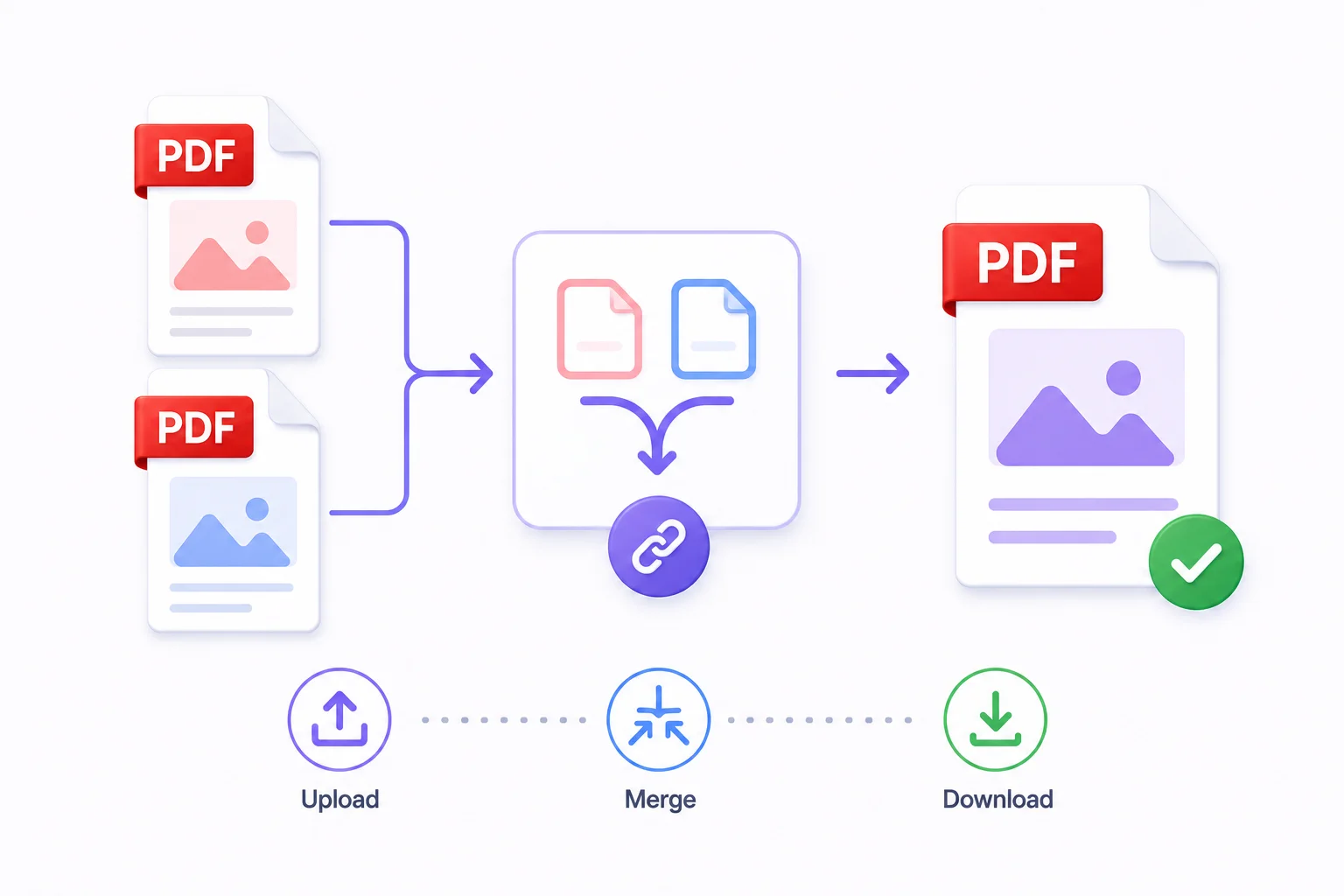
How to Merge PDF Files Online - Free & Fast
Whether you're combining a contract with its appendix, joining scanned pages into one document, or assembling a portfolio from individual pieces - merging PDFs takes under a minute with the right tool.