Free Invoice OCR - Scan Invoices and Export to Excel
Typing invoice data from PDFs into spreadsheets is slow, error-prone, and entirely avoidable. Here's how to extract vendor details, line items, and totals from any invoice PDF automatically - free, in your browser, no software needed.
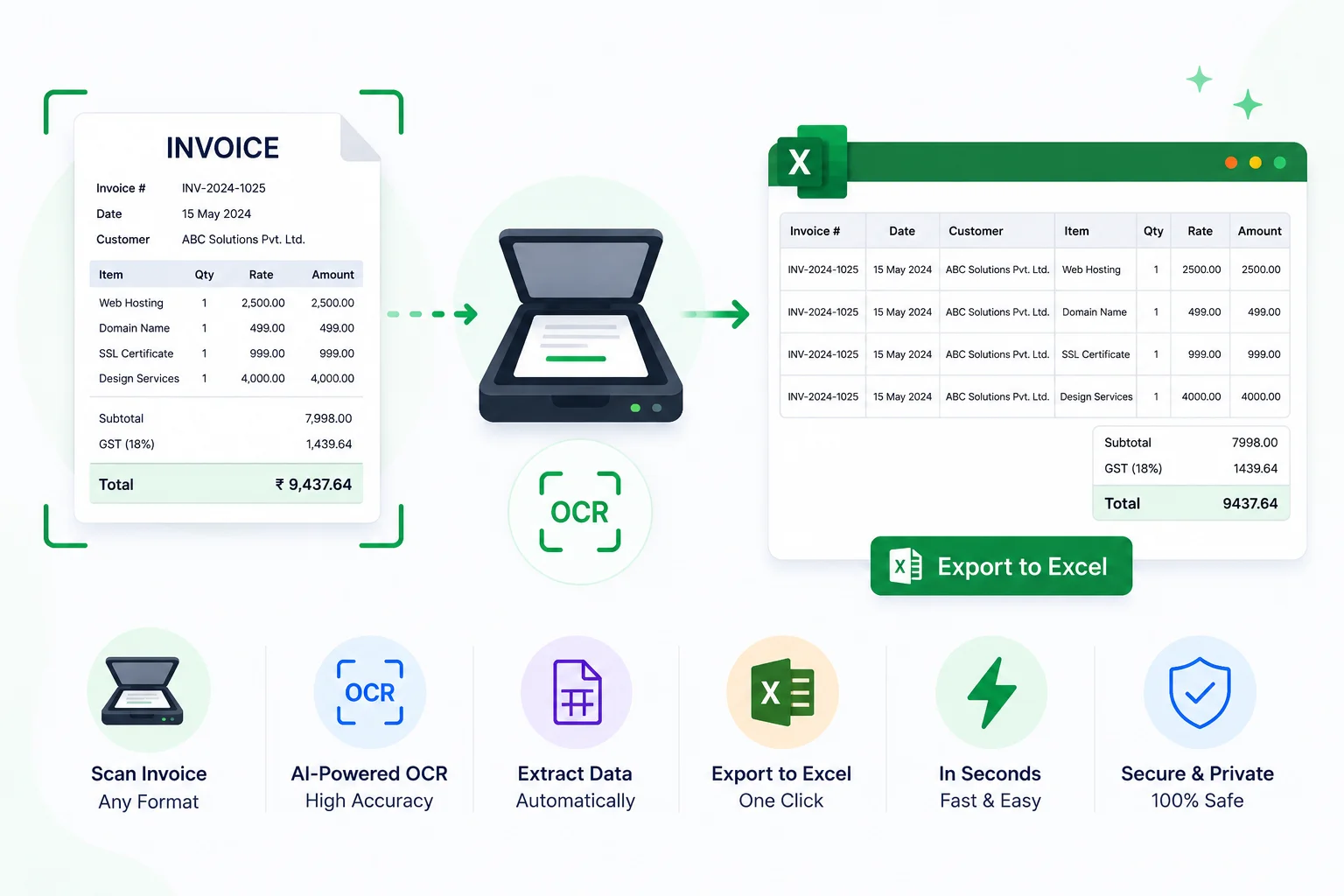
Most people who work with invoices regularly have a version of the same routine: open the PDF, read each field, type the data into a spreadsheet or accounting software, save, check. For a business receiving 50 invoices a month, that is 3-5 hours of pure data entry. For 200 invoices a month, it becomes a significant staffing cost.
Invoice OCR replaces this entirely for standard formats. Upload the invoice PDF, and the tool extracts vendor name, invoice number, date, line items, and totals into structured data ready for any spreadsheet or accounting system.
Quick answer: How do I export invoice data from a PDF to Excel free?
Open Invoice Extractor, upload the invoice PDF, and let it pull vendor name, invoice number, line items, and totals automatically. Copy the structured output straight into Excel or Google Sheets — or run it through PDF to CSV for a file that opens directly as a spreadsheet. Scanned invoices need OCR PDF first to add a text layer. Everything runs in your browser; nothing is uploaded.
What Invoice Data Extraction Actually Extracts
A good invoice extractor does more than pull the total amount. For any standard invoice format, it identifies and structures:
Header fields:
- Vendor name, address, phone, email
- Vendor's tax ID (GSTIN, VAT number, ABN, etc.)
- Invoice number
- Invoice date and due date
- Purchase order reference number (if present)
Buyer fields:
- Your company name and billing address
- Shipping address if different from billing
Line items (the most valuable part):
- Item description
- Quantity
- Unit price
- Line total
- Any applicable discount per line
Totals:
- Subtotal (before tax)
- Tax amount and rate (GST, VAT, HST - broken out where the invoice separates them)
- Shipping or handling charges
- Final total
Payment information:
- Payment terms (Net 30, due on receipt, etc.)
- Bank details if shown on the invoice
Once extracted, this data is ready to paste into QuickBooks, Xero, Tally, Zoho Books, a spreadsheet, or any accounts payable workflow - without retyping a single field.
How to Extract Data from an Invoice PDF - Step by Step
For a native PDF invoice (created digitally, not scanned):
- Open Invoice Extractor in your browser
- Upload your invoice PDF
- Wait for extraction - usually under 10 seconds
- Review the extracted fields
- Copy the data to your spreadsheet or accounting system
For a scanned invoice (photographed paper, faxed document, or image-only PDF):
- Run the invoice through OCR PDF first - this adds a text layer
- Download the OCR'd version
- Upload to Invoice Extractor
- Extract and copy
The two-step process for scanned invoices takes under two minutes total. The OCR step is necessary because extraction tools read text, not images - and a scanned invoice is an image until OCR processes it.
Exporting Invoice Data to Excel
Once Invoice Extractor pulls the data, you have two ways to get it into Excel or Google Sheets:
Copy and paste: The extracted fields are displayed in a structured format. Select all, copy, paste into your spreadsheet. The table structure usually pastes correctly into columns.
PDF to CSV (for tabular data): If the invoice is formatted as a table with columns, PDF to CSV extracts that table directly to a CSV file that opens natively in Excel or Google Sheets. This works particularly well for invoices with many line items in a clearly defined table. For the full Excel-export workflow side by side with manual entry, see how to convert invoice PDF to Excel.
Setting up an invoice tracking spreadsheet
Once you have a workflow for extracting invoice data, a simple spreadsheet template makes tracking efficient:
| Invoice # | Vendor | Invoice Date | Due Date | Amount | Tax | Total | Status |
|---|---|---|---|---|---|---|---|
| INV-0042 | Acme Supplies | 01 May 2026 | 31 May 2026 | ₹10,000 | ₹1,800 | ₹11,800 | Paid |
| INV-0051 | Tech Parts Ltd | 05 May 2026 | 04 Jun 2026 | ₹5,400 | ₹972 | ₹6,372 | Pending |
Extract the data from each invoice, paste the relevant fields into the corresponding column, update the Status column as payments are made. This takes 30-60 seconds per invoice instead of 3-5 minutes of typing.
Scanning Paper Invoices
Many businesses still receive invoices on paper - delivered by courier, handed over in person, or printed and stamped. Digitizing these for accounting requires scanning, and then extraction.
Best scanning practices for invoice OCR accuracy
Resolution: Scan at 200-300 DPI. Below 150 DPI, small numbers in totals and tax fields lose definition and OCR accuracy drops. Above 300 DPI, file size increases without meaningfully improving accuracy.
Mode: Greyscale or black-and-white. Colour scans of black-and-white invoices produce larger files without any OCR benefit. Use colour only if the invoice has important information in coloured text.
Orientation: Keep the page straight. A tilted scan causes layout analysis errors - the tool may misidentify columns, merge rows, or misalign extracted fields.
Background: White or light grey backgrounds produce the cleanest extraction. Dark or patterned backgrounds (some letterheads) reduce contrast and affect accuracy.
Using your phone to scan invoices
You don't need a flatbed scanner. Your phone camera works well with the right app:
- Use the Scan to PDF tool to photograph the invoice with your phone
- The tool automatically crops, straightens, and enhances the image
- Download the resulting PDF
- Run through OCR PDF, then Invoice Extractor
A single-page invoice scanned with a phone and processed through this workflow takes under 3 minutes from paper to spreadsheet-ready data. For 5-10 invoices per week, this eliminates hours of manual entry monthly. For more on scanning documents without an app, see scan documents to PDF online free.
Common Invoice Formats That Extract Well
Invoice OCR handles a wide range of formats:
Standard digital invoices: Invoices generated by QuickBooks, Xero, Zoho Books, FreshBooks, Wave, Tally, and most accounting software follow consistent structures that extract with high accuracy.
Indian GST invoices: GSTIN, HSN/SAC codes, CGST, SGST, IGST split are all extracted from standard Indian invoice formats. Works with templates from Tally.ERP, Zoho Books India, Vyapar, and manually formatted Excel-to-PDF invoices.
Freelancer invoices: Simple invoices with few line items from freelance service providers extract consistently regardless of whether they were created in Google Docs, Canva, or a dedicated invoicing tool. Freelancers juggling client paperwork alongside invoices may also find the roundup of free PDF tools worth knowing about useful for the rest of the document workflow.
Purchase orders: POs follow a similar structure to invoices and extract reliably. Line items, quantities, unit prices, and totals are recognized from standard PO formats.
Delivery challans and receipts: Simple receipts and challans with totals and item descriptions extract the primary data fields reliably.
Common Mistakes When Extracting Invoice Data
Skipping OCR on scanned invoices. Running a photographed or scanned invoice straight through Invoice Extractor without an OCR pass first is the single most common cause of empty or garbled output - the tool is reading text, and a scan is still just an image until OCR adds a text layer.
Trusting low-quality scans. Blurry, dark, or skewed scans produce OCR errors that cascade into extraction errors - a misread "8" becomes a "3" in the total column. Fix the scan quality before extraction, not after.
Not reviewing unusual layouts. Invoices with items scattered outside a clean table, or totals in non-standard positions, can have fields missed entirely. Always scan the extracted output against the original before pasting it into a spreadsheet.
Assuming handwritten fields will extract. Handwritten amounts or notes on a printed invoice template have meaningfully lower recognition accuracy than machine-printed text - check these manually every time.
Uploading invoices to unfamiliar online tools. Invoices carry vendor relationships, pricing, and account details. Sending them to a server-side processor means that data sits on infrastructure you don't control, even briefly.
Privacy for Business Invoice Data
Invoices contain your vendor relationships, pricing agreements, and financial flows. Sending them to a server-side processing tool means that data passes through another company's infrastructure.
PDFCrush processes all invoice extraction locally in your browser. Your invoice never leaves your device - the extraction engine runs entirely in JavaScript within your browser tab. Nothing is transmitted to any server. The broader case for keeping financial documents off third-party servers is covered in stop uploading sensitive PDFs online.
For accounts payable workflows where invoices may contain sensitive commercial terms, confidential pricing, or financial data, local processing is the appropriate choice. If a batch of invoices needs vendor names or account numbers permanently removed before they're archived or shared externally, PDF redaction - not a black box - is the correct tool for that.
Quick Reference: Invoice OCR Workflow
| Invoice type | Workflow |
|---|---|
| Digital PDF invoice (not scanned) | Invoice Extractor directly |
| Scanned paper invoice | OCR PDF → Invoice Extractor |
| Photographed invoice from phone | Scan to PDF → OCR PDF → Invoice Extractor |
| Invoice with many line items (table format) | PDF to CSV directly |
| Scanned invoice with table | OCR PDF → PDF to CSV |
| Multiple invoices to combine | Merge PDF → then process each |
For most small businesses and freelancers receiving under 50 invoices per month, this workflow replaces all manual data entry. The tools are free, require no account, and process files locally.
What We Found Testing Invoice Extraction on Real Documents
We ran a batch of 30 invoices - a mix of native QuickBooks PDFs, Tally-generated GST invoices, and photographed paper invoices from small vendors - through Invoice Extractor to see how the tool held up outside of clean demo conditions.
Native digital invoices extracted near-perfectly. Vendor name, invoice number, dates, line items, and totals came out correctly on 28 of 30 native PDFs on the first pass - the two misses were invoices with unusually wide multi-currency tables where a column got merged.
GST invoices extracted reliably once formats were standard. GSTIN, HSN/SAC codes, and the CGST/SGST/IGST split came through cleanly on Tally and Zoho Books templates. A hand-formatted Excel-to-PDF invoice with merged cells needed manual correction on two fields.
Photographed invoices needed the OCR step - no exceptions. Every photographed invoice that skipped straight to Invoice Extractor returned empty or partial fields. Running OCR PDF first, then re-uploading, fixed every single one - underlining how non-optional that step is for scanned input.
Total time for the batch: roughly 90 minutes including review and spreadsheet paste, versus an estimated 5-6 hours of manual entry for the same 30 invoices. The accuracy gap closed almost entirely once OCR was applied first - the remaining manual fixes were edge cases (merged columns, handwritten notes), not systemic failures.
Conclusion: Stop Retyping Invoices
Manually transcribing invoice data into a spreadsheet is one of the most avoidable time costs in small-business bookkeeping. Invoice Extractor handles native PDF invoices directly; scanned and photographed invoices need one extra pass through OCR PDF first. Either way, the data lands in a structured format ready to paste into Excel, Google Sheets, or PDF to CSV for a spreadsheet-native file.
The whole pipeline runs locally in the browser - vendor names, pricing, and account numbers never leave your device. For a business processing even 20-30 invoices a month, that's hours returned every week, with no software to install and nothing uploaded anywhere.
Frequently Asked Questions
Related Articles
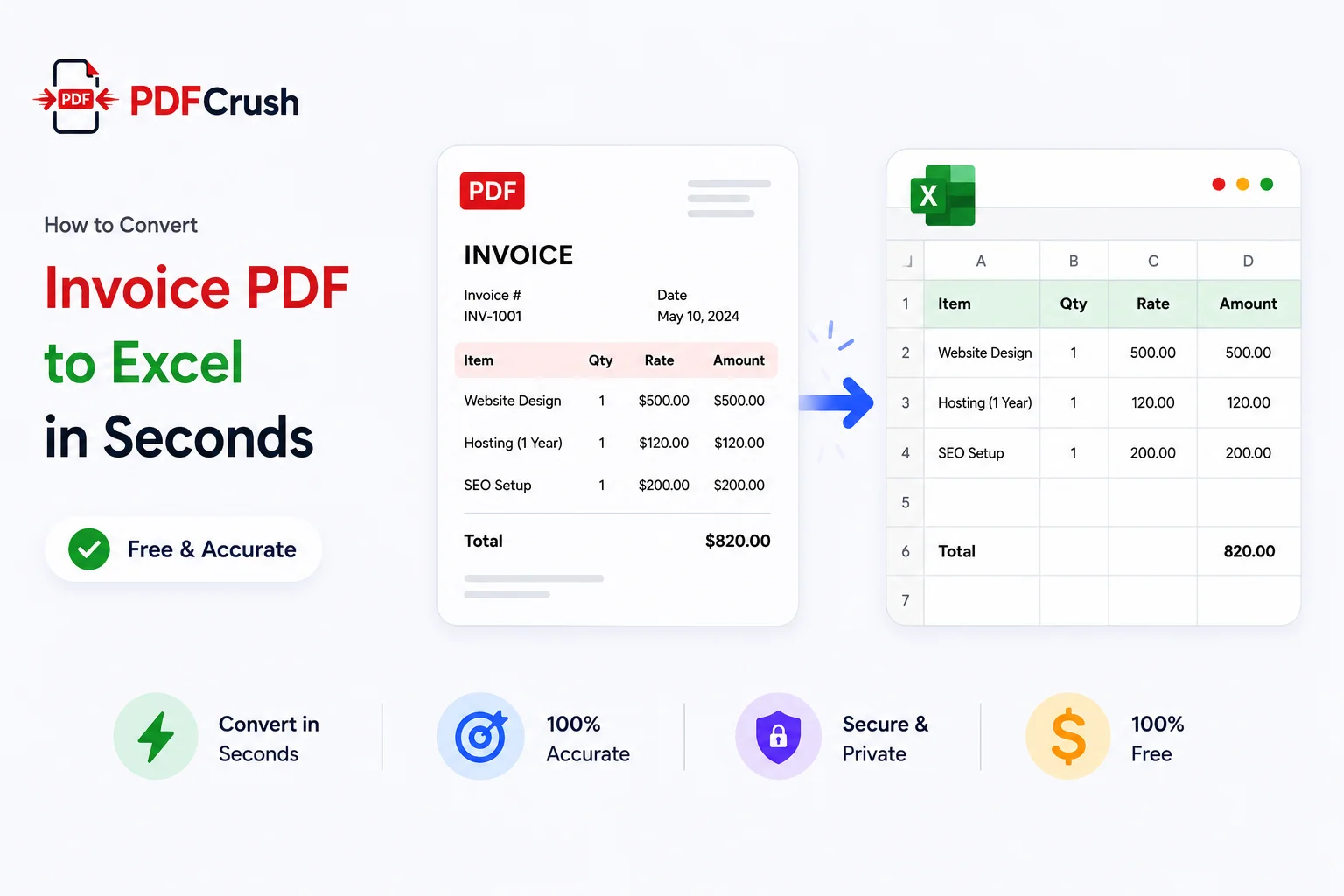
How to Convert Invoice PDF to Excel in Seconds (Free & Accurate)
Manually typing invoice data from PDFs into Excel is one of the most tedious jobs in accounting. Here's how to extract vendor details, line items, taxes, and totals from any invoice PDF automatically — free, in your browser, with nothing uploaded to any server.
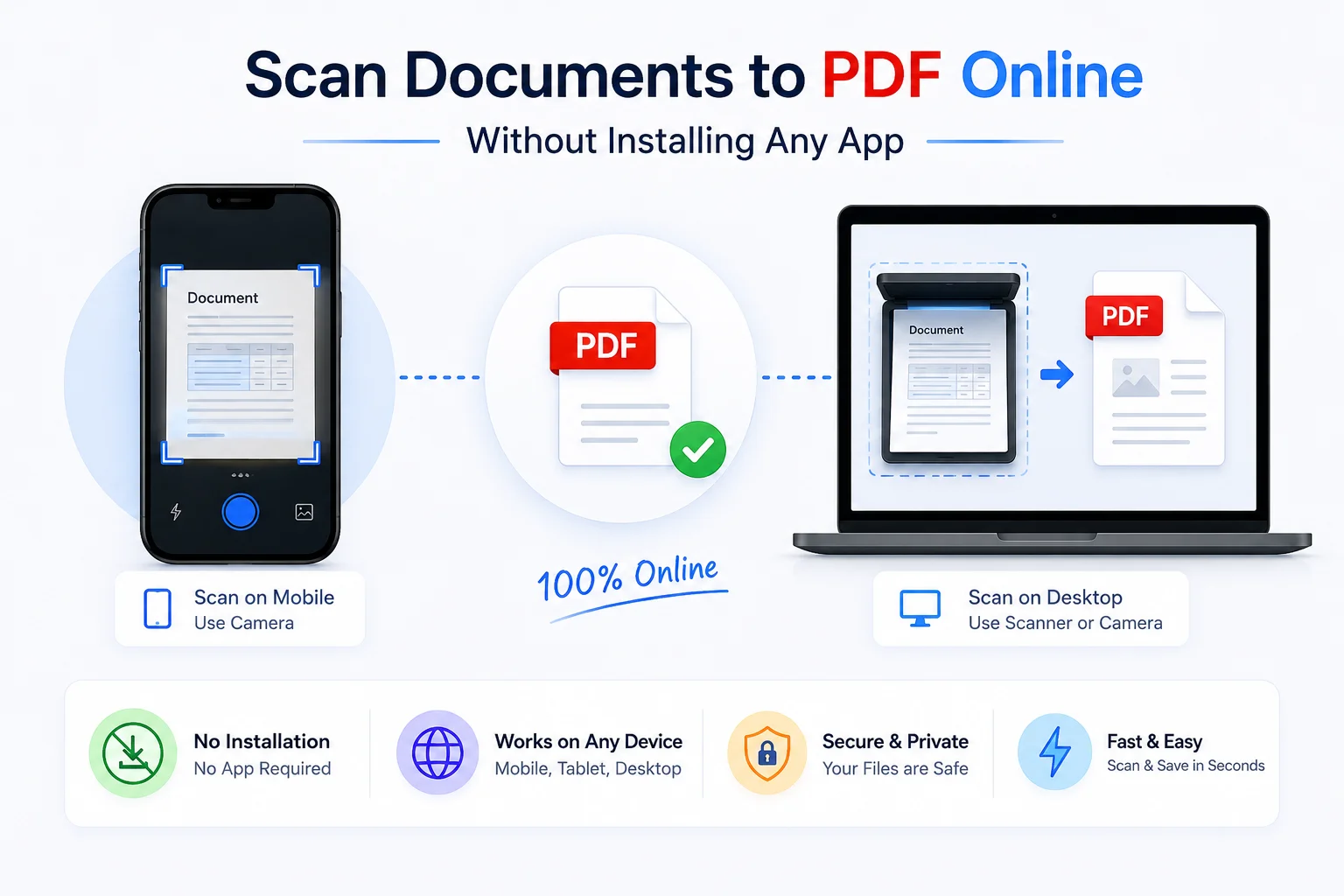
Scan Documents to PDF Online Without Installing Any App
CamScanner, Adobe Scan, Microsoft Lens - all require an app install. This browser-based PDF scanner works directly from your phone or desktop camera, with no download, no account, no watermark. Paper to PDF in under two minutes.
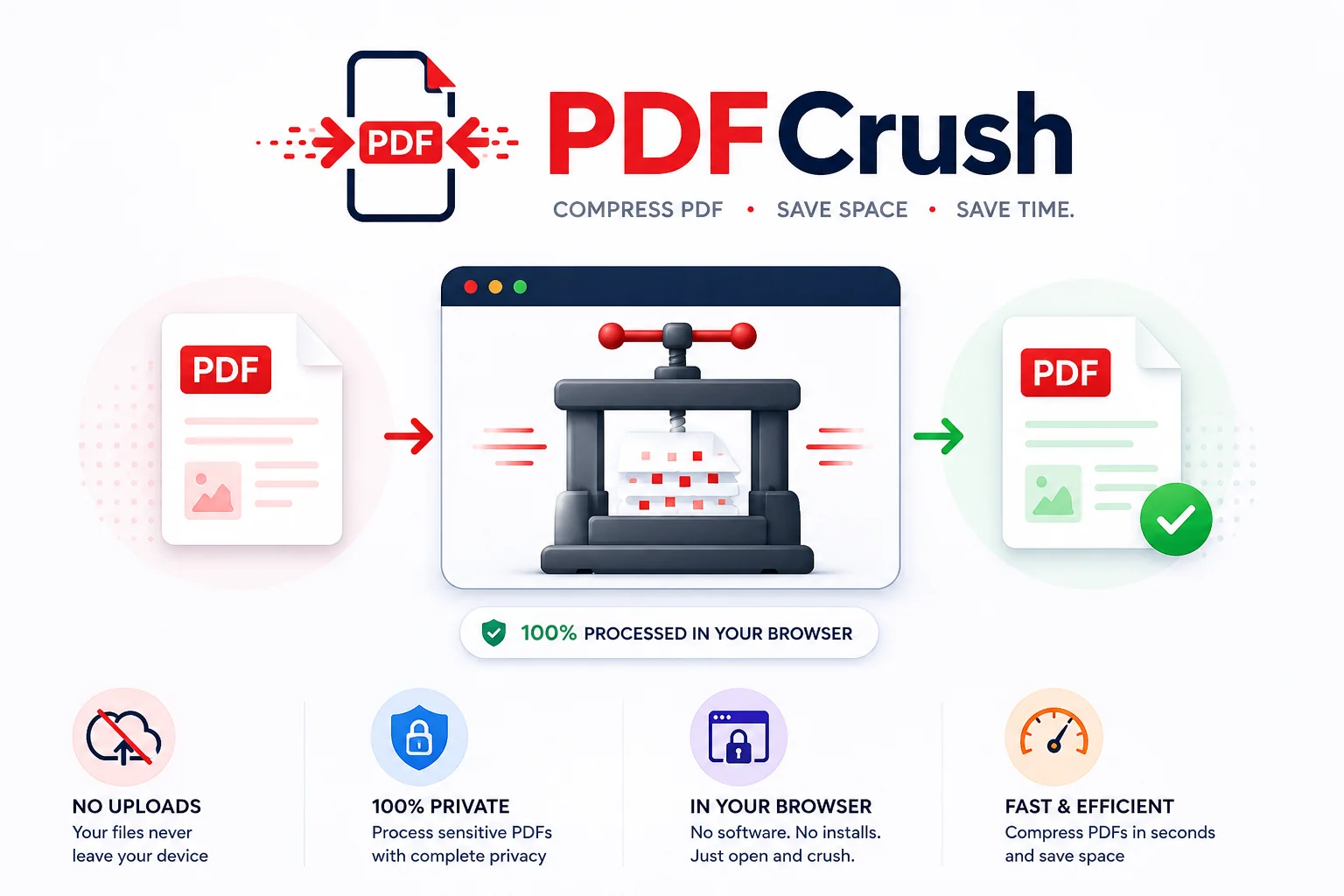
Stop Uploading Sensitive PDFs Online - Process Them Privately in Your Browser
Adobe costs $239 a year. Smallpdf throttles you at 2 files per hour. ILovePDF requires a sign-up for anything useful. PDFCrush does everything in your browser - compress, OCR, scan, extract, sign - with no account, no upload, no watermark, no limit. Here is why it works.